Signing in
This guide shows what applies to your venue.Show everything
On the venue’s phones you sign in with your name and password, or with your Staff QR, the card with your code that your Tenant admin prints for you. You stay signed in until you sign out or the phone was not used for a while.
On a phone
Section titled “On a phone”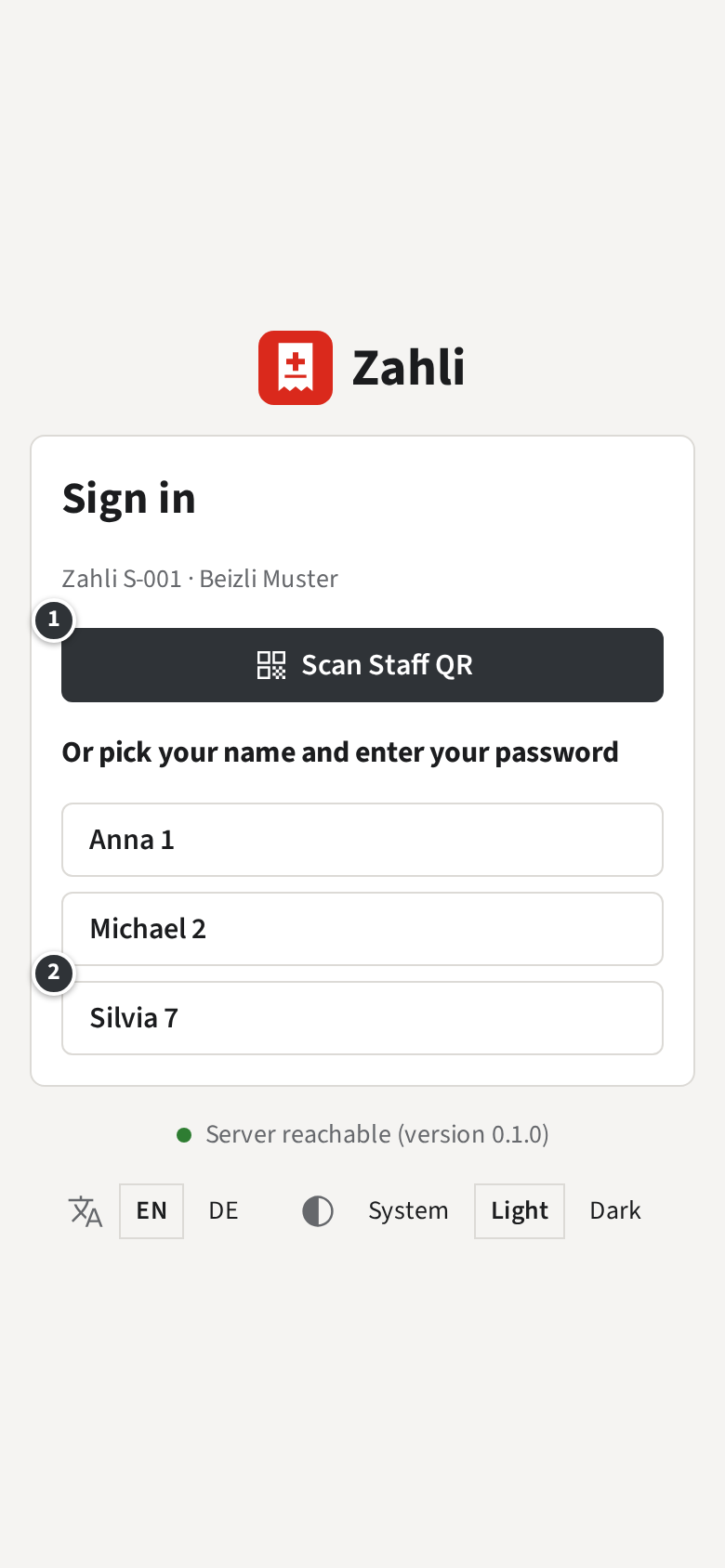
- Open the Zahli app. The sign-in screen shows the phone’s name and the venue, here Zahli S-001 · Beizli Muster.
- Tap ① Scan Staff QR and hold your Staff QR in front of the camera. You are signed in at once.
- Or tap your name ②, for example Silvia 7, enter your password and tap Sign in.
The app opens the Rooms. If your Staff QR is lost, ask your Tenant admin for a new one: the old card stops working.
A new phone
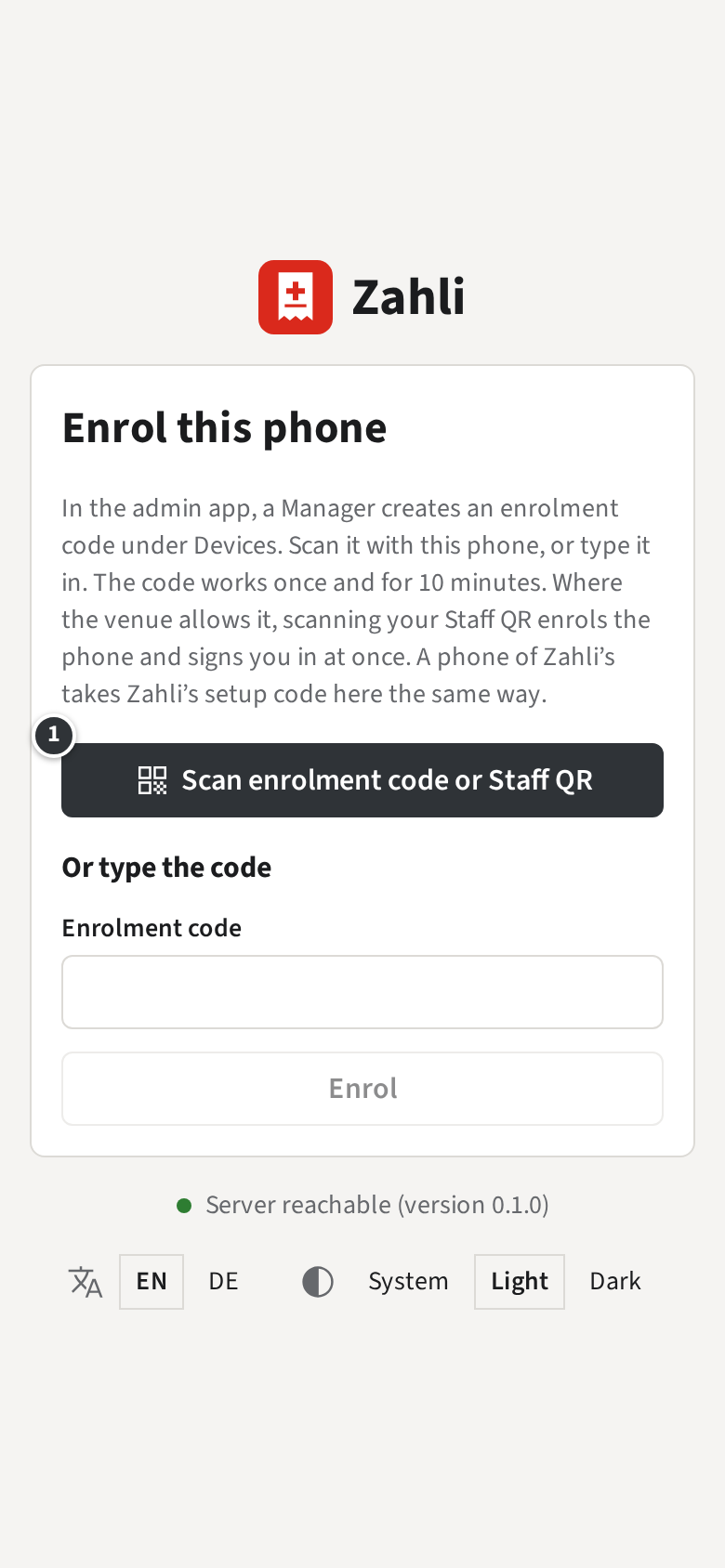
Section titled “A new phone”A phone that shows Enrol this phone is not set up for your venue yet. A Manager creates an enrolment code in the admin app; scan it with ① or type it in.
Only if Staff QRs may enrol phones
Your venue lets Staff QRs enrol phones: tap ① Scan enrolment code or Staff QR and scan your Staff QR. The phone is set up for your venue and you are signed in, in one step.
Only if Staff QRs may not enrol phones
A Staff QR does not set up a phone in your venue; only a Manager’s enrolment code does.
In a browser
Section titled “In a browser”Only if Waiters may sign in in a browser
Your venue lets Waiters serve from a browser too, for example on the counter’s laptop. Open
app.zahli.ch/staff, enter your Email and Password and click
Sign in.
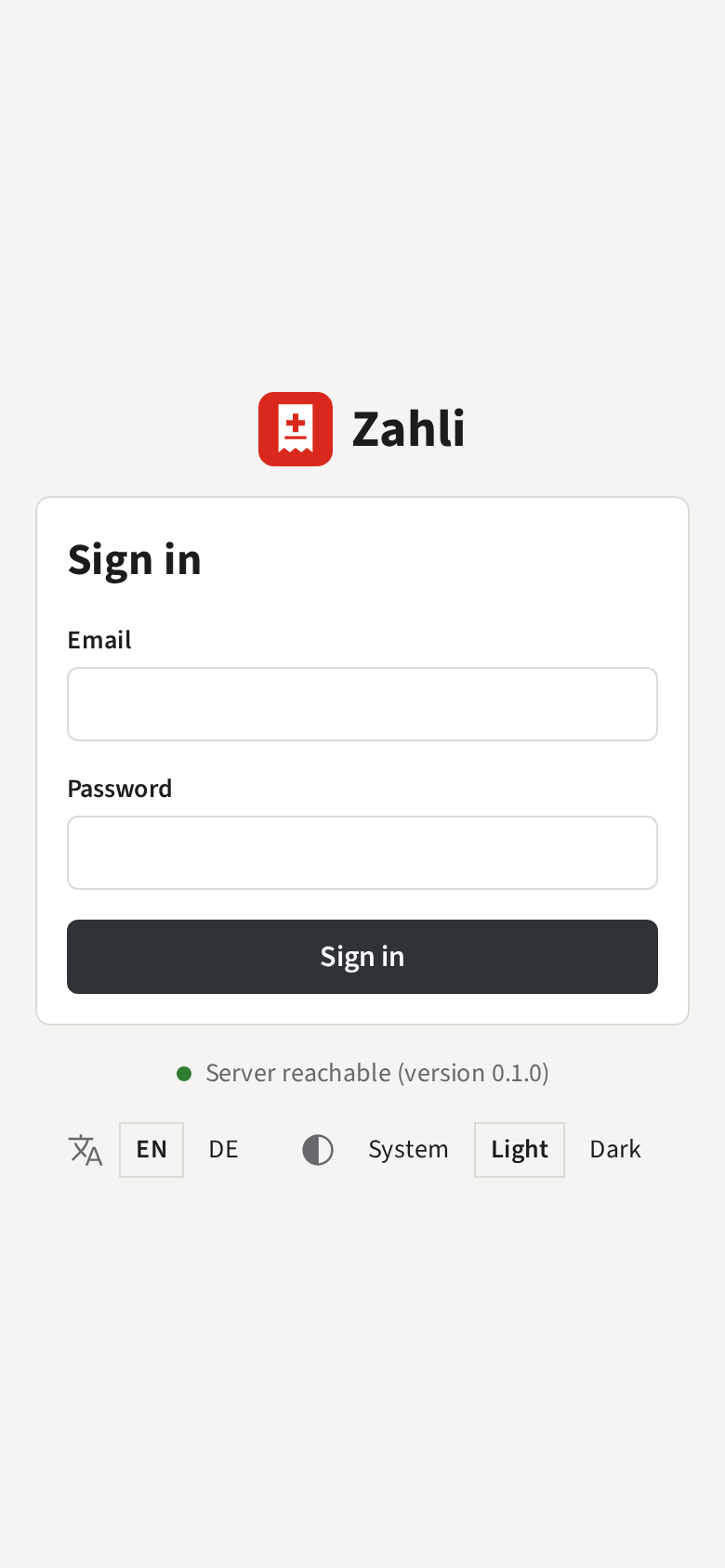
In a browser there is no Card and no working offline; everything else works as on the phone.
Only if Waiters may not sign in in a browser
In your venue Waiters serve on the venue’s phones only; signing in in a browser says Waiters sign in on a staff Device only.
Signing out
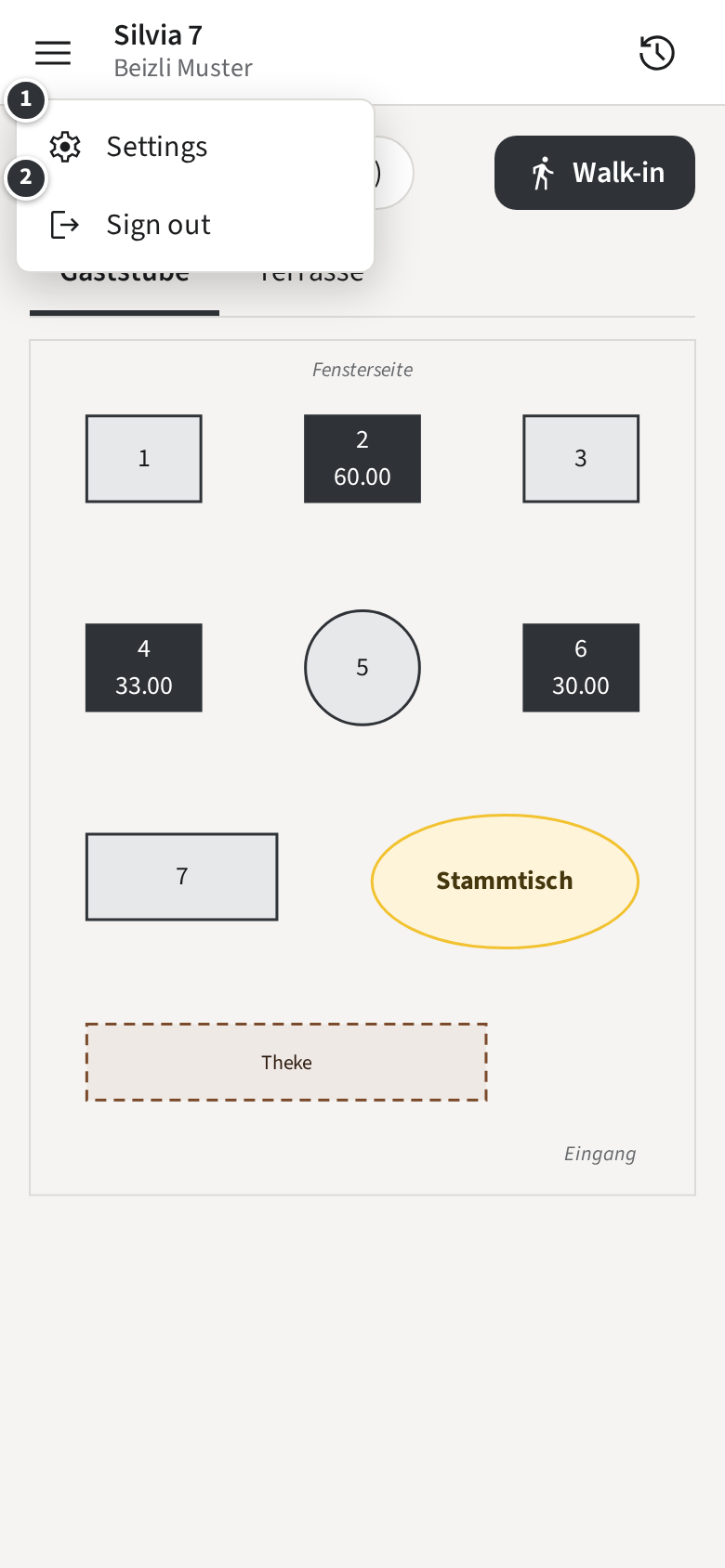
Section titled “Signing out”On the Rooms, tap the menu at the top left and then ② Sign out. Sign out when you hand the phone to a colleague, so that nothing is booked in your name.