
Paying
This guide shows what applies to your venue.Show everything
Example: Table 2 pays its CHF 60.00.
On the Tab, tap Pay. The Pay sheet shows what is due.
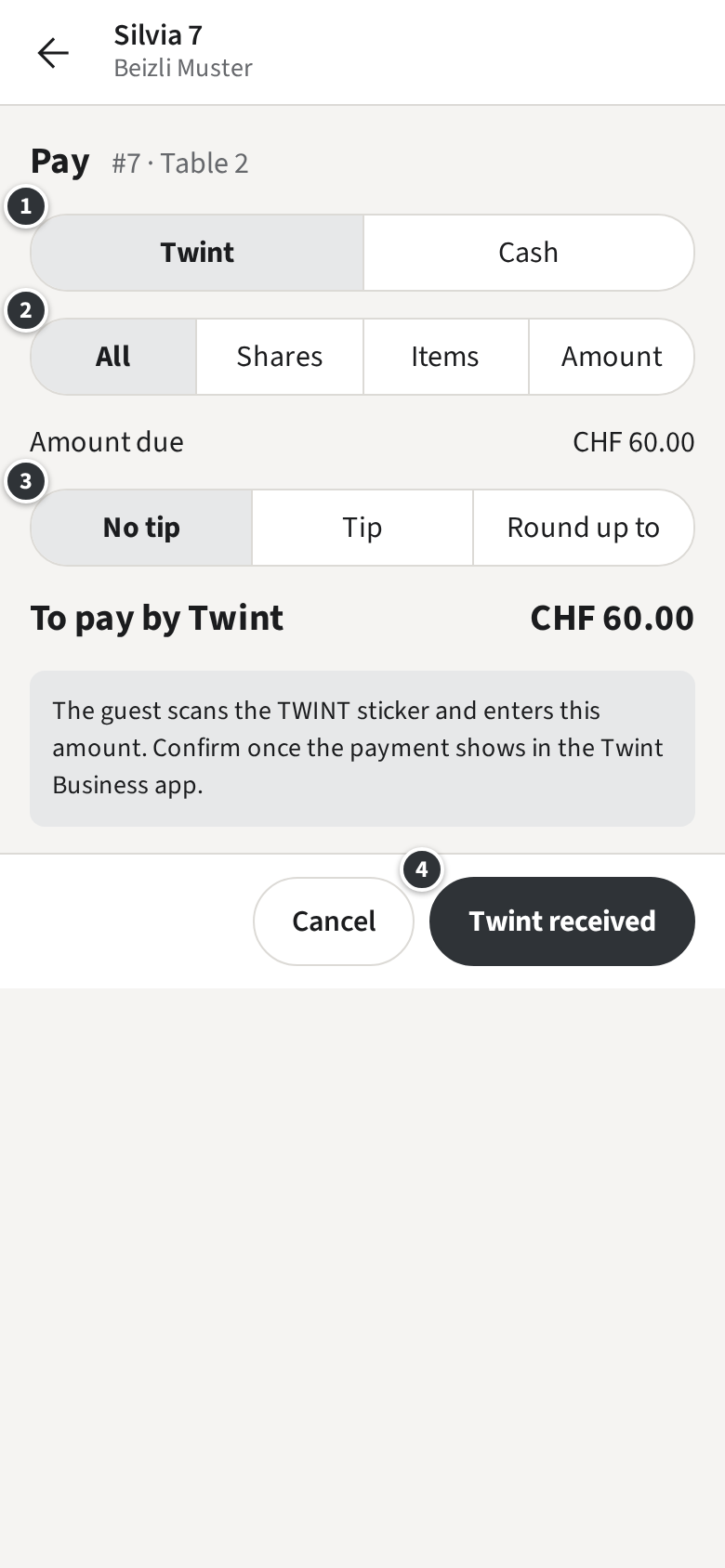
- Pick how the guest pays ①. The first method offered is chosen already.
- ② is for paying only part of the Tab; see Splits. For the whole Tab, leave All.
- Enter the Tip ③, if any (below).
- Take the money as the method says, then tap ④.
The Tip
Section titled “The Tip”- No tip: the guest pays what is due.
- Tip: enter the Tip, such as 5.
- Round up to: enter the total the guest gives, such as 65 for CHF 60.00; the difference is the Tip.
The buttons below the field offer common amounts. The Tip is booked to you and is not part of the venue’s revenue.
Only with Cash
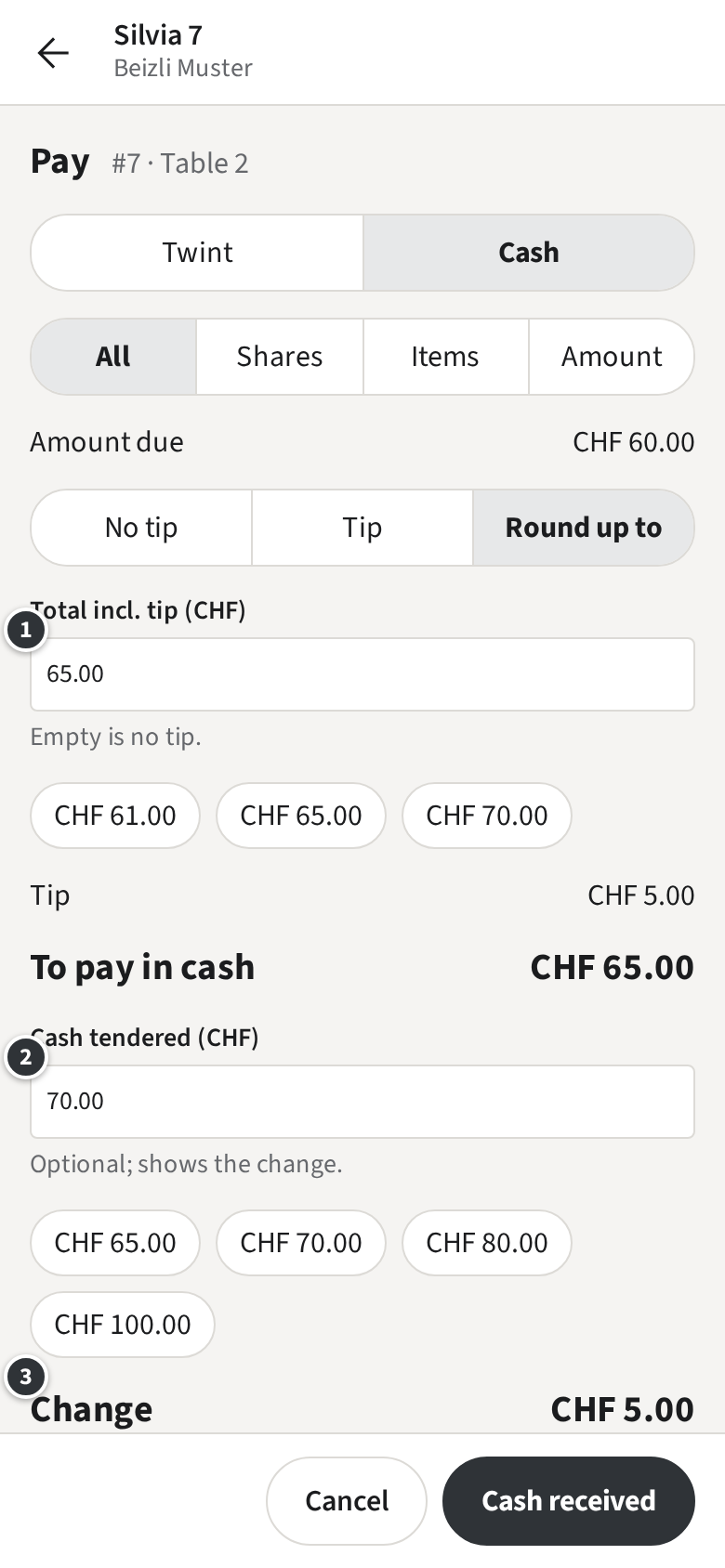
Tap Cash. The guest rounds up to 65 ①, so the Tip is CHF 5.00. Under ② enter what the guest hands you, here 70, and the change ③ shows: CHF 5.00. Tap Cash received.
Cash is rounded to 5 Rappen; the staff app does it for you and shows the rounding.
Only with Twint
Tap Twint.
- With the venue’s TWINT sticker: the guest scans the sticker and types the amount shown. Once the payment appears in the Twint Business app, tap Twint received.
- If your venue has its Twint code in Zahli, tap Show Twint code: the code fills the screen with the amount above it, brightly lit. Hold the phone out to the guest; once the payment shows in the Twint Business app, tap Twint received, or Cancel to go back.
Only confirm what you saw arrive: Zahli cannot check a Twint payment by itself.
Only with Card
Card works on the venue’s phones, while they are online; a browser never offers it.
- Tap Card, then Charge card.
- When the phone says Hold the card or phone to the back of this phone., hand it to the guest. They hold their card or phone against the back of yours.
- The staff app checks with the payment provider and shows the Payment as paid.
If the card is declined, the staff app says so and nothing was charged: try again, or another method. Cancel payment stops a payment nobody tapped.
If a phone cannot take cards, it says No card payments on this phone once after you sign in, and Card is not offered on it: take Twint or Cash, or use another phone.
After paying
Section titled “After paying”The Pay sheet shows the Payment with its Receipt number. Only with a receipt Printer Print receipt prints the Receipt for the guest. When the Tab is paid in full it closes by itself; Done takes you back. If part is still due, Next payment takes the next Payment.