
Stations
A Station is where the Tickets of a Category go, such as Beizli Muster’s Küche and Bar. Every Category sends its Items to one Station; a Printer prints the Tickets of the Stations it serves, and a kitchen terminal shows those of the Stations chosen on it. The Stations are under Menu → Stations.
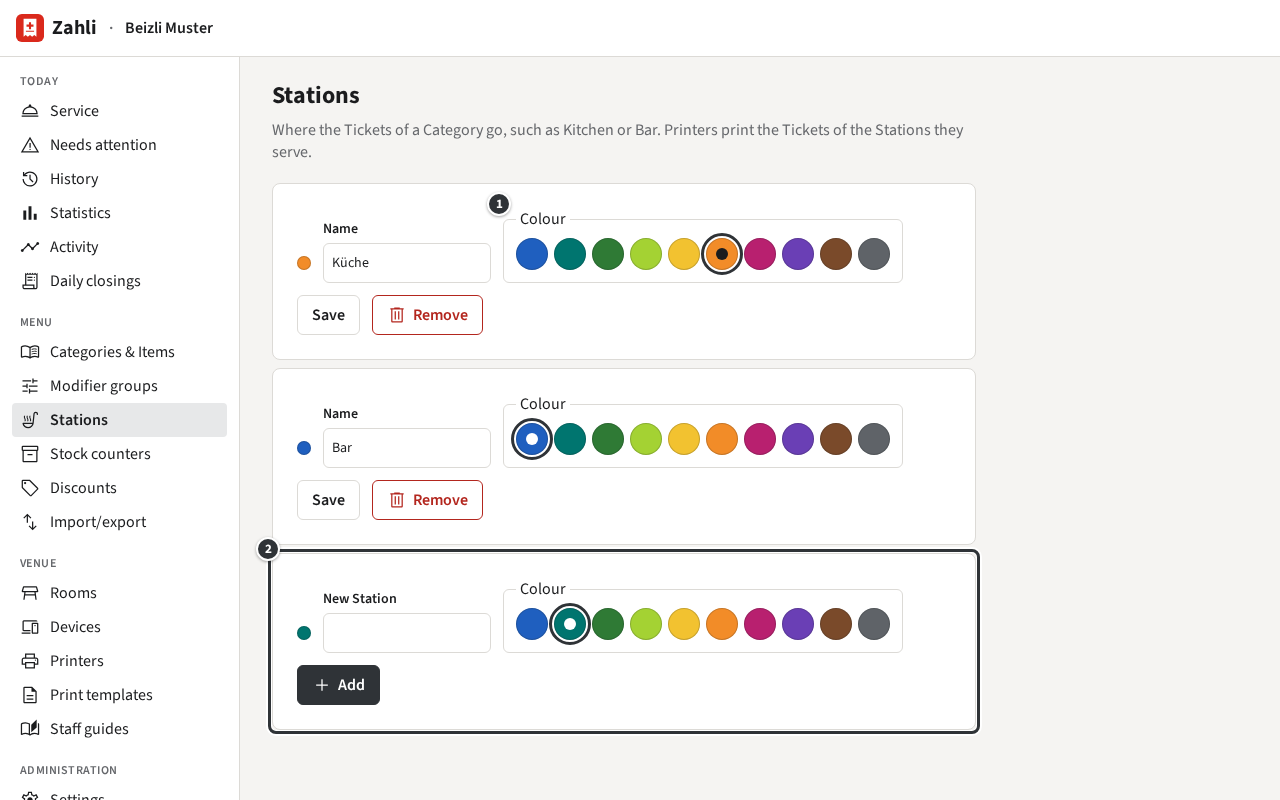
Add a Station
Section titled “Add a Station”- In the last row, ②, enter the name of the New Station.
- Pick its Colour; a new Station gets the first colour no other Station uses.
- Click Add.
Example: in summer, Beizli Muster grills on the Terrasse. Michael adds a Station Grill, keeps its teal, and then sends a new Category Vom Grill there.
Name and colour
Section titled “Name and colour”Change a Station’s name or pick another of the ten colours ① and click Save in its row. When a kitchen terminal shows several Stations, each Ticket carries a badge with its Station’s name in its colour: the orange Küche and the blue Bar (Your screen). Pick colours that tell the Stations apart at a glance.
Which Categories go there
Section titled “Which Categories go there”A Category’s Station is set on the Category: under Menu → Categories & Items, click Edit Category, choose its Station and click Save. The menu shows it after each Category’s name, such as → Bar for the Cold drinks (Categories and Items).
Example: to send the Category To take away to the Küche instead, Michael chooses Küche as its Station. Rounds sent from then on go to the Küche; Tickets already sent stay where they went.
Which Printer and screen
Section titled “Which Printer and screen”Which Printer prints a Station’s Tickets is set on the Printer (Printers). A kitchen terminal shows the Stations chosen on the tablet itself (Choosing Stations).
Remove a Station
Section titled “Remove a Station”Click Remove in its row. A Station that Categories still send to stays, with the message Categories still send their Tickets to this Station. Route them elsewhere first.