
Laying out Rooms
The Rooms are the plans Waiters tap in the staff app (Rooms and Tables). You draw them under Venue → Rooms: each Room with its Tables, where a Tab can be opened, and its decorations, shapes or text that help find the way, such as a bar counter or the entrance. Beizli Muster has two Rooms, the Gaststube and the Terrasse.
Add or change a Room
Section titled “Add or change a Room”- To add a Room, enter its name in Name of the new Room and click Add Room.
- Pick a Room by its tab above the plan. Under Room you change its Name, its Width and Height and its Grid size.
- Move earlier and Move later change the order of the Rooms in the staff app.
- Clear Shown in the staff app to hide a Room, for example the Terrasse in winter. The Room and its Tables disappear from the staff app and show Hidden here until you tick it again. A Room with an open Tab at one of its Tables cannot be hidden.
- Delete Room removes the Room with all its Tables and decorations, after you confirm; not while one of its Tables has an open Tab. The Tabs of removed Tables stay in the History.
Adding, moving and deleting a Room take effect at once. Everything else you change in a Room, including the Tables and decorations, takes effect only when you click Save.
Add Tables and decorations
Section titled “Add Tables and decorations”Add Table and Add round Table place a new Table in the Room, named with the next free number. Add decoration adds a shape, and Add text a text without a shape, such as Fensterseite in the Gaststube.
Then work on the plan:
- Move: drag a Table or decoration. With Snap to grid ticked it follows the grid; hold Alt to place it freely. The arrow keys move the selection too, Shift+arrow by one grid step. The grid shows only here, never in the staff app, and the snap setting is kept in this browser.
- Resize by its square corner, rotate by its round handle, in steps of 15° (with Shift in single degrees).
- Select several: Shift- or Ctrl-click (⌘ on a Mac), drag across the empty floor, Ctrl+A, or Select all Tables. A selection moves together.
- Delete: the Delete key, or Delete in the panel.
- Undo (Ctrl+Z) and Redo (Ctrl+Shift+Z) go back and forward over your changes, also after saving, until you open another Room.
Table names are unique across all Rooms: a second Table 5 is refused, also on the Terrasse.
Copy Tables
Section titled “Copy Tables”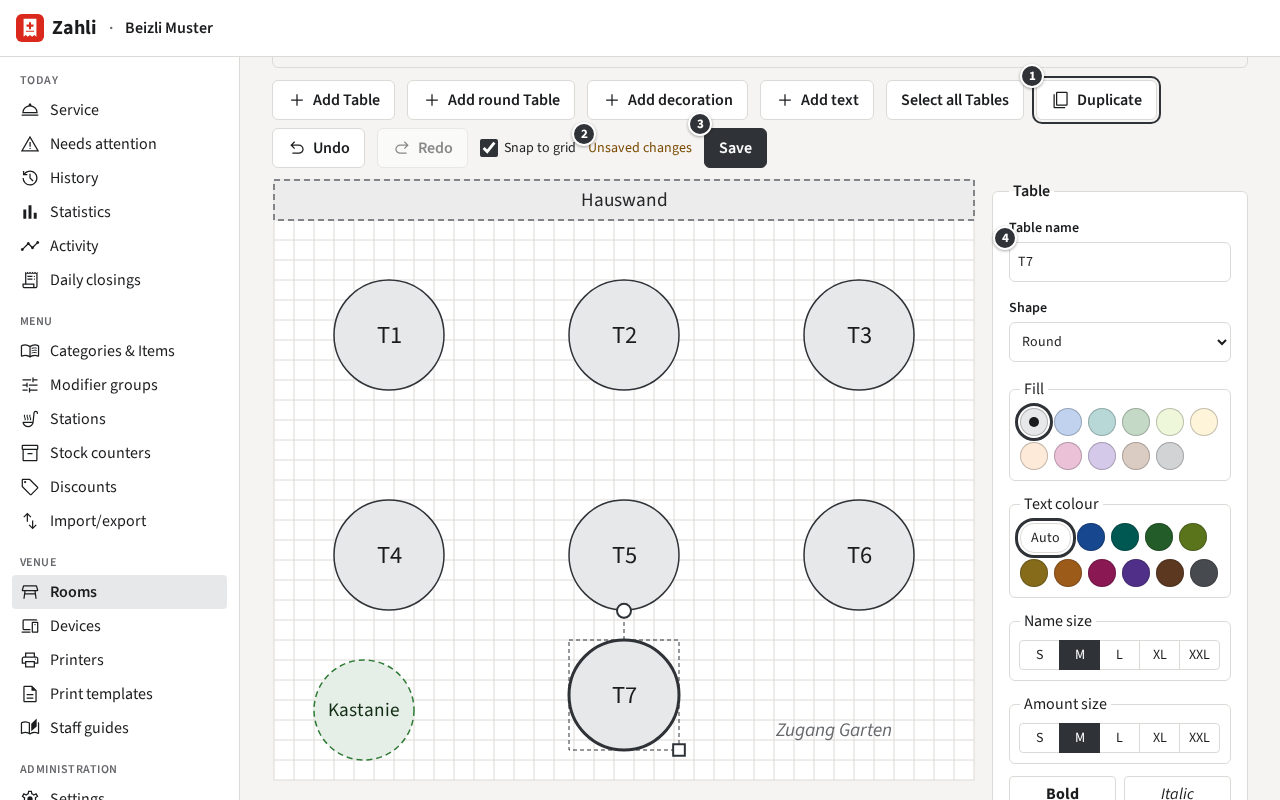
① Duplicate (Ctrl+D) copies the selection and places the copies right of it, or below it where the Room has no space. Dragging with Ctrl held drags out copies. Ctrl+C, Ctrl+X and Ctrl+V copy, cut and paste, also into another Room; pasted plain text becomes a text decoration.
A copy keeps the text of its Table’s name and counts the number on from the highest in use: T5 becomes T7 when the Terrasse already has T1 to T6, 3.1 becomes 3.2, and Bar becomes Bar 2. Several copies are numbered in Tab order: row by row, from top to bottom and left to right.
Until you save, ② shows Unsaved changes; ③ Save saves the Room. Leaving the page or opening another Room asks first whether to discard the changes.
Example: for a summer party, Michael adds a Table to the Terrasse. He clicks T5 and Duplicate; the copy T7 ④ appears right of T5, touching T6. He drags it below T5, where the Terrasse has room, and clicks Save. The phones show T7 on the Terrasse a moment later.
Name Tables quickly
Section titled “Name Tables quickly”In the field Table name (④ above), Tab goes on to the next Table in Tab order and selects its name for typing over, Shift+Tab goes back. To rename the Gaststube’s Tables 1 to 7 as G1 to G7, Michael clicks Table 1 and types G1, Tab, G2, Tab, and so on, then saves.
Format a Table or decoration
Section titled “Format a Table or decoration”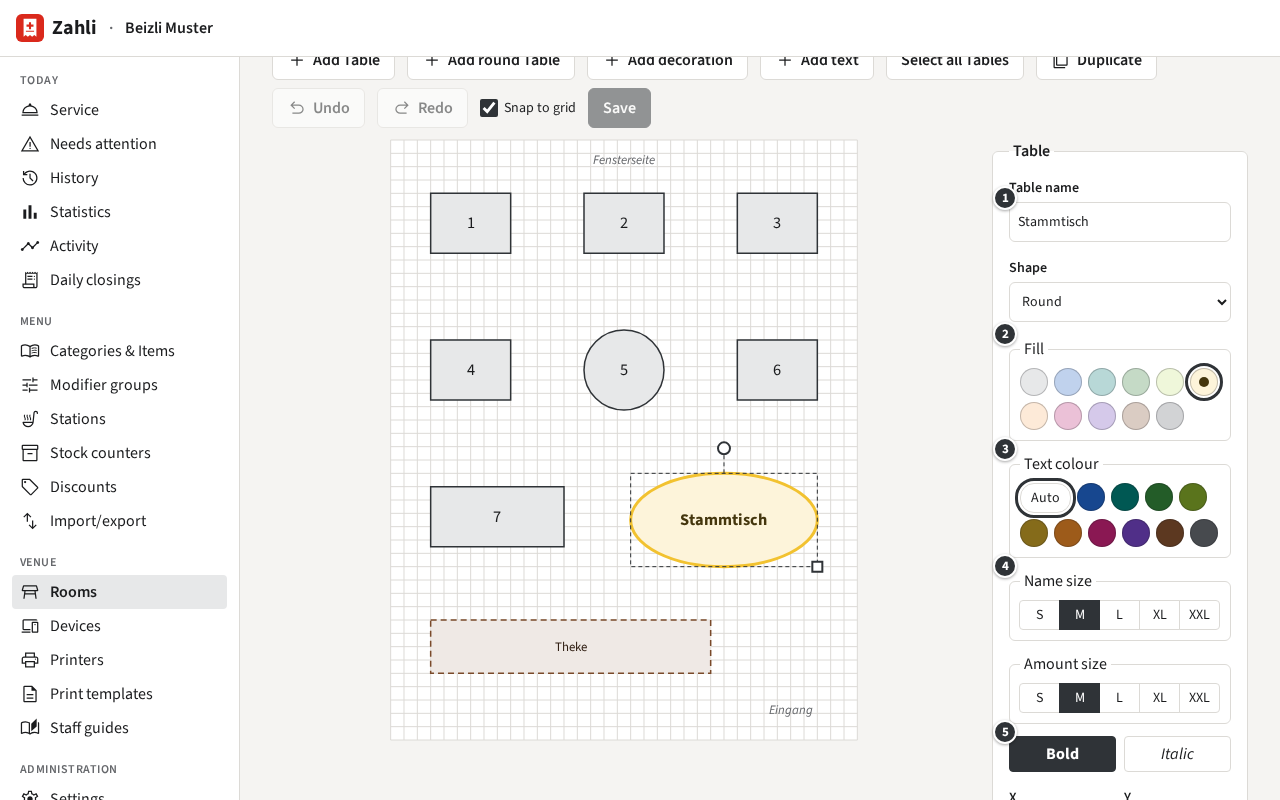
Select a Table and set, in the panel:
- ① its Table name and its Shape; a decoration has a Label instead, and the shape Text only for text alone,
- ② the Fill: Default or one of the Station colours. Each colour has a second shade that the phone shows while the Table has an open Tab, so a coloured Table still shows when it is occupied,
- ③ the Text colour, Auto by default,
- ④ the Name size and Amount size (the open Tab’s amount); for a decoration the Label size,
- ⑤ Bold and Italic.
With several items selected, the panel shows what they share and Mixed where they differ; a choice applies to all of them. Text sizes are relative to the phone’s text, so the plan here shows them as on a phone 400 dp wide; on a larger phone or tablet text takes less space.
Example: the Stammtisch, the regulars’ table, stands out in yellow and bold, round and larger than the other Tables.
Import and export Rooms
Section titled “Import and export Rooms”Import and export (JSON) at the top of the page moves Rooms as a file, for a backup or for a second venue:
- Download Rooms (JSON) saves every Room, hidden ones too, with its Tables and decorations.
- Under Upload, choose a Rooms file (JSON). Zahli first lists what it would create and change, and any Table name that is already taken; nothing happens until you click Import.
An import creates and updates, but never deletes: a Room, Table or decoration missing from the file stays as it is.