
Categories and Items
The menu is under Menu → Categories & Items: each Category is a tab of the staff app’s menu (Taking a Round), with its Items in the order the staff app shows them. After a Category’s name, the arrow names the Station its Tickets go to, such as → Kitchen.
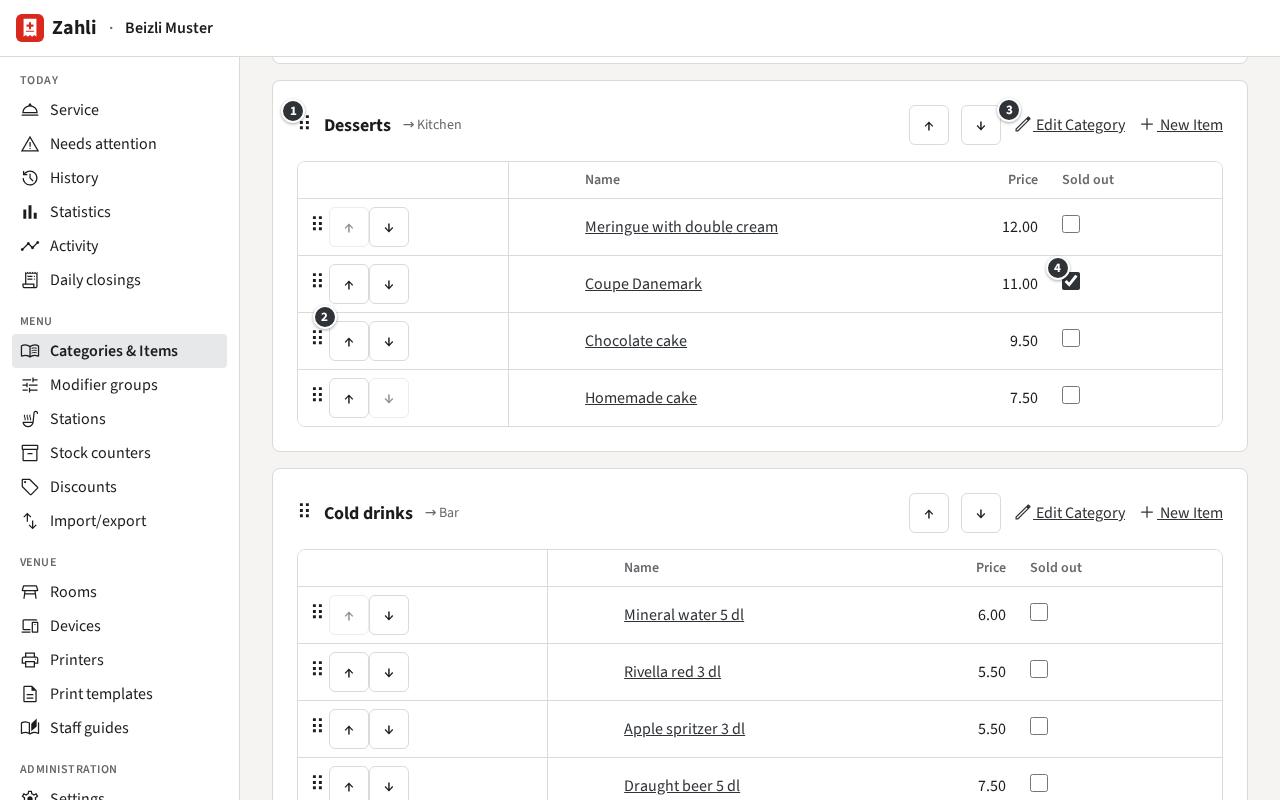
- ① moves the whole Category: drag it by the handle ⠿.
- ② moves an Item within its Category: drag it by its handle, or click ↑ or ↓.
- ③ Edit Category; next to it, New Item adds an Item to this Category.
- ④ the Sold out box.
Moving and ticking are saved at once, and phones and browsers in service get each change by themselves. Changes never touch Rounds already sent: they keep the name, price and VAT rate they were sent with.
The forms enter one name for each thing, the German one, which every name has. Beizli Muster’s English names, such as Chocolate cake for the Schoggikuchen, came with its menu file (Menu import and export).
Add a Category
Section titled “Add a Category”- Click New Category at the top.
- Enter the name and choose the Station its Items’ Tickets go to.
- Leave On the menu ticked and click Create.
Example: for the summer, Michael adds a Category Glace, made in the Küche. It appears at the end of the menu; he moves it up with ↑ until it follows the Desserts.
Untick On the menu to hide a Category and all its Items in the staff app, such as the Glace in winter; the menu marks it Off the menu. Tick it again to bring it back as it was. Remove Category works only for a Category without Items.
Add or change an Item
Section titled “Add or change an Item”Click New Item next to its Category, or an Item’s name to change it.
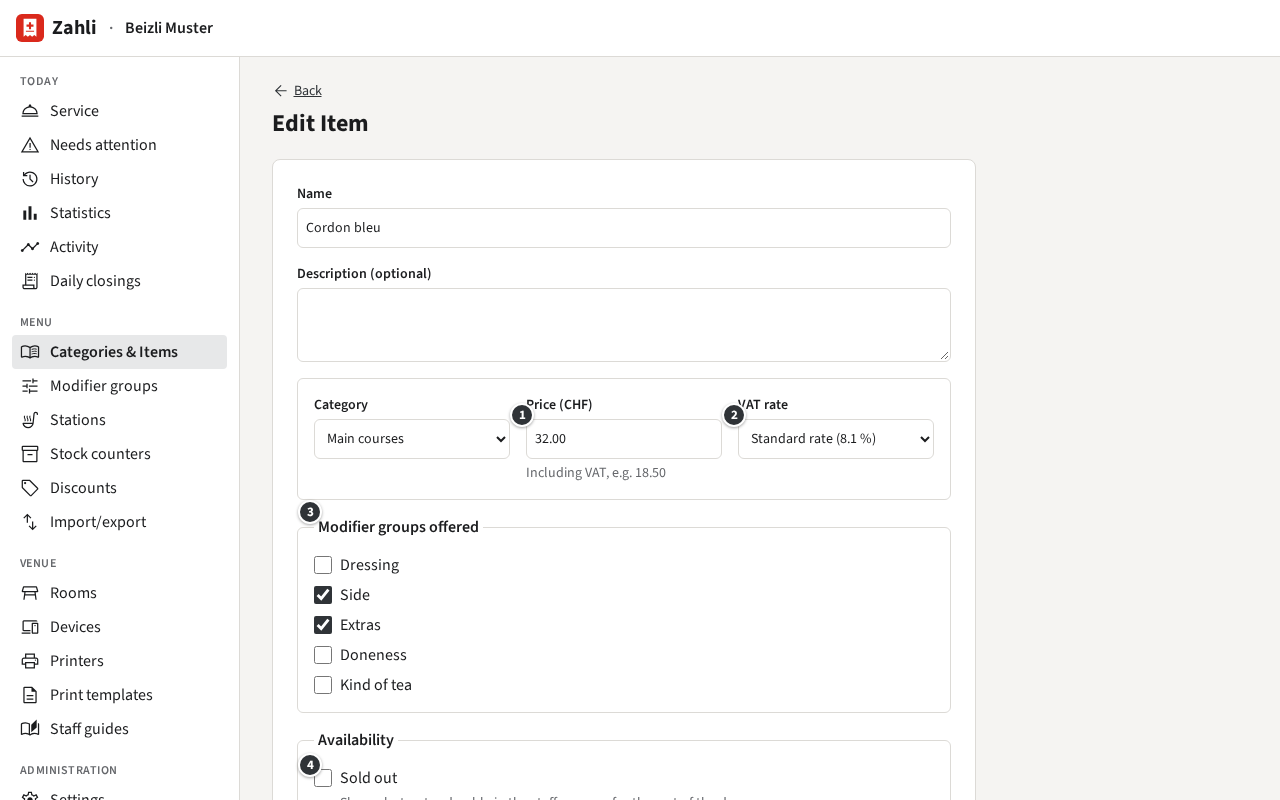
- ① Price (CHF): what the guest pays, VAT included, such as 32.00.
- ② VAT rate: one of the venue’s rates. A Tenant admin sets them up; you choose among them.
- ③ Modifier groups offered: the groups its dialog asks for, such as the side (Modifier groups).
- ④ Availability: Sold out and On the menu, as for a Category.
- Note required, below: for an Item that stands for several things. Beizli Muster’s Homemade cake asks which cake before it can be added.
Click Create or Save.
Example: the cordon bleu costs 32.00 at the standard rate and offers Side and Extras, so the Waiter picks fries, rösti, noodles or salad and may add cheese or an egg.
Whether an Item is counted, like the chocolate cake, is set on its counter (Stock counters).
Its picture
Section titled “Its picture”Once the Item exists, the form’s Image part takes a picture: Add image uploads a JPEG, PNG or WebP of up to 10 MB, cropped to a square for the staff app. Where Zahli’s photo search is set up, the same part also has Search for photos: type Cordon bleu, click Search and click a photo. It is stored like an upload, with its photographer’s name. Replace image and Remove image change it later.
Put the menu in order
Section titled “Put the menu in order”Drag Categories and Items by their handles, or use ↑ and ↓. Items stay in their Category; to move one to another Category, choose its Category in its form.
Example: the chocolate cake sells best, so Michael moves it to the top of the Desserts with ↑ twice.
Mark an Item sold out
Section titled “Mark an Item sold out”Tick its Sold out box ④ in the menu, or in its form. In the staff app it keeps its place, in red, and cannot be tapped (Sold out). It stays sold out, also the next day, until you untick it. The staff app itself has no switch for it, so Waiters tell you when something has run out.
Example: the Coupe Danemark ran out at lunch. Michael ticks it; in the evening, with fresh ice cream, he unticks it.
An Item whose Stock counter is at zero is sold out by itself, and the menu marks it Out of stock until the counter is refilled.
Off the menu or removed
Section titled “Off the menu or removed”To hide an Item for a while, untick On the menu. Remove Item, at the bottom of its form, removes it for good, without asking first; Rounds already sent keep it.