
Staff members and Roles
Everyone who signs in to Zahli is a Staff member of the venue, with one Role:
- Waiter: serves in the staff app (Waiter guide).
- Manager: serves too, and runs the venue in the admin app: the menu, Rooms, Devices, Printers, the Daily closing, and money matters on any Tab (Manager guide).
- Tenant admin: everything a Manager does, plus this Guide.
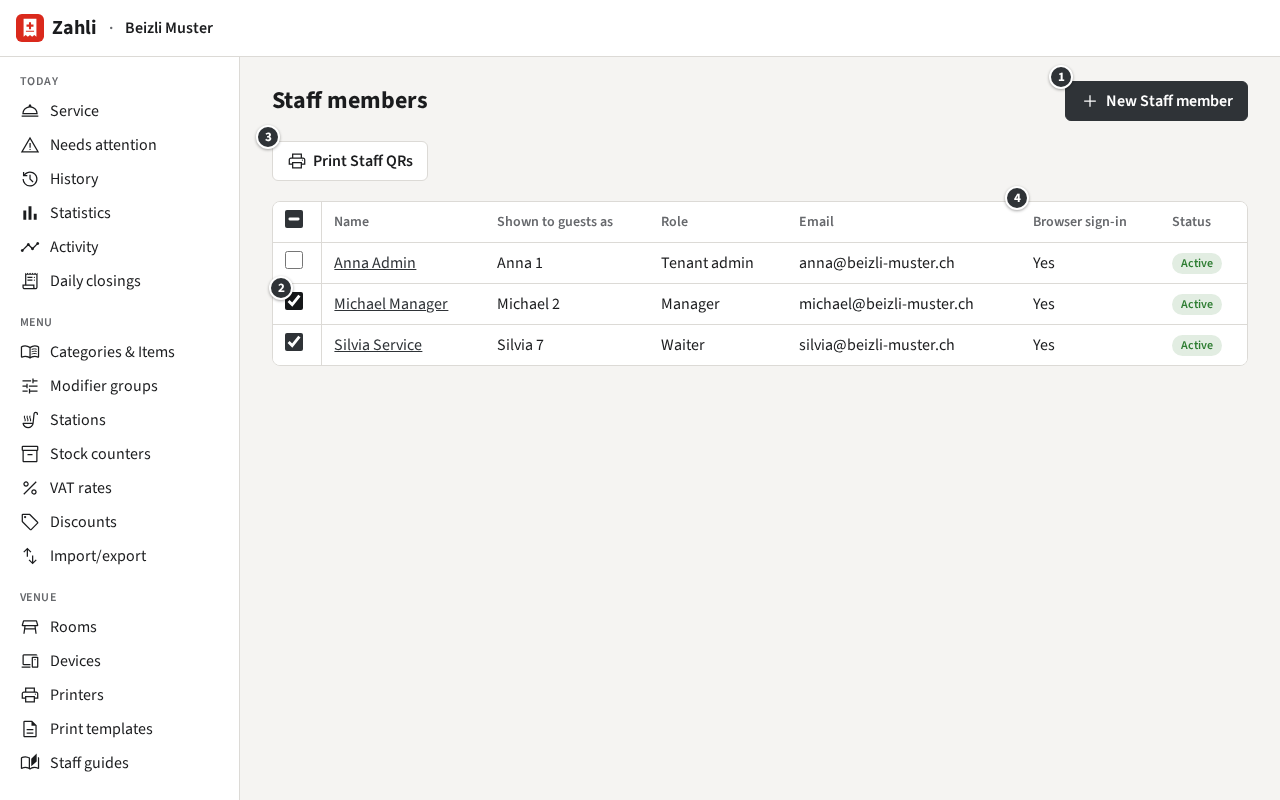
Administration → Staff members lists them, active first.
Add a Staff member
Section titled “Add a Staff member”- Click ① New Staff member.
- Choose the Role and enter the first and last name.
- Optionally a Staff number (optional): Receipts and Tickets show the first name with it, such as Silvia 7, so two people of the same name are told apart.
- The Email: Managers and Tenant admins need one, since they sign in to the admin app with it. For a Waiter it is optional; with one, they can sign in in a browser where the venue allows it (Security settings). An email can belong to only one Staff member, across all venues on Zahli.
- A Password of at least 8 characters. Click Generate
for one that is hard to guess: 10 letters, digits and symbols, shown in plain text, without
characters that look alike (such as
0andO). Copy copies it. - Click Create Staff member, and give the person their password.
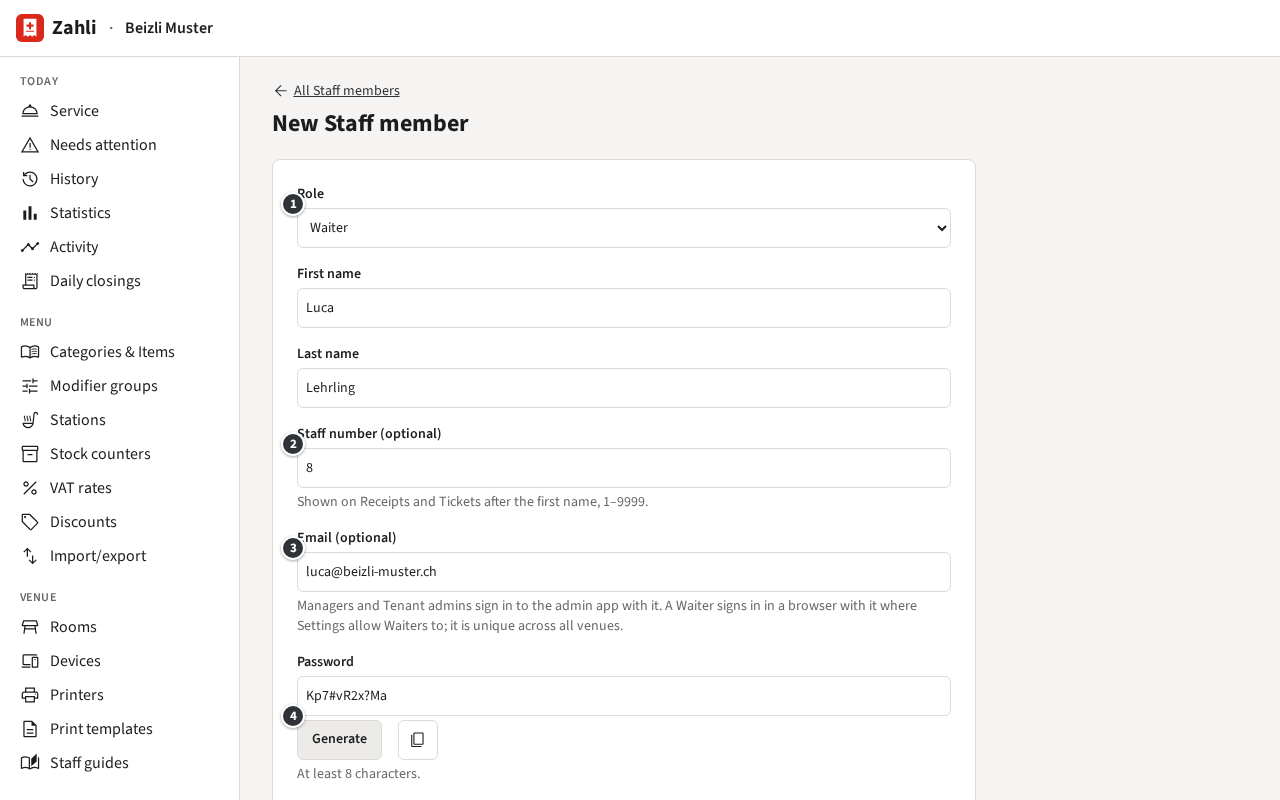
Example: Beizli Muster takes on an apprentice, Luca Lehrling. Anna chooses ①
Waiter, gives him the number ② 8 (Silvia is 7), his email ③
luca@beizli-muster.ch so he can also serve from the laptop at the counter, and a generated
password ④, which she writes on a note for his first day.
Each person signs in with their own account; never share one. A Waiter or Manager who forgot their password gets a new one from you: open them, enter it under Password and click Save. Left empty, the password stays as it is.
Change a Role, or deactivate someone
Section titled “Change a Role, or deactivate someone”Click a name to change their Role, name, number or email. When someone leaves, click Deactivate: Signs them out everywhere immediately. Their Tabs, Payments and history stay under their name, and Reactivate lets them sign in again. Staff members are never deleted.
You cannot change your own Role or deactivate yourself, so a venue always keeps a Tenant admin. To hand the role over, make the other person Tenant admin first; they can then change yours.
Who signs in in a browser
Section titled “Who signs in in a browser”The column ④ Browser sign-in on the list says who can sign in in a browser now: Managers and Tenant admins with an email, and Waiters with an email while Waiters may sign in in a browser is on. In a browser, Managers and Tenant admins land in the admin app; Waiters reach only the staff app. On the venue’s phones everyone signs in with name and password or Staff QR, email or not.
Print Staff QRs
Section titled “Print Staff QRs”A Staff QR is a card that signs its Staff member in on the venue’s phones with one scan. Zahli keeps only a fingerprint of the code, so it cannot show it twice: printing always makes a new code, and the person’s old card stops working at once.
For several people:
- On the list, tick ② the people who need a card, or the box in the header for everyone.
- Click ③ Print Staff QRs and confirm that their old cards stop working.
- The browser downloads a PDF: A4 pages of six cards, 105 × 99 mm with cut marks, each with the venue’s name, the person’s name, the code and the words Scan to sign in. Print it, cut along the marks.
Download again fetches the same PDF again while you stay on the page; once you leave, a new PDF means new codes.
For one person, open them and click Staff QR, then Generate new Staff QR: the page shows the card ① and Download PDF ② gives the same PDF with one card.
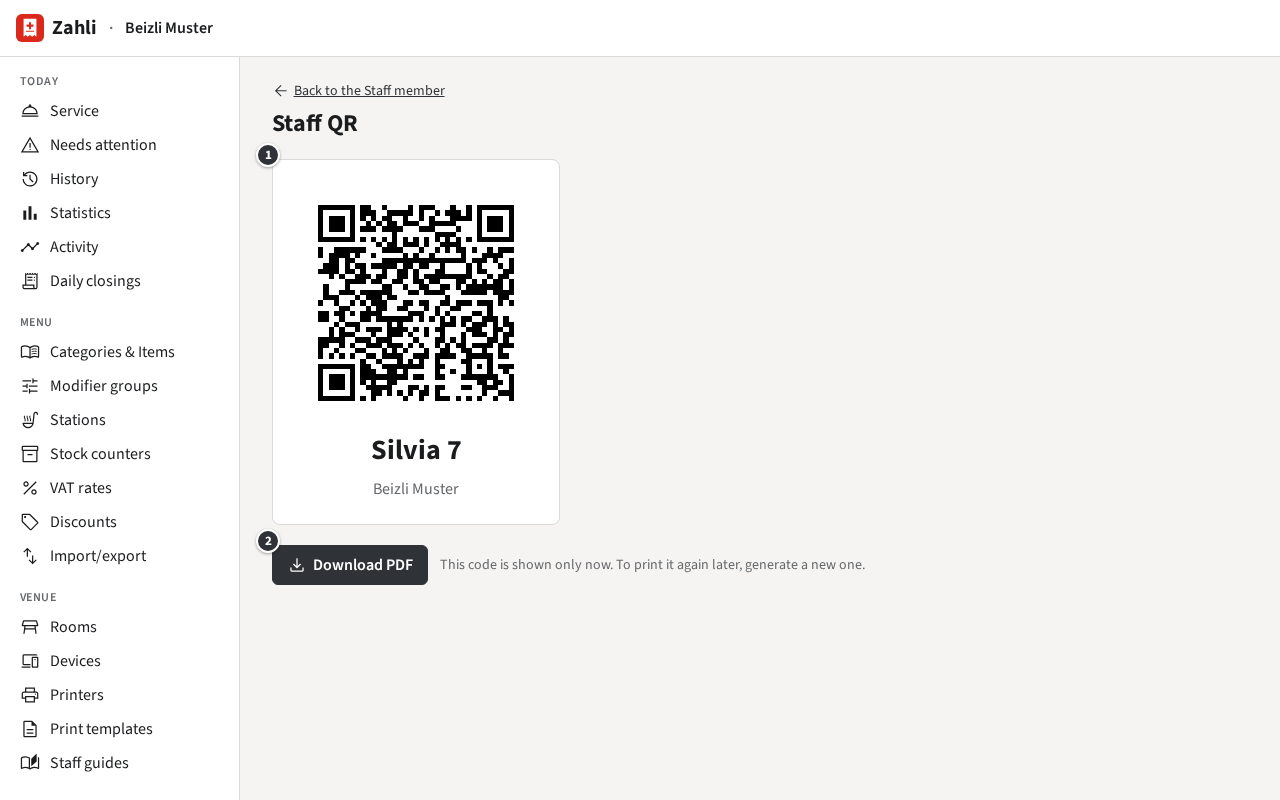
Example: Silvia lost her card on the terrace. Anna opens Silvia, clicks Staff QR and Generate new Staff QR, and prints the card. Whoever finds the old card cannot sign in with it any more. At the start of the season she ticks Michael and Silvia on the list and prints both cards on one page.