
Signing in in a browser
On the venue’s phones you sign in like everyone else, with your name and password or your Staff QR (see Signing in in the Waiter guide). In a browser, a Manager signs in with email and password and lands in the admin app.
Sign in
Section titled “Sign in”- Open
app.zahli.ch. - Enter your Email and Password, for Michael
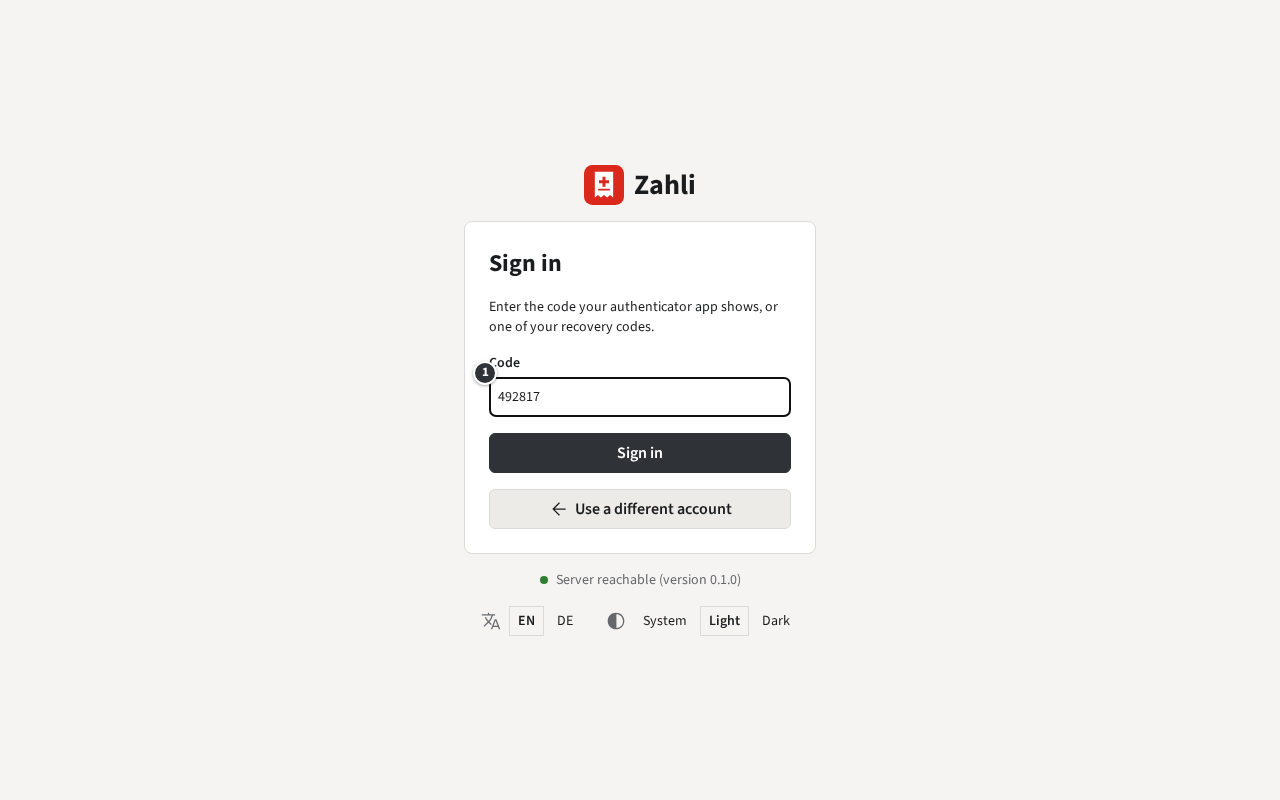
michael@beizli-muster.ch, and click Sign in. - If you have set up two-factor authentication, the page then asks for a Code ①: the six digits your authenticator app shows now, or one of your recovery codes. Click Sign in again.
The admin app opens at Today → Needs attention. On a computer others use too, sign out when you leave: Sign out at the foot of the sidebar.
Set up two-factor authentication
Section titled “Set up two-factor authentication”Two-factor authentication is optional for Managers, and worth it: someone who learns your password still cannot sign in without your phone. It applies to signing in with your email in a browser; on the venue’s phones nothing changes.
- Click your name at the foot of the sidebar: Your account opens.
- Click Set up two-factor authentication.
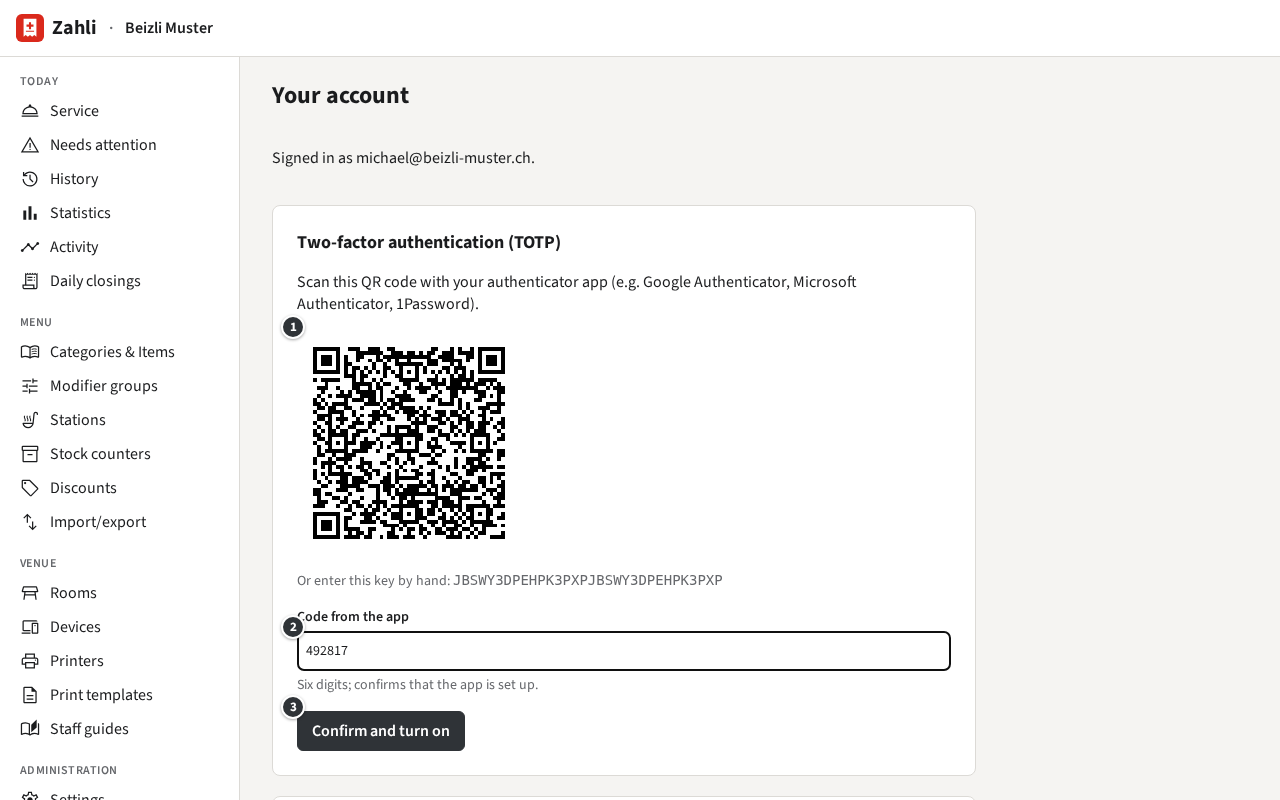
- Scan the QR code ① with an authenticator app on your phone, such as Google Authenticator. Enter the six digits it shows ② and click Confirm and turn on ③.
- Zahli now shows ten Recovery codes ①, this once only. Each one works once instead of a code from the app, for when your phone is lost. Write them down or print them, keep them away from your phone, and click I have saved the codes ②.
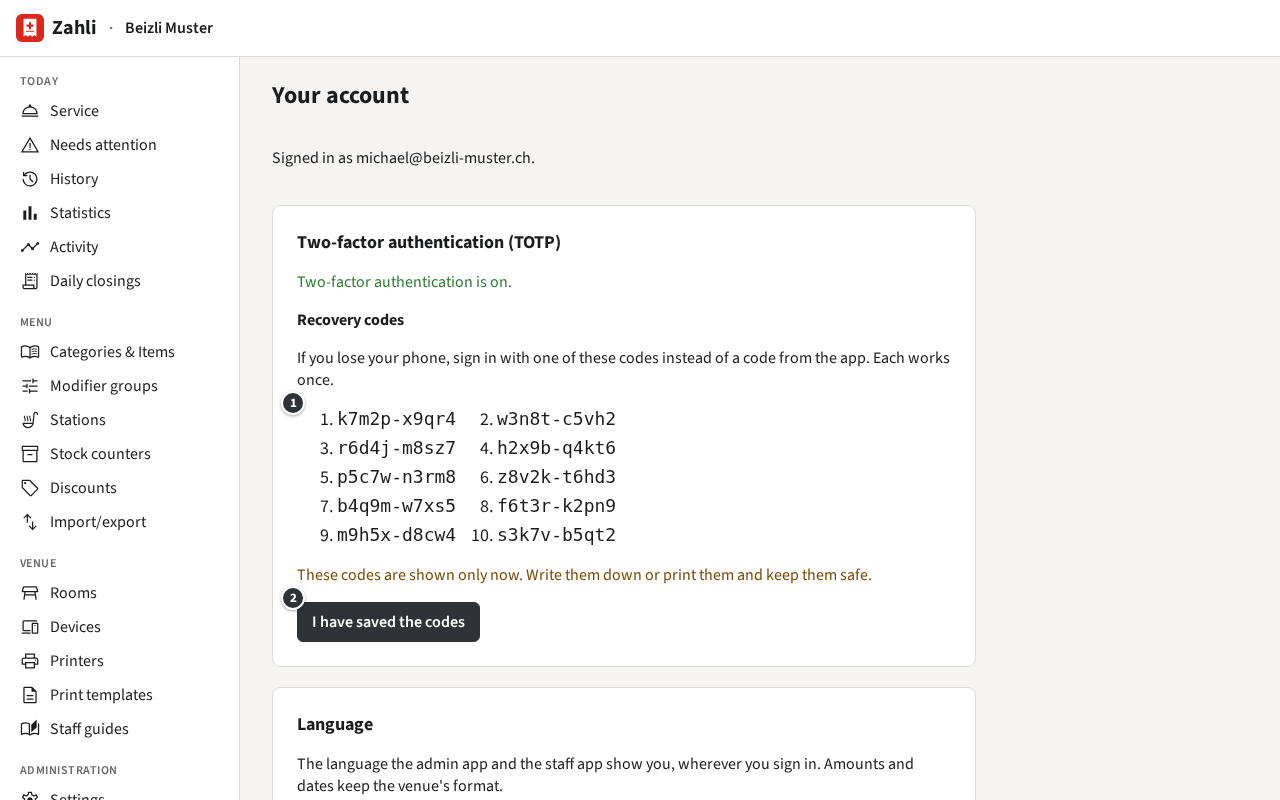
Keep the recovery codes safe: without your phone, they are the only way in. To turn two-factor authentication off, for example before moving to a new phone, enter your Password on the same page and click Turn off; then set it up again on the new phone.
Between admin app and staff app
Section titled “Between admin app and staff app”One sign-in serves both apps in the same browser.
- Today → Service opens the staff app in a browser tab of its own, the same tab each time, so the admin page stays where it was. Serve there as the Waiter guide describes; see also Service.
- To go back, switch to the browser tab of the admin app.
- Sign out in either app signs this browser out of both.
Example: Michael has the Statistics open on the office laptop when Table 6 wants to pay. He clicks Service, takes the Payment in the staff app’s tab, and switches back to the Statistics.