
Devices
A Device is a phone or tablet set up for the venue: a phone that runs the staff app, or a tablet that runs the kitchen terminal. Each is enrolled once with a one-time code; then the staff sign in on it as often as they like. The Devices are under Venue → Devices.
Enrol a phone
Section titled “Enrol a phone”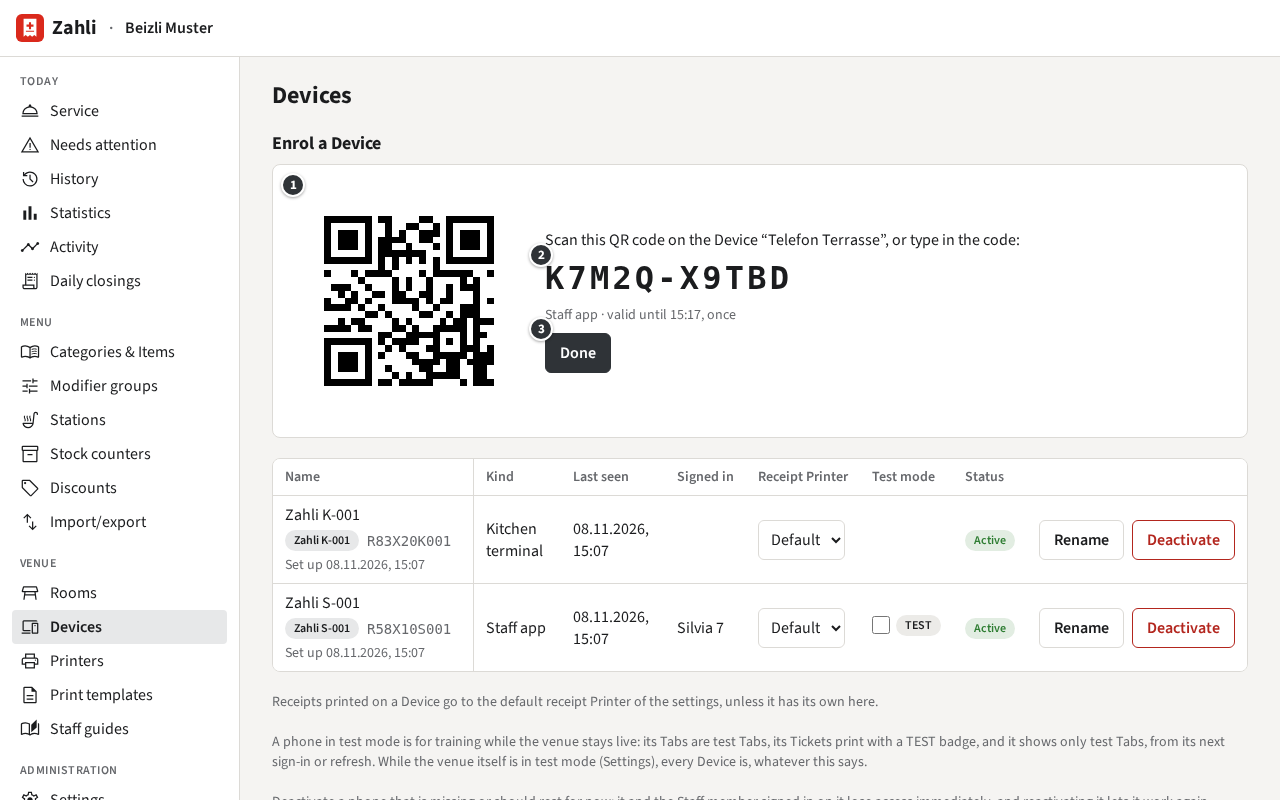
- Under Enrol a Device, enter a Name, which is how the list shows the phone, and keep the Kind Staff app.
- Click Create enrolment code. The page shows the code as ① a QR code and ② as text. It works once, for 10 minutes.
- On the phone, open the Zahli app. It shows Enrol this phone: tap Scan enrolment code or Staff QR and scan ①, or type ② into Enrolment code and tap Enrol.
- The phone shows the sign-in with its name and the venue. Click ③ Done to see it in the list.
Example: Beizli Muster buys a phone of its own for the Terrasse. Michael names it Telefon Terrasse, creates the code and scans it with the new phone. Silvia can sign in on it at once (Signing in).
Where the Tenant admin allows it, a Waiter can also enrol a phone by scanning their Staff QR on it; such a phone shows in the list named after its model and the Waiter’s first name. A phone still enrolled at another venue asks before it moves to yours: it is removed there, and what it kept for that venue is discarded.
Enrol the kitchen terminal
Section titled “Enrol the kitchen terminal”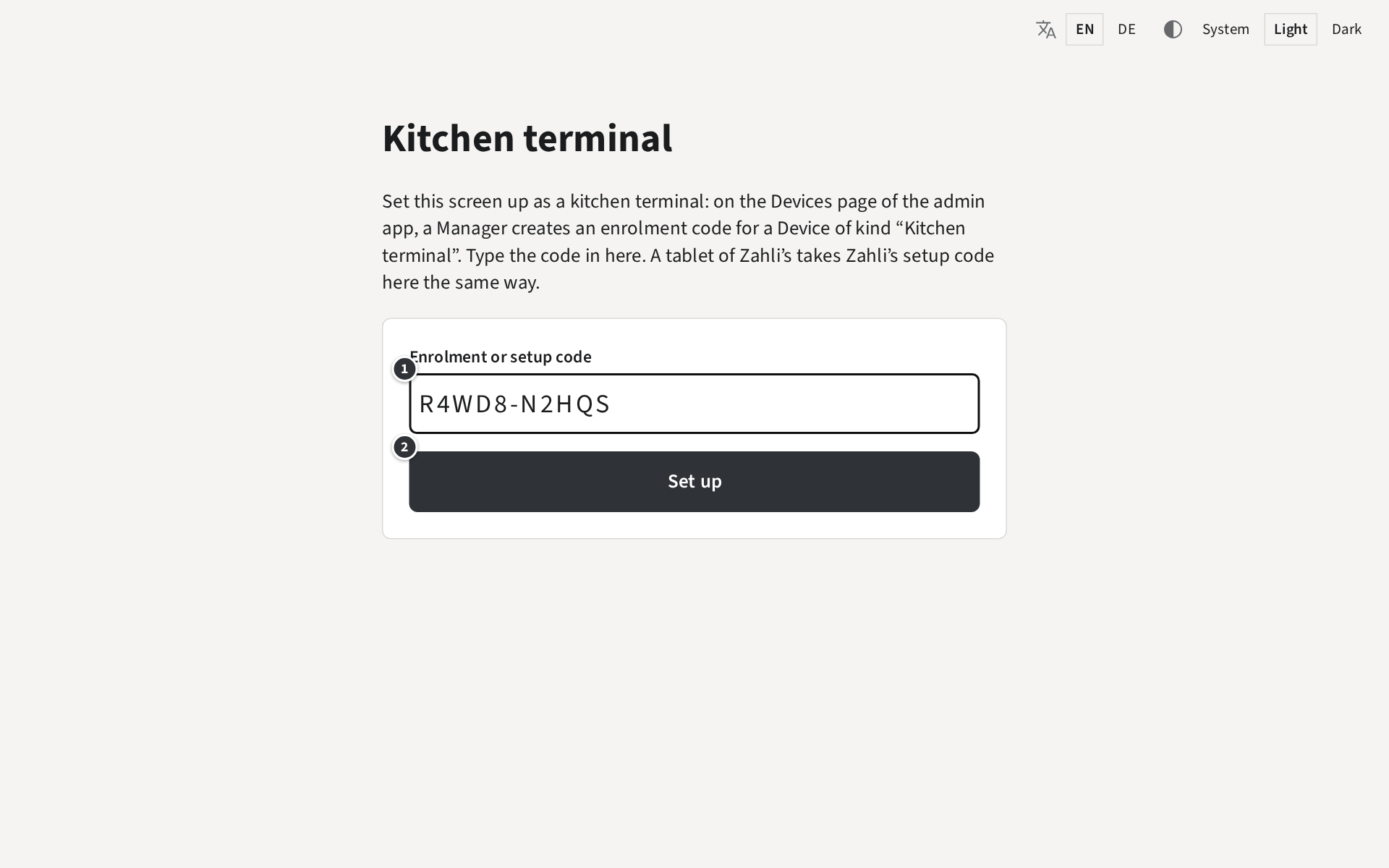
- Under Enrol a Device, enter a name such as Küchenbildschirm, choose the Kind Kitchen terminal and click Create enrolment code.
- On the tablet, open
app.zahli.ch/kitchenin the browser. It shows Kitchen terminal. - Type the code into ① Enrolment or setup code and tap ② Set up. The tablet does not scan; type the code.
- On the tablet, choose the Stations it shows (Choosing Stations).
A kitchen terminal enrols only with a code of its kind, never with a Staff QR.
Example: when K-001 goes back to Zahli after the summer, Beizli Muster uses a tablet of its own. Michael creates a code for Küchenbildschirm, types it on the tablet and chooses Küche and Bar there.
Look after the Devices
Section titled “Look after the Devices”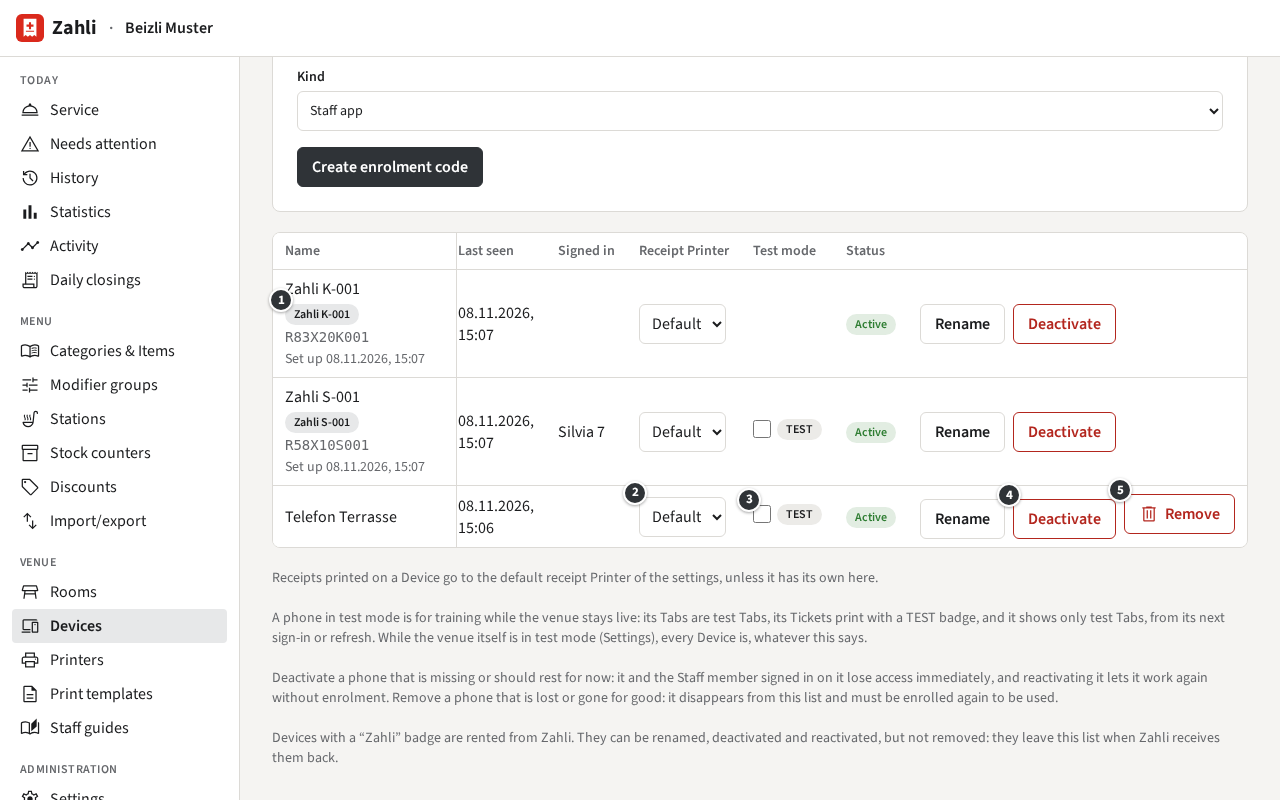
The list shows each Device’s Last seen and who is Signed in on it.
- ② Receipt Printer: where Receipts printed on this phone go. Default is the venue’s receipt Printer (Venue settings); choose another Printer for a phone that works next to it (Printers).
- ③ Test mode: puts a phone into test mode of its own, for training while the venue stays live (Test mode).
- Rename changes the name.
- ④ Deactivate: for a phone that is missing or should rest for now. Whoever is signed in on it is signed out at once, and it shows This Device is deactivated until you click Reactivate; then it works again without a new code.
- ⑤ Remove: for a phone that is lost or gone for good. It disappears from the list and must be enrolled again with a new code to be used. Its Tabs and History stay.
Deactivating and removing ask first. A kitchen terminal shows its own message when deactivated or removed (When the screen says deactivated).
Example: one evening Telefon Terrasse is nowhere to be found. Michael clicks Deactivate, so nobody can take orders on it. The next morning it turns up under the chestnut tree; he clicks Reactivate and it works again.
Leave the venue from the phone
Section titled “Leave the venue from the phone”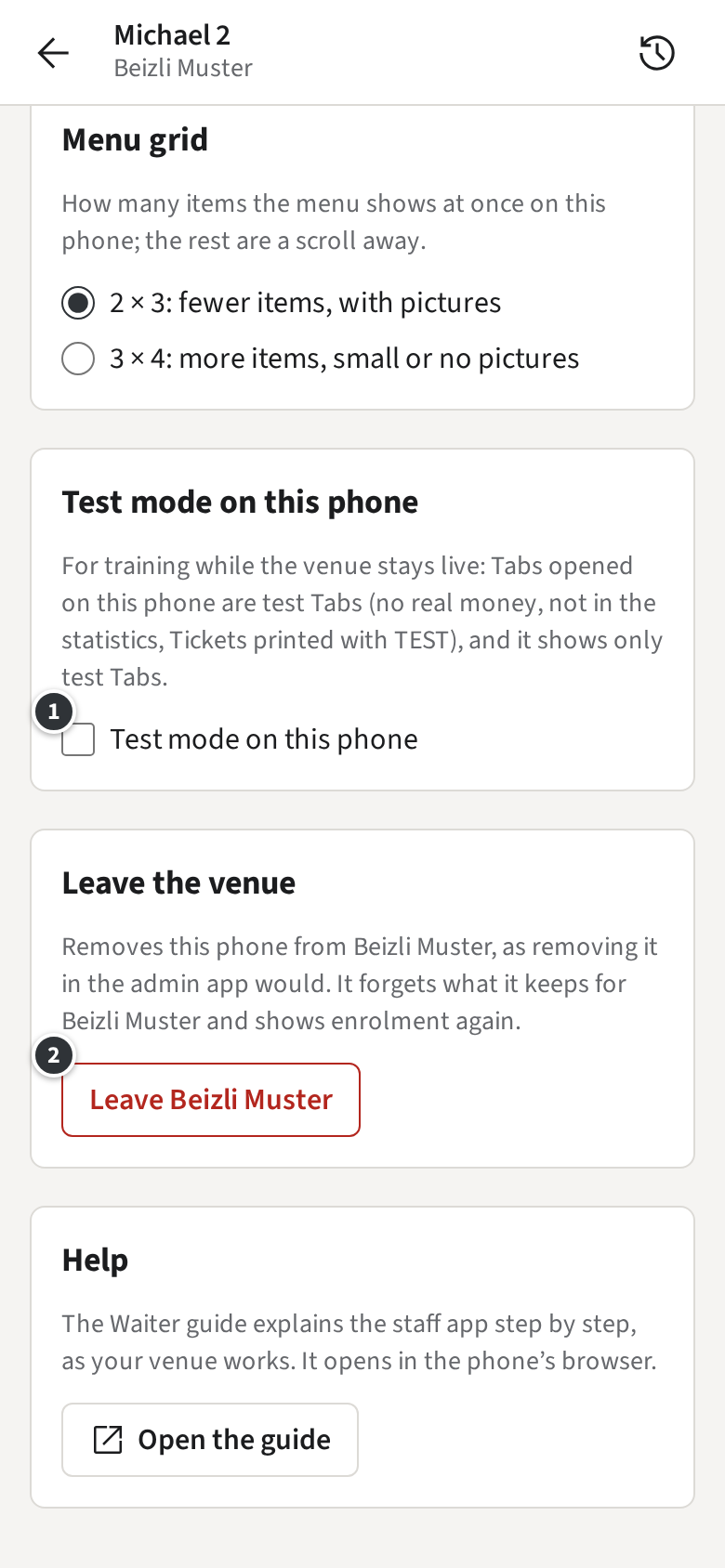
A Manager signed in on a phone finds two more things in its Settings (the menu at the top left of the Rooms): ① Test mode on this phone (Test mode), and ② Leave Beizli Muster under Leave the venue.
Leaving removes the phone from the venue, as Remove in the admin app would. After you confirm, the phone forgets what it kept for the venue and shows enrolment again, ready for another venue. Use it before you hand a phone on. It is refused while Payments taken offline on the phone still wait to be sent; stay online until they are, then try again.
Phones and tablets rented from Zahli
Section titled “Phones and tablets rented from Zahli”Beizli Muster rents the phone S-001 and the tablet K-001 from Zahli. They need no enrolment: they belong to the venue for as long as the rental runs, and the list shows ① the badge Zahli K-001 with the serial number and when Zahli set it up.
You rename, deactivate and reactivate them, and set the phone’s Receipt Printer and test mode, like your own. You cannot remove them, and the phone’s Settings say that it belongs to Zahli instead of offering to leave. When the rental ends, the Devices leave the list, and the phone shows Not rented – please return to Zahli · S-001, the tablet the same with K-001 (Not rented). Give them back to Zahli as agreed.