
Printers and Print templates
A Printer is a named place where Zahli prints: the Tickets of the Stations it serves, Receipts, Guest slips, or all of them. An Epson receipt printer at the venue prints for it and fetches its jobs from Zahli over the internet; nothing at the venue needs to be opened to the internet. The Printers are under Venue → Printers.
At Beizli Muster, the Printer Theke at the counter prints the Bar’s Tickets, the Receipts and the Guest slips, on the printer P-001 rented from Zahli. The Küche has no Printer yet: its Tickets show on the kitchen terminal only.
Add a Printer
Section titled “Add a Printer”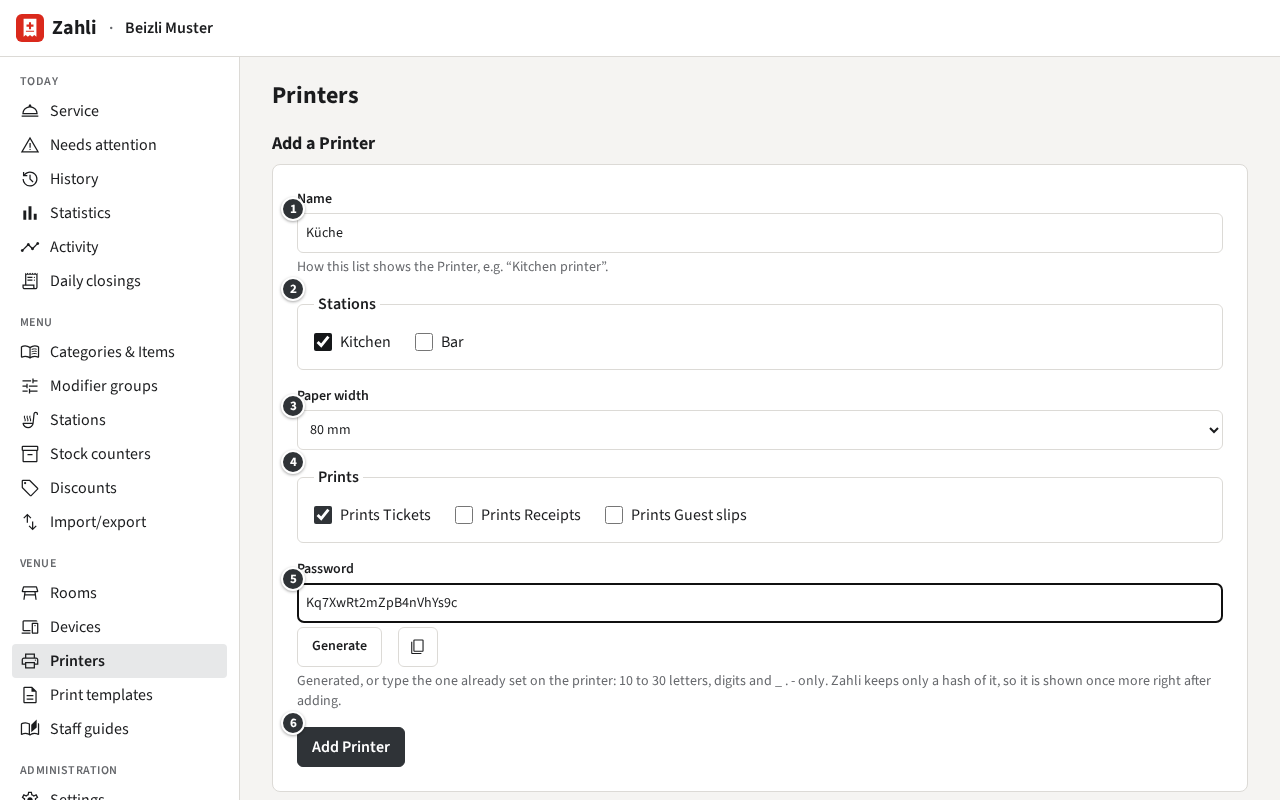
- ① Name: how the list shows it.
- ② Stations: the Stations whose Tickets it prints.
- ③ Paper width: 80 mm or 58 mm, as the printer’s paper roll.
- ④ Prints: Prints Tickets, Prints Receipts, Prints Guest slips.
- ⑤ Password: generated for you. If the printer already has a password set for Zahli, type that one instead.
- Click ⑥ Add Printer.
Example: Michael buys an Epson printer for the kitchen. He adds the Printer Küche for the Station Küche (shown as Kitchen in English), 80 mm, and only Prints Tickets. From then on the Küche’s Tickets print there as well as showing on the kitchen terminal.
Set up the venue’s own Epson printer
Section titled “Set up the venue’s own Epson printer”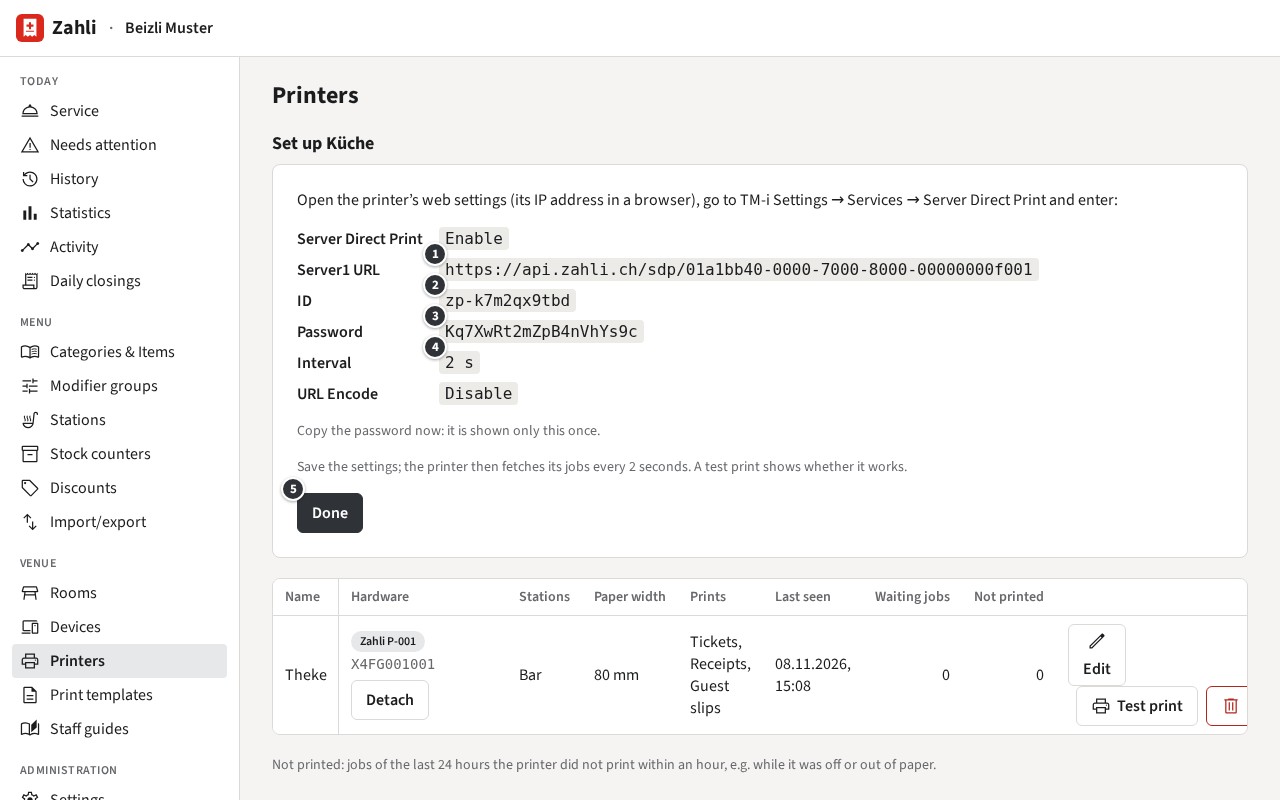
After adding, the page shows what to enter in the printer. Open the printer’s web settings (its IP address in a browser on the venue’s network), go to TM-i Settings → Services → Server Direct Print, set Server Direct Print to Enable and enter ① the Server1 URL, ② the ID, ③ the Password, ④ the Interval of 2 seconds and URL Encode Disable. Save there, then click ⑤ Done here.
Copy the password before you click Done: it is shown only this once. Later, Setup in the list shows the card again without it; if it is lost, New password there sets a new one, and the printer prints nothing until you enter that in its settings too.
Test and watch a Printer
Section titled “Test and watch a Printer”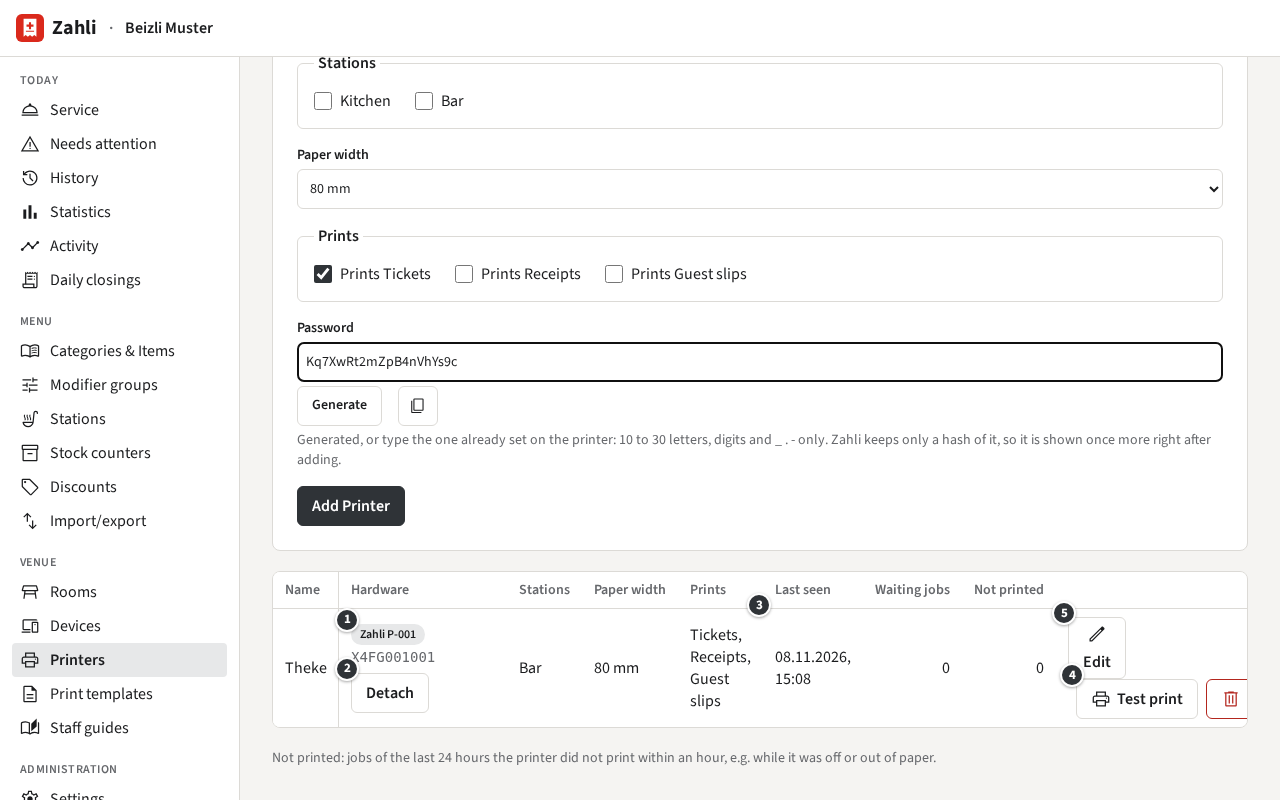
- ① Hardware: what prints for it. Own printer is the venue’s printer; a badge such as Zahli P-001 a printer rented from Zahli.
- ③ Last seen: when the printer last fetched its jobs. A working printer does so every 2 seconds.
- Waiting jobs: jobs not printed yet, for example while the printer is off or out of paper. They print once it is back.
- Not printed: jobs of the last 24 hours that did not print within an hour. Click the number to see them and print each again with Print again.
- ④ Test print sends a test page, which prints at the printer’s next fetch.
- ⑤ Edit changes the name, Stations, paper width and what it prints.
- Remove removes the Printer: its password stops working and jobs waiting for it do not print. A Printer that Receipts go to stays until you choose another receipt Printer.
Example: before service, Michael clicks Test print on Theke. The page says Test page queued for Theke; it prints at the printer’s next poll., and P-001 at the counter prints the test page.
A printer rented from Zahli
Section titled “A printer rented from Zahli”A printer rented from Zahli needs no setup: you attach it to one of your Printers, which keeps its name, Stations, paper width and what it prints.
- Rented printers attached to no Printer are listed under Rented printers not attached and print nothing.
- Attach… on a Printer chooses one of them and Attach attaches it. It prints the jobs waiting for the Printer too. A printer attached before is detached.
- ② Detach stops it printing for the Printer; the jobs wait for the next printer. Until one prints for it, the Printer shows No printer attached.
Example: P-001 jams during a busy evening, and Zahli brings the spare P-002. Michael clicks Attach… on Theke and chooses P-002. Theke’s Tickets and Receipts, the waiting ones too, now come out of P-002.
Where Receipts and Guest slips print
Section titled “Where Receipts and Guest slips print”Receipts print on the phone’s own Receipt Printer, chosen on the Devices page (Devices), or else on the venue’s default receipt Printer (Venue settings). In a browser, a Manager chooses it in the staff app’s Settings under Receipt printer. Only Printers with Prints Receipts are offered. Whether Guest slips print is a venue setting; they come out of the sending phone’s Receipt Printer if it prints Guest slips, or else out of the first Printer that does.
Print templates
Section titled “Print templates”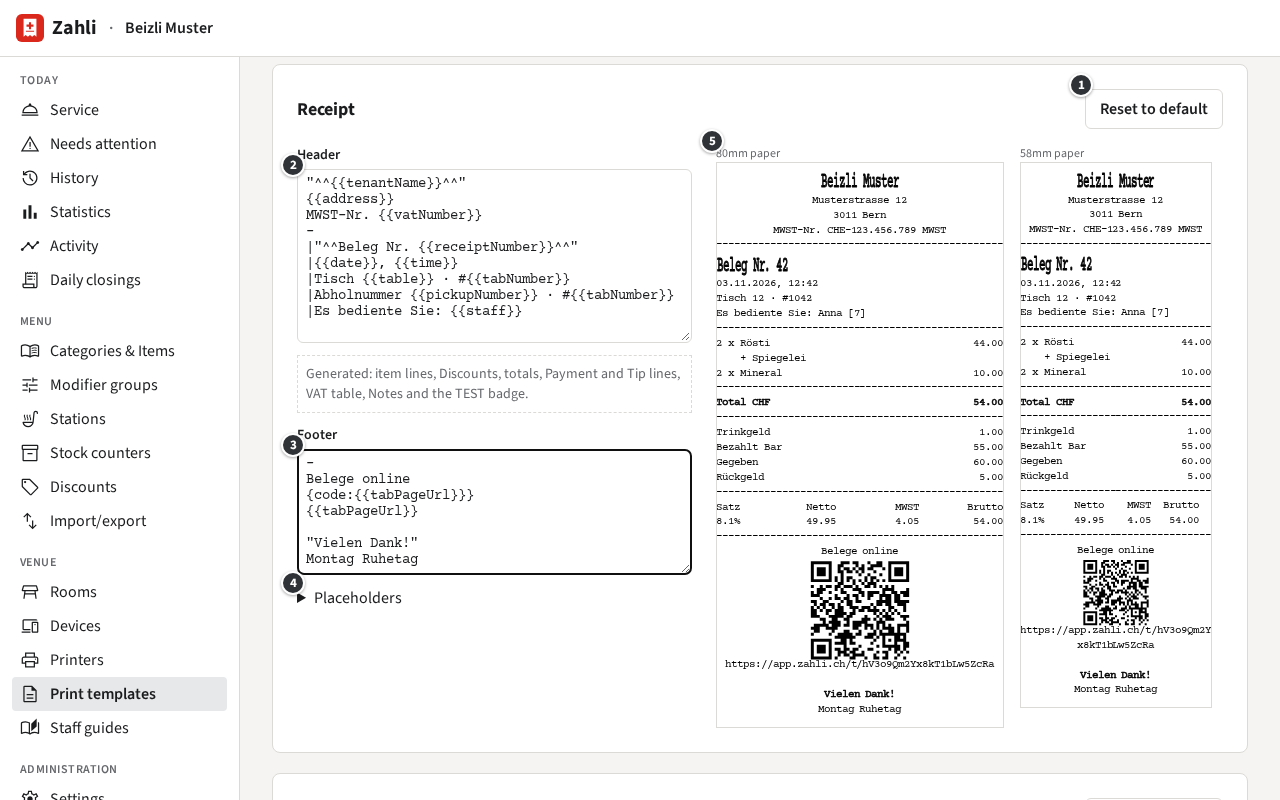
Under Venue → Print templates you write the top and bottom of Receipts and of Tickets: ② Header and ③ Footer. What lies between them, the items, totals, VAT and the TEST badge, Zahli adds itself.
- A line prints as you type it. Text in double quotes prints bold, such as
"Vielen Dank!"; the defaults show more of the ReceiptLine signs. - ④ Placeholders lists what Zahli fills in when printing, such as
{{tenantName}},{{table}}or{{receiptNumber}}. A line whose placeholder has no value is left out: the Table’s line on a Walk-in’s Receipt, for example. - ⑤ Preview shows a sample print on 80 and 58 mm paper as you type.
- ① Reset to default puts back the built-in header and footer.
- Click Save below the Ticket. An unknown placeholder is not saved; the message gives its line. A Receipt without the venue’s name, address, VAT number, the date or the Receipt number is saved, with a warning, since a Receipt should show them.
Example: Beizli Muster is closed on Mondays. Michael adds the line Montag Ruhetag to the end of the Receipt’s footer, sees it under Vielen Dank! in the preview and clicks Save. Every Receipt printed from then on says so.