
Payment providers
Guests pay by Card, Twint or cash. Cash is always counted by hand. Card goes through the venue’s own account at a Payment provider, today Stripe, with Tap to Pay on the venue’s phones: the venue is Stripe’s customer, signs its contract and gets the money; Zahli only keeps the key. Twint is taken by hand: the guest scans the venue’s TWINT sticker or Twint code and the Waiter confirms the Payment.
The venue’s accounts are under Administration → Payment providers. Each account belongs to one mode: the test mode account uses Stripe’s sandbox, for training and trying things out without real money (Test mode); the live mode account takes real money.
Connect Stripe
Section titled “Connect Stripe”You need the venue’s own Stripe account. Do this once for test mode and once for live mode, in the card of that mode under Stripe at the foot of the page.
- In the Stripe Dashboard, under Developers → API keys, copy the secret key,
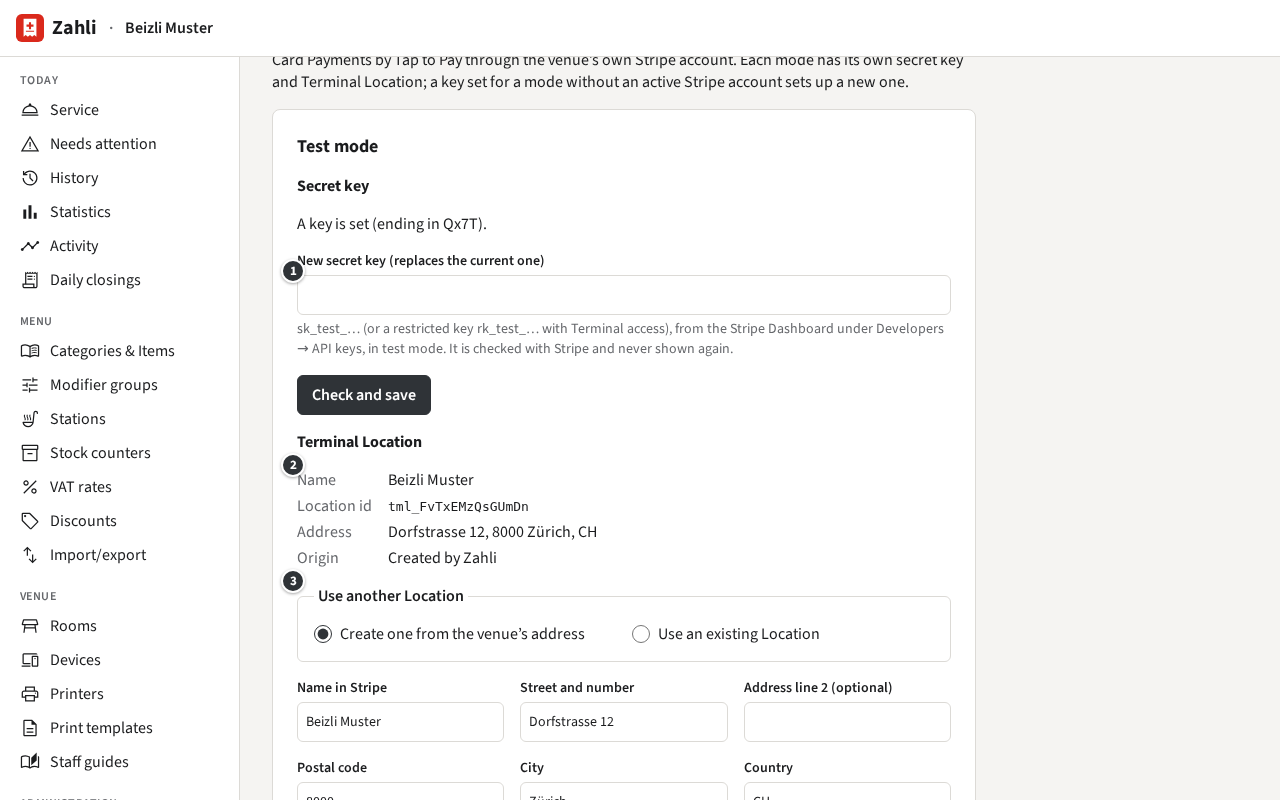
sk_test_…for test mode (with the Dashboard in test mode) orsk_live_…for live mode. A restricted key (rk_…) with access to Terminal works too. - Paste it into ① Secret key and click Check and save. Zahli checks it with Stripe and stores it encrypted; from then on it shows only its last four characters. The mode now has a Stripe account in the list Provider accounts.
- Set the ② Terminal Location, the address where the phones take Payments: choose
Create one from the venue’s address, check the name and address (it must be in Switzerland) and
click Create in Stripe, or choose Use an existing Location and enter its
tml_…id from the Stripe Dashboard under Terminal → Locations. - At the top, under Payment methods, choose the account for Card via in that mode and click Save.
Card is then offered on the Pay sheet in that mode, on the venue’s Android phones running the Zahli app (Paying). Without an account, or without a Location, it is not.
Example: Anna first connects Beizli Muster’s test mode account, ending in Qx7T, so Michael can train Silvia with Stripe’s test cards in test mode. Once that works, she adds the live key, ending in m4Lk, creates the Location from the venue’s address, and chooses it for Card in live mode.
Stripe may ask you to replace a key, for instance after rolling it in its Dashboard. Enter the new one in ① New secret key (replaces the current one): the account stays the same, with its Payments and Refunds. The new key must belong to the same Stripe account; for another Stripe account, see below.
The Twint code
Section titled “The Twint code”Without anything set up, the phones show the amount and ask the guest to scan the venue’s TWINT sticker and type it in. If you upload the venue’s TWINT QR code, the phones show the code full-screen with the amount instead, so the guest scans it from the phone at the table.
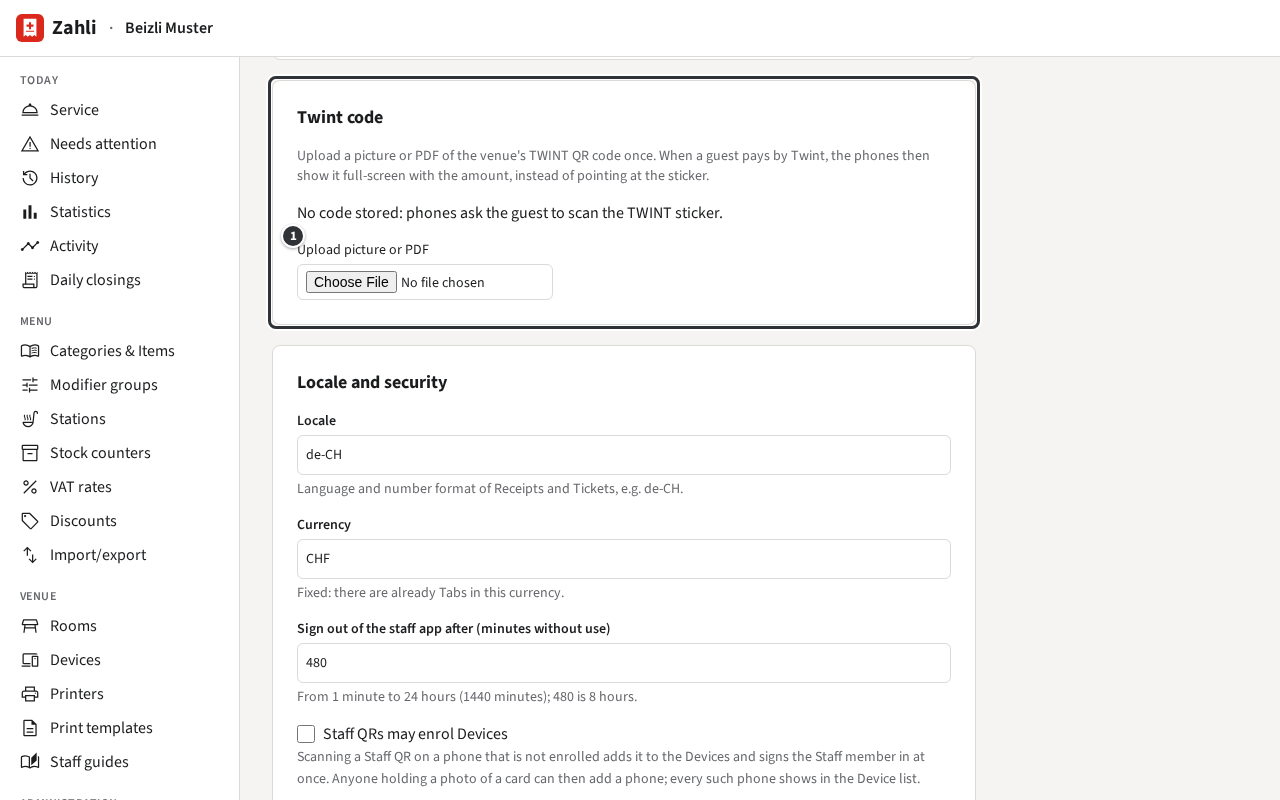
Under Administration → Settings, in the card Twint code, click ① Upload picture or PDF and choose a sharp photo of the sticker or a PDF of the TWINT QR code. Zahli reads the code and shows it to check. Remove code goes back to the sticker.
Twint is offered at all only while TWINT sticker available (offer Twint as a Payment method) is on, in the card Service above, which a Manager may also change (Venue settings). Example: Beizli Muster’s sticker hangs by the till; Anna uploads the PDF of the same code, so on the terrace Silvia just shows her phone.
Which account each method uses
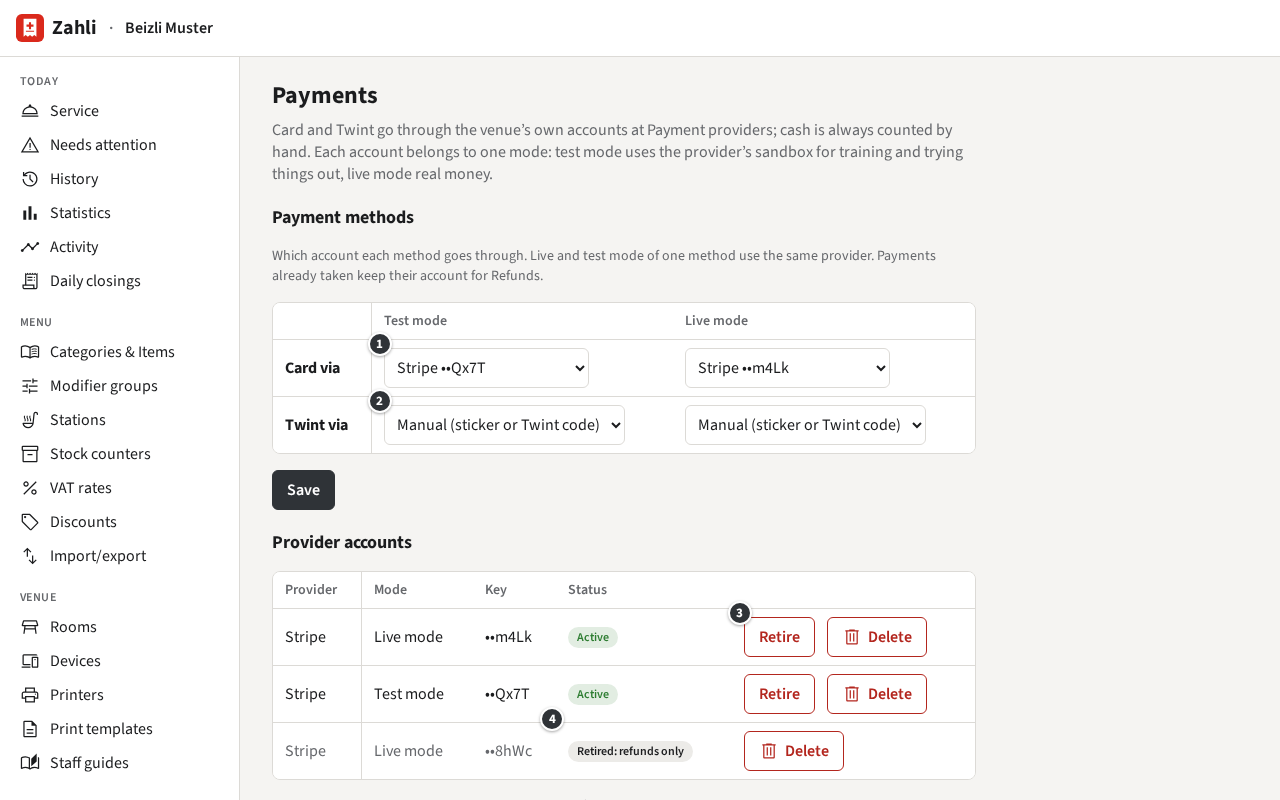
Section titled “Which account each method uses”Under Payment methods, each method has a choice per mode:
- Card via: one of the mode’s Stripe accounts, or None: Card is not offered.
- ② Twint via: Manual (sticker or Twint code). No Payment provider takes Twint in Zahli yet.
Test and live mode of one method must use the same provider. A change applies to new Payments; a Payment already taken is refunded through the account that took it.
Retire or delete an account
Section titled “Retire or delete an account”To move the venue to another Stripe account, do not replace the key: the old account’s Payments would then be refunded through the new account, which does not know them. Instead:
- In the list Provider accounts, click ③ Retire on the old account and confirm. It takes no new Payments, but still refunds the ones it took, and shows ④ Retired: refunds only. Card is no longer offered in its mode for now. Retiring cannot be undone.
- Connect the new Stripe account as above: its key makes a new account in that mode. Set its Location and choose it for Card.
Example: in September Beizli Muster moved to the Stripe account of its new owners. Anna retired the live account ending in 8hWc before a quiet lunch, added the new key ending in m4Lk, and chose it for Card. A Refund of a summer Payment still goes through 8hWc.
Delete destroys an account’s key: A retired account takes no new Payments but still refunds the ones it took. A deleted account’s key is destroyed: its Payments can then only be refunded in cash or in the provider’s back office. Delete an account only when it can no longer be used at Stripe, for instance after closing it there. Zahli refuses while one of its Payments or Refunds is still pending.