
Test mode
In test mode every new Tab is a test Tab: it moves no real money, counts in no statistics and no revenue, and its Tickets and Receipts print with a large TEST. Card Payments go to the Payment provider’s test account. What staff see then is in What TEST means.
A test Tab is real data with a flag: it stays in the History with a TEST badge. Each Tab keeps the mode it was opened in, so switching changes only the Tabs opened afterwards. A phone or browser picks the change up at its next sign-in or refresh.
There are three switches, from narrow to wide.
One phone
Section titled “One phone”For training on one phone while the venue stays live. Example: before the evening, Silvia shows a new colleague the staff app on the phone S-001.
- In the admin app, open Venue → Devices.
- In the phone’s row, tick TEST ① under Test mode, and confirm.
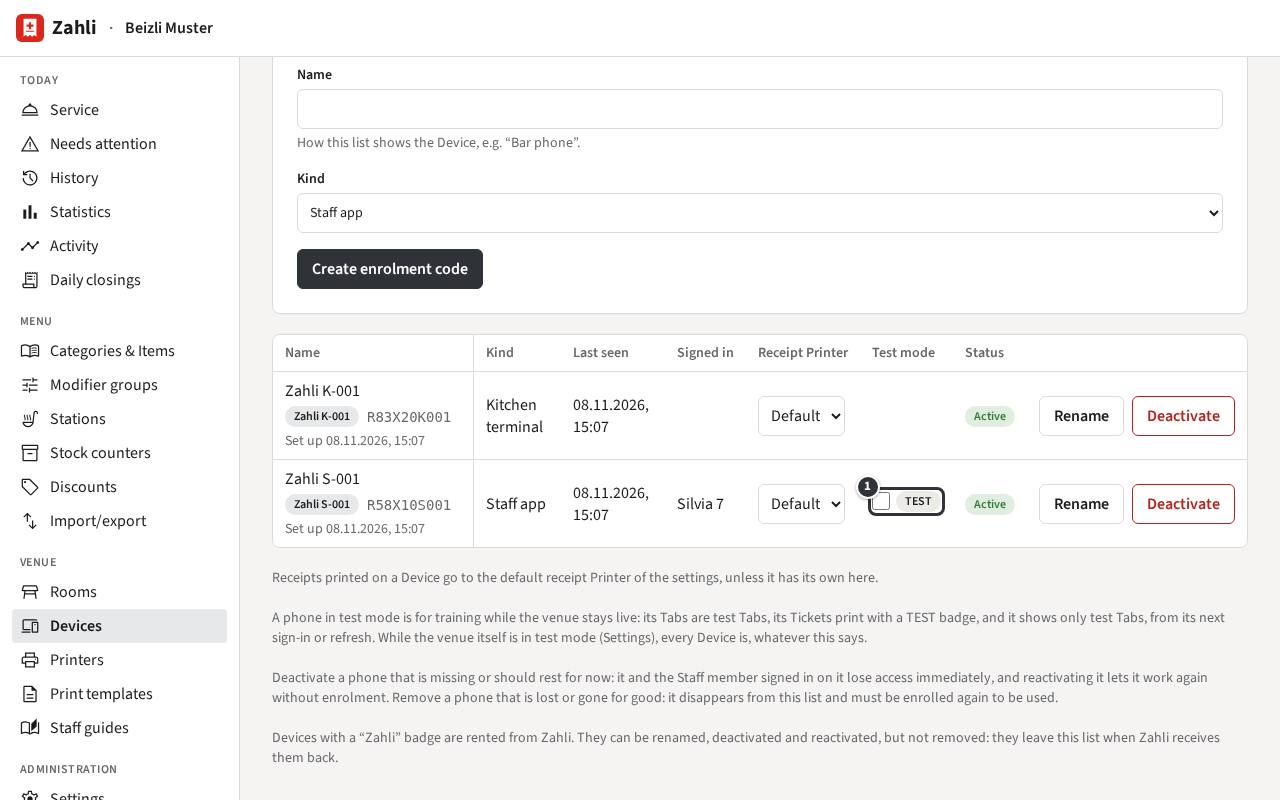
The phone stays in test mode until you untick it, and meanwhile shows only test Tabs. A Manager signed in on the phone itself finds the same switch in its Settings: Test mode on this phone. The kitchen terminal has no switch; it shows test Tickets with a TEST badge.
Your browser sign-in
Section titled “Your browser sign-in”To try something in the staff app in a browser without touching the day’s figures, for example a new Item before the menu goes out.
- In the staff app, open Settings.
- Tick Test mode until I sign out ①.
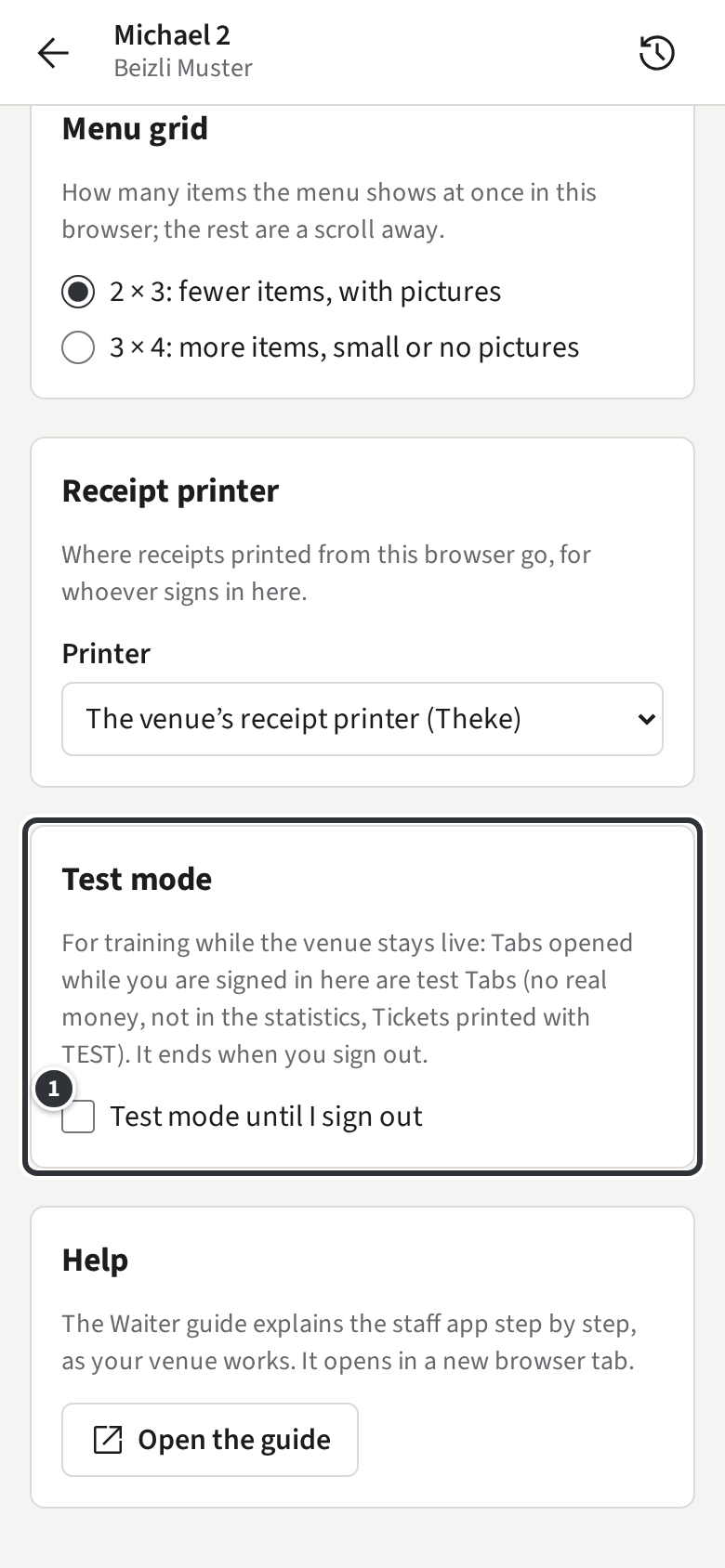
Only Tabs you open in this browser are test Tabs, and only until you sign out.
The whole venue
Section titled “The whole venue”Before the venue goes live, or to train everyone at once.
- Open Administration → Settings.
- Under Test or live mode, click Switch to test mode ① and confirm.
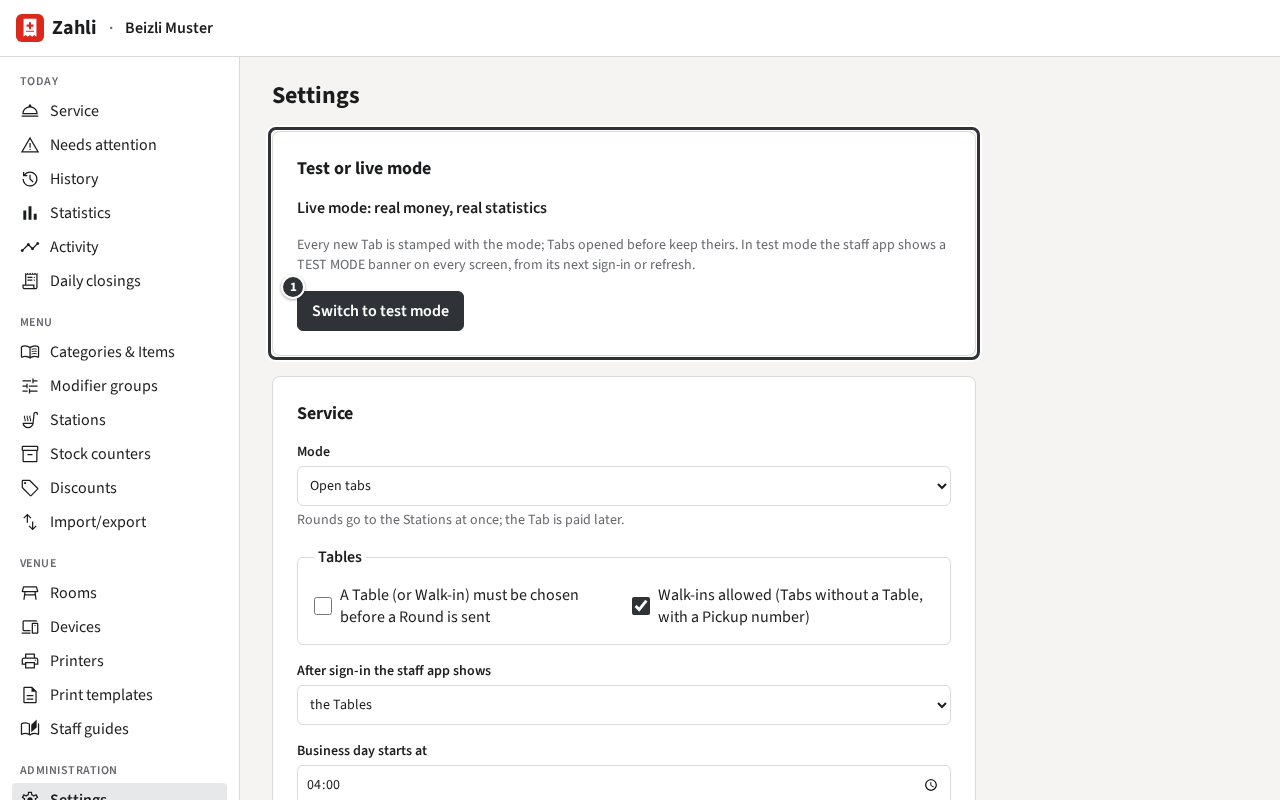
Every phone and browser is then in test mode, whatever its own switch says, and shows the TEST MODE banner. Switch to live mode ends it. Never switch the venue during service: the Tabs opened meanwhile would be missing from the day’s revenue.