This Guide is for everyone who serves with the Zahli staff app, on a phone or in a browser. Each
topic is one task, with an example from Beizli Muster, a small restaurant with a Gaststube and
a Terrasse, where Silvia serves.
Room: one floor plan of the venue, such as the Gaststube or the Terrasse. It holds the
Tables.
Tab: everything one party owes. You open it at a Table, or as a Walk-in for a guest at
the counter, who gets a Pickup number. Every Tab has a Tab number, such as #1042.
Round: the items you send to the kitchen and the bar at one moment. Until you send it, what
you pick is your Draft, kept only on your phone or browser.
Station: where items are made, such as Küche or Bar. Each Station gets a Ticket with its
part of the Round.
Modifier: an option of an item, such as the side or the dressing. A Follow-up group is a
choice that only appears after a pick, like the dressing after the salad.
Note: free text for the kitchen on an item or on the whole Round.
Payment: the guest paying by Card, Twint or Cash, with an optional Tip.
Several Payments on one Tab are a Split.
Receipt: the record of a Payment, printed on request and always on the Tab page, which
the guest opens with a QR code.
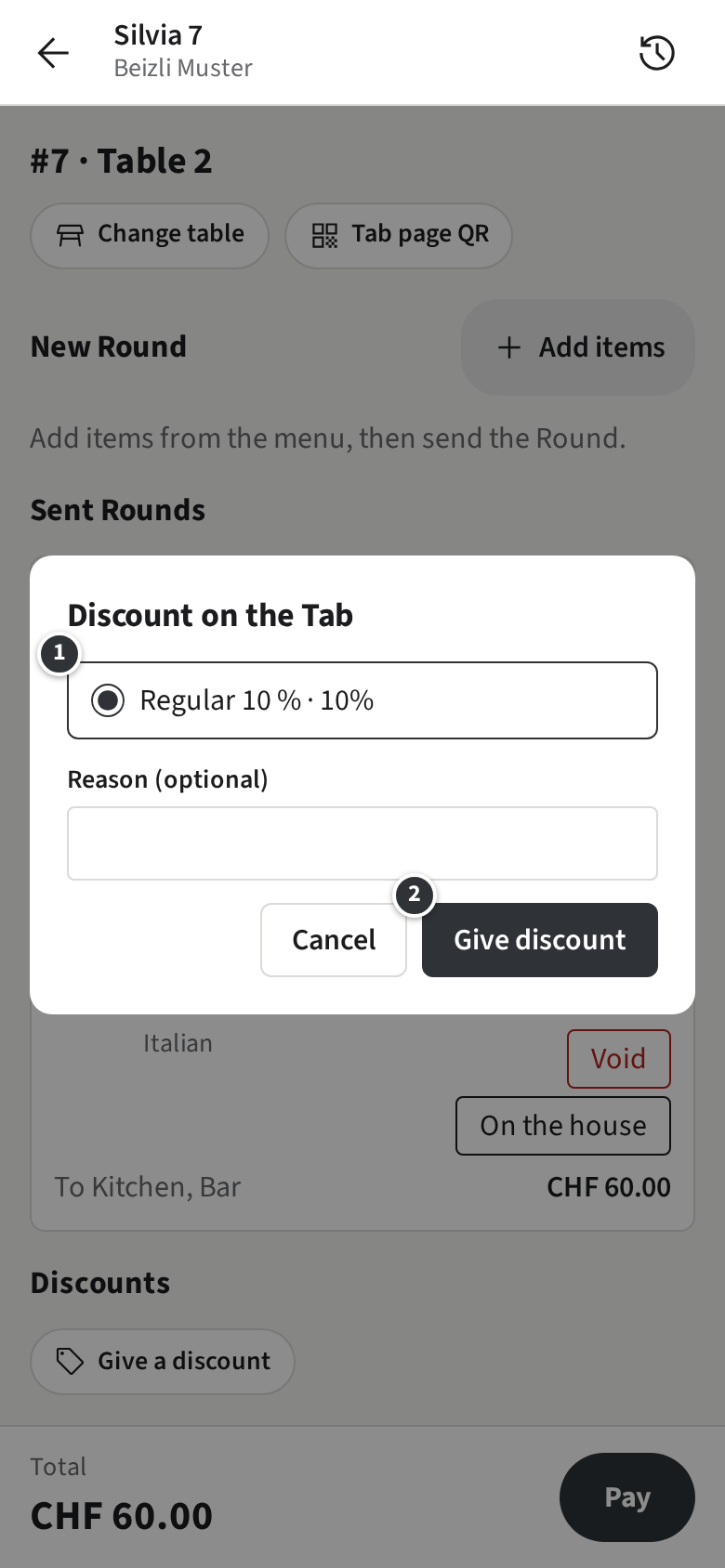
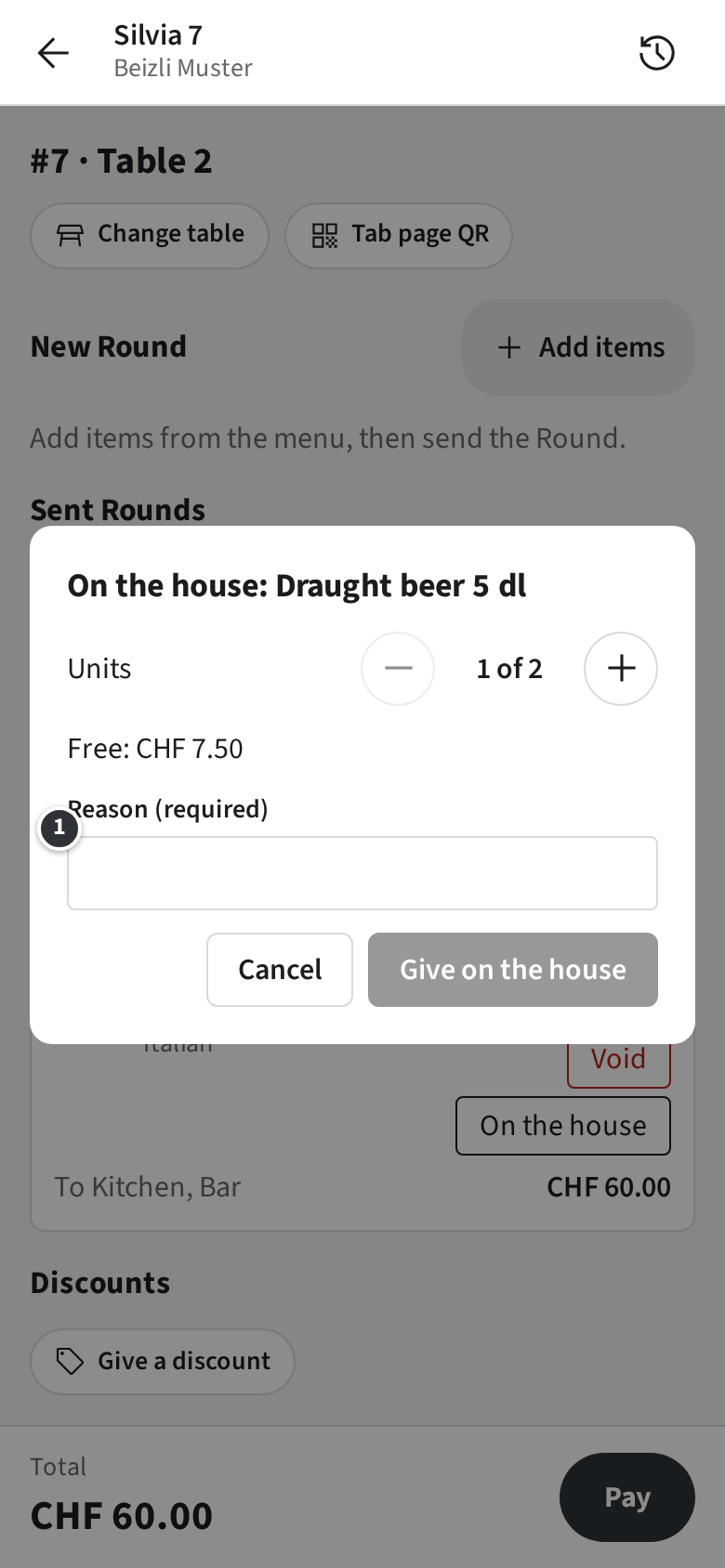
Void: taking an item that is not paid off a Tab. A Discount lowers what the guest pays.
History: what you sent and took in a business day.
Only with Pay-first
Your venue works Pay-first: the guest pays first, and the items go to the kitchen once the
Tab is paid in full. See Pay-first.
Only with Open tabs
Your venue works with Open tabs: what you send goes to the kitchen at once, and the guest
pays when they leave.
The first steps: sign in, then open a Table in
Rooms.
You find this guide in the staff app too, under Settings →
Help (see Your language).
Signing in
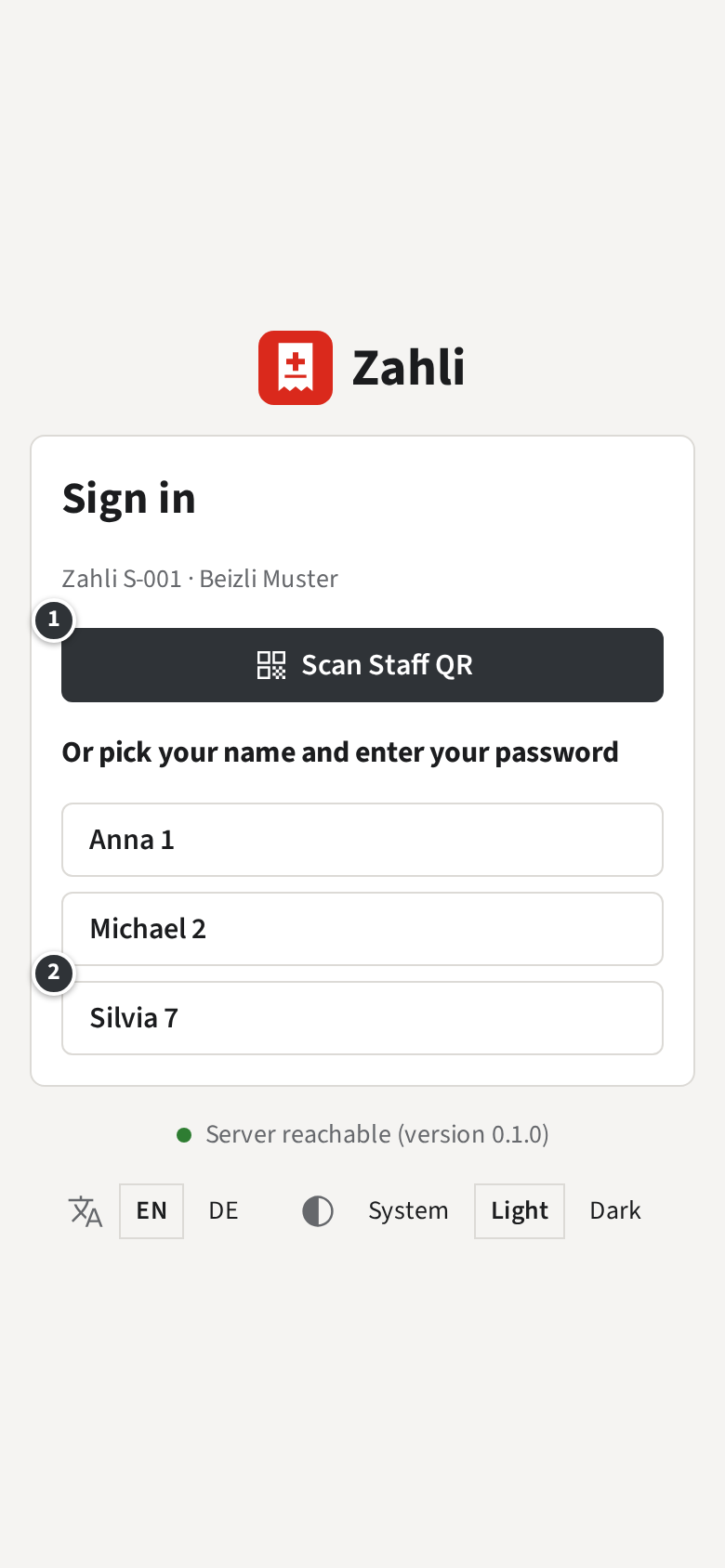
On the venue’s phones you sign in with your name and password, or with your Staff QR, the
card with your code that your Tenant admin prints for you. You stay signed in until you sign out or the
phone was not used for a while.
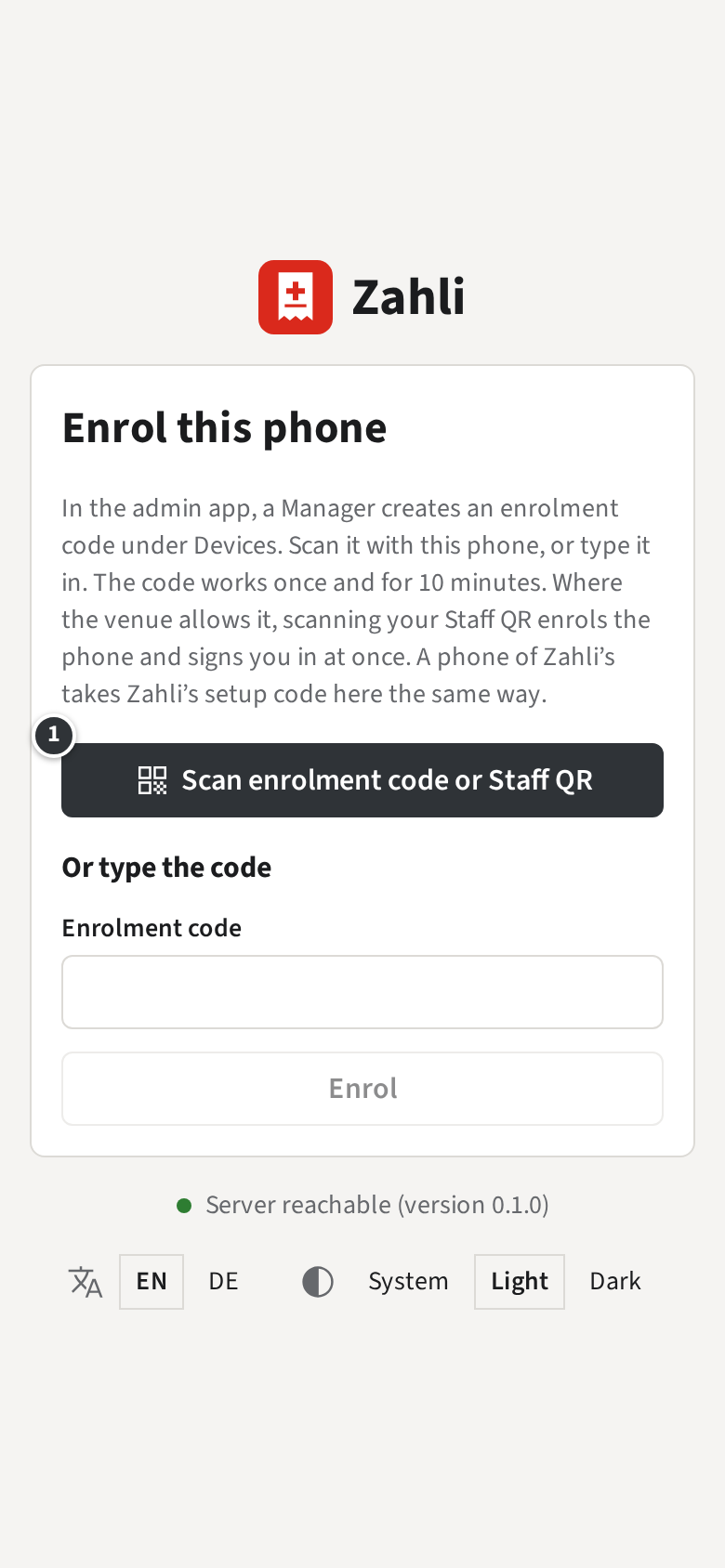
A phone that shows Enrol this phone is not set up for your venue yet. A
Manager creates an enrolment code in the admin app; scan it with ① or type it in.
Only if Staff QRs may enrol phones
Your venue lets Staff QRs enrol phones: tap ① Scan enrolment code or Staff QR and scan
your Staff QR. The phone is set up for your venue and you are signed in, in one step.
Only if Staff QRs may not enrol phones
A Staff QR does not set up a phone in your venue; only a Manager’s enrolment code does.
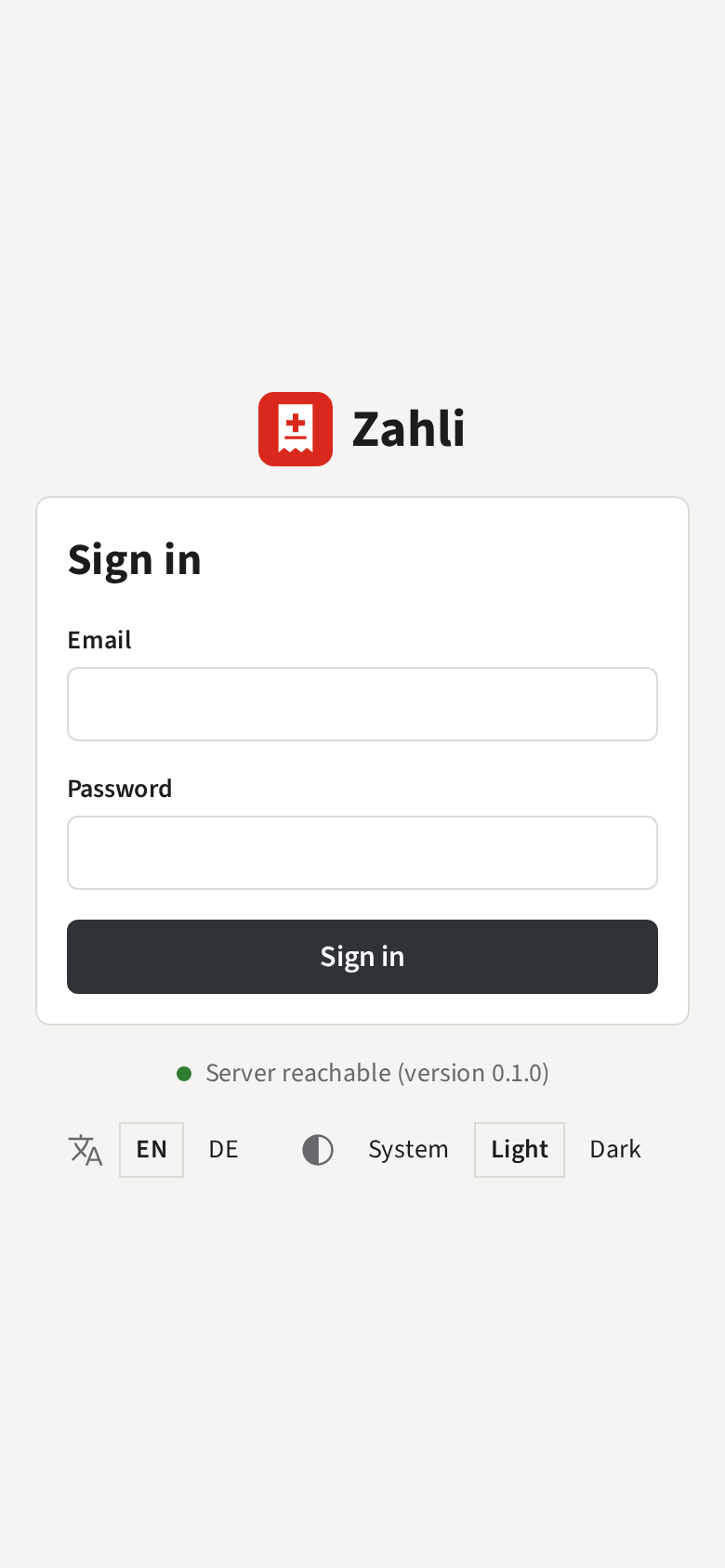
Your venue lets Waiters serve from a browser too, for example on the counter’s laptop. Open
app.zahli.ch/staff, enter your Email and Password and click
Sign in.
In a browser there is no Card and no working offline; everything else works as on the phone.
Only if Waiters may not sign in in a browser
In your venue Waiters serve on the venue’s phones only; signing in in a browser says
Waiters sign in on a staff Device only.
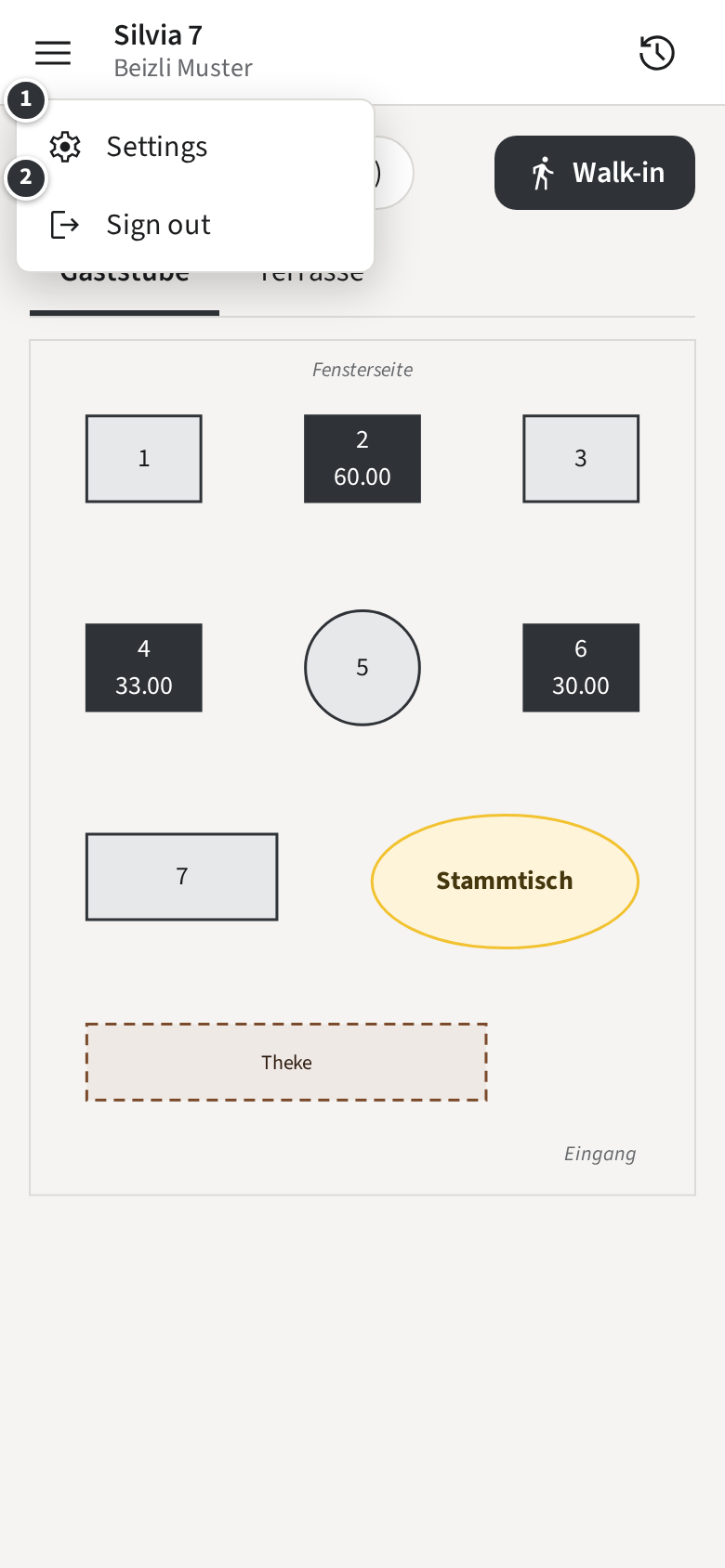
On the Rooms, tap the menu at the top left and then ② Sign out. Sign
out when you hand the phone to a colleague, so that nothing is booked in your name.
Your language
The staff app speaks English and German. Each Staff member chooses their own; amounts and dates
keep the venue’s format, such as CHF 1’234.50.
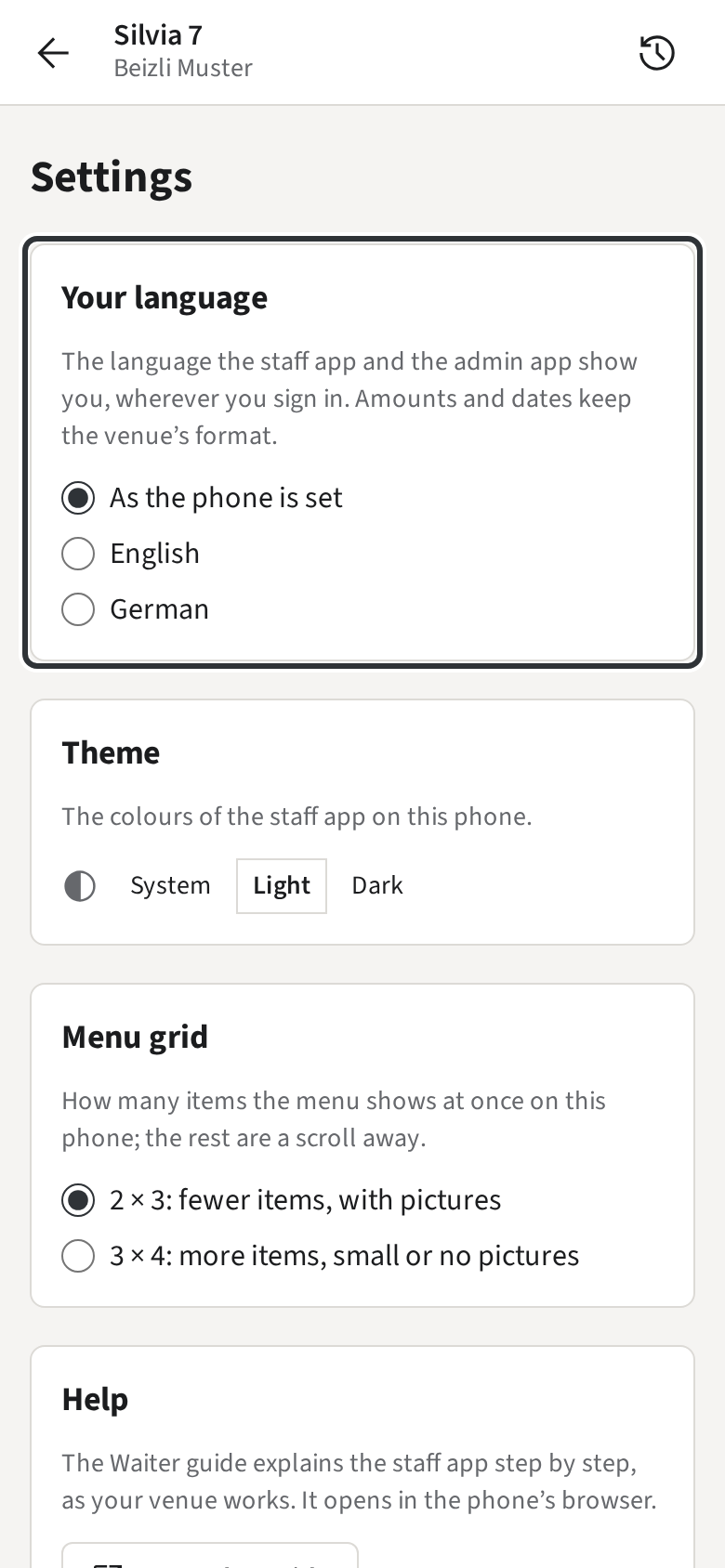
On the Rooms, tap the menu at the top left and then Settings.
Under Your language, pick English
or German. As the phone is set follows
the phone’s own language.
The choice is saved with you, not with the phone: Silvia sees the app in her language on every
phone of Beizli Muster she signs in to.
In Settings you also choose the colours (Theme)
and how many items the menu shows at once (Menu grid); both are
kept on the phone.
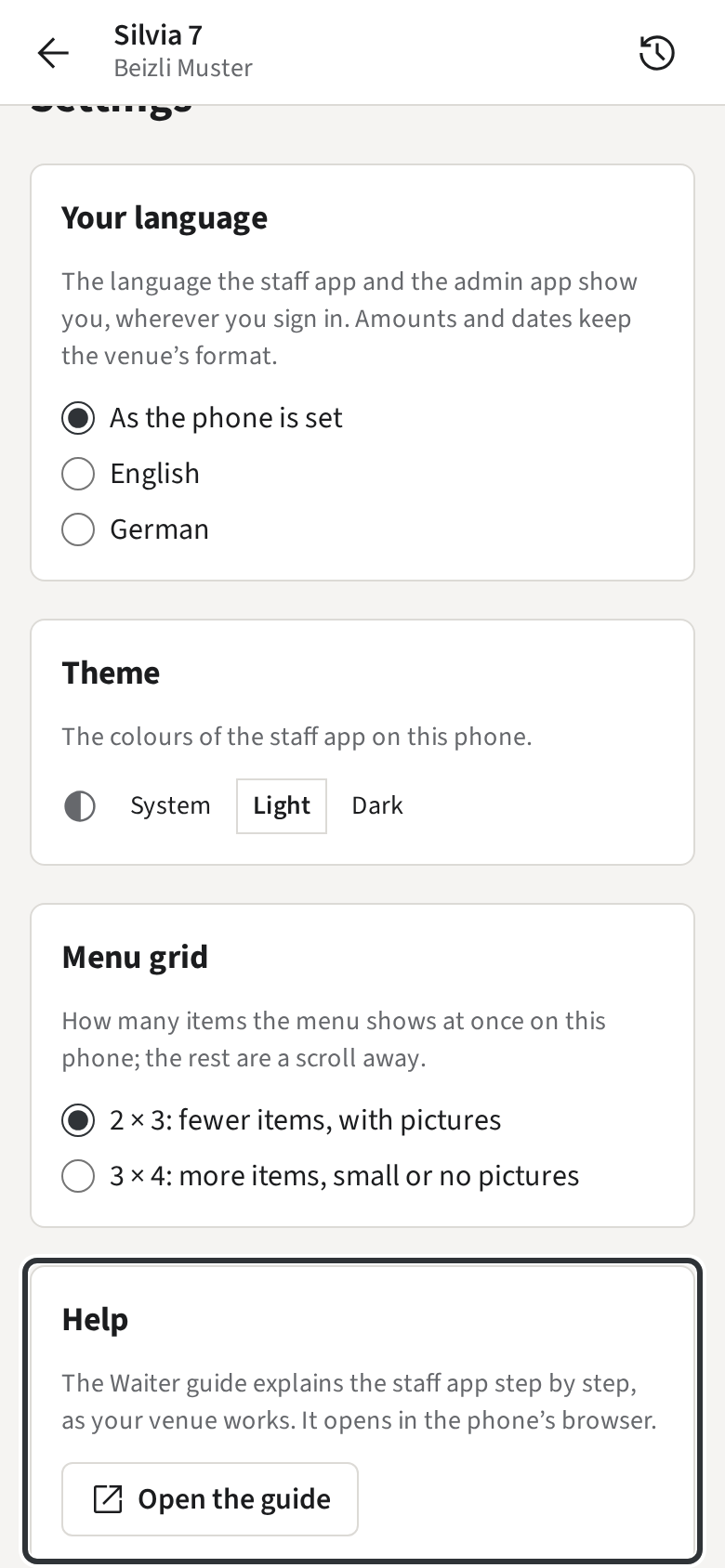
At the bottom of Settings, Help →
Open the guide opens this guide in your language, set up for how your venue
works, so it leaves out what does not apply there. On a phone it opens in the phone’s browser, in a
browser in a new tab. In the phone’s browser nobody is signed in, so the pictures show Beizli
Muster instead of your venue’s own Rooms and menu.
What TEST means
For training, a Manager can put a phone, a browser or the whole venue into test mode. The staff
app then shows the TEST MODE banner at the top of every screen.
While the banner shows:
Every Tab you open is a test Tab. It counts in no statistics and no revenue.
Card payments move no real money.
The Rooms and the Tabs list show only test Tabs. The real Tabs of the service are still there;
they come back once test mode ends.
Tickets and Receipts still print, with a large TEST on them, so the kitchen knows not to
cook. On the Twint code, TEST lies across the QR code.
In the History, test Tabs carry a TEST badge.
Treat a test Tab like a real one: send, pay and close it as you would in service. Only a Manager
switches test mode on and off; if you see the banner during service, tell one.
Rooms and Tables
After signing in you see the Rooms: each Table where the venue has placed it, with the amount of
its open Tab.
Only with Open tabs
Only with Pay-first
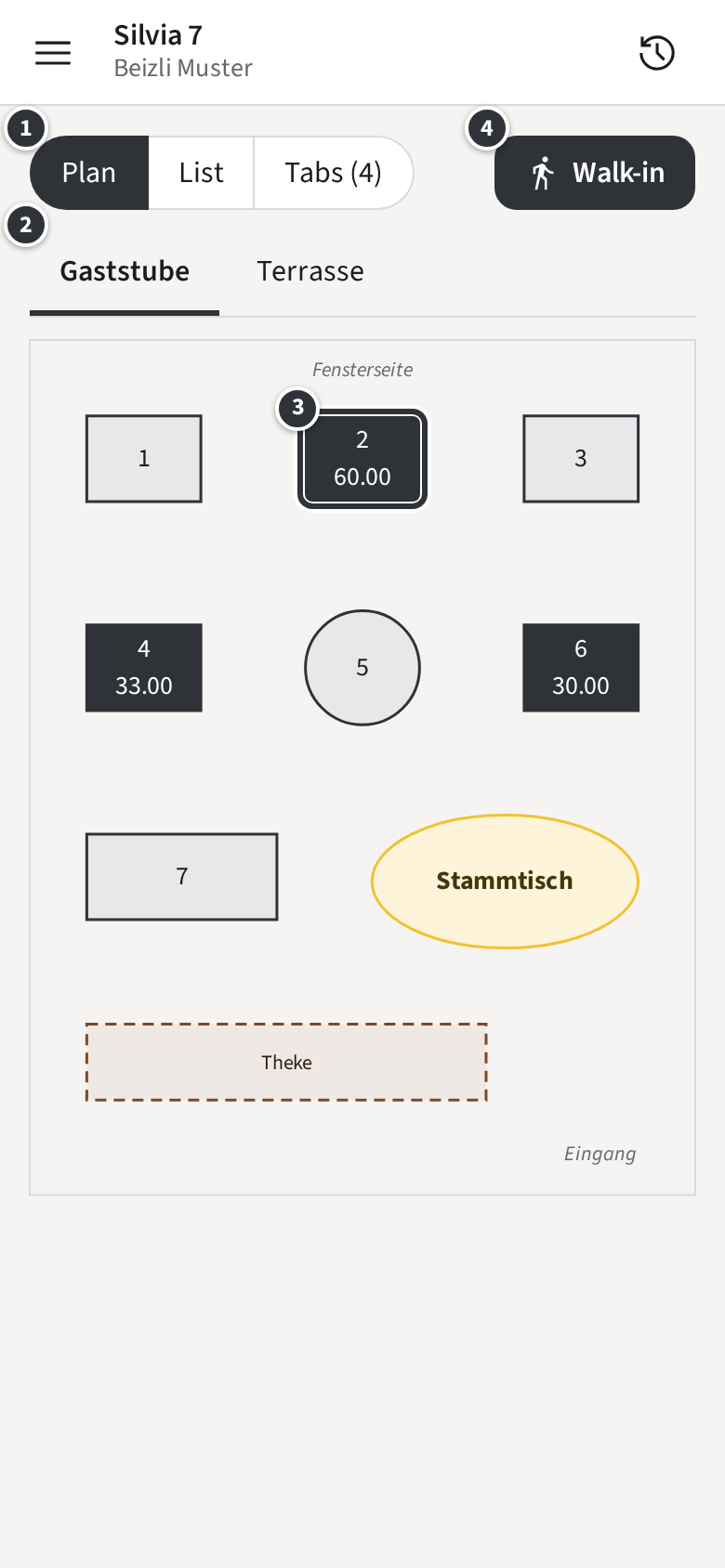
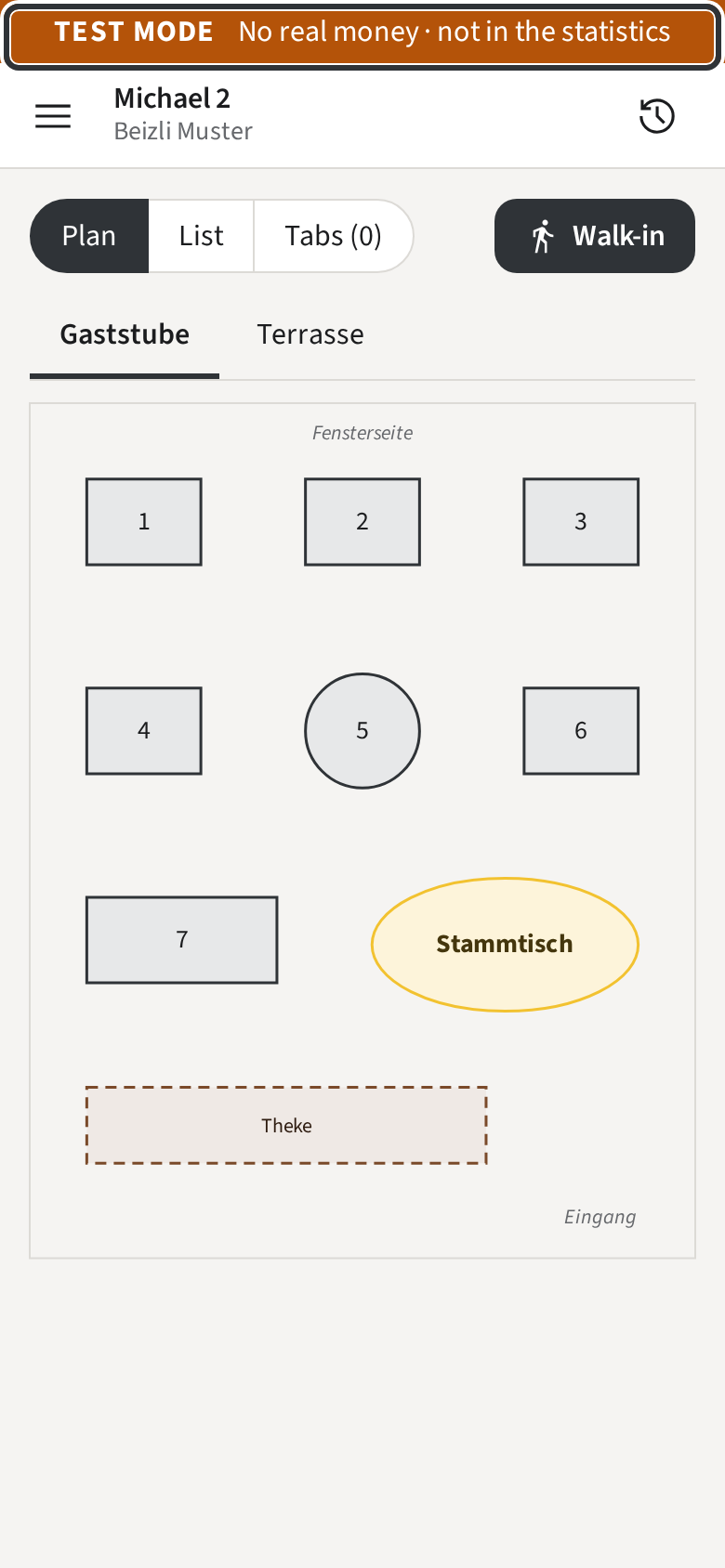
① switches between Plan, List and the open
Tabs.
② picks the Room. Swipe sideways over the plan to go to the next one. With a single Room, there
is no Room row.
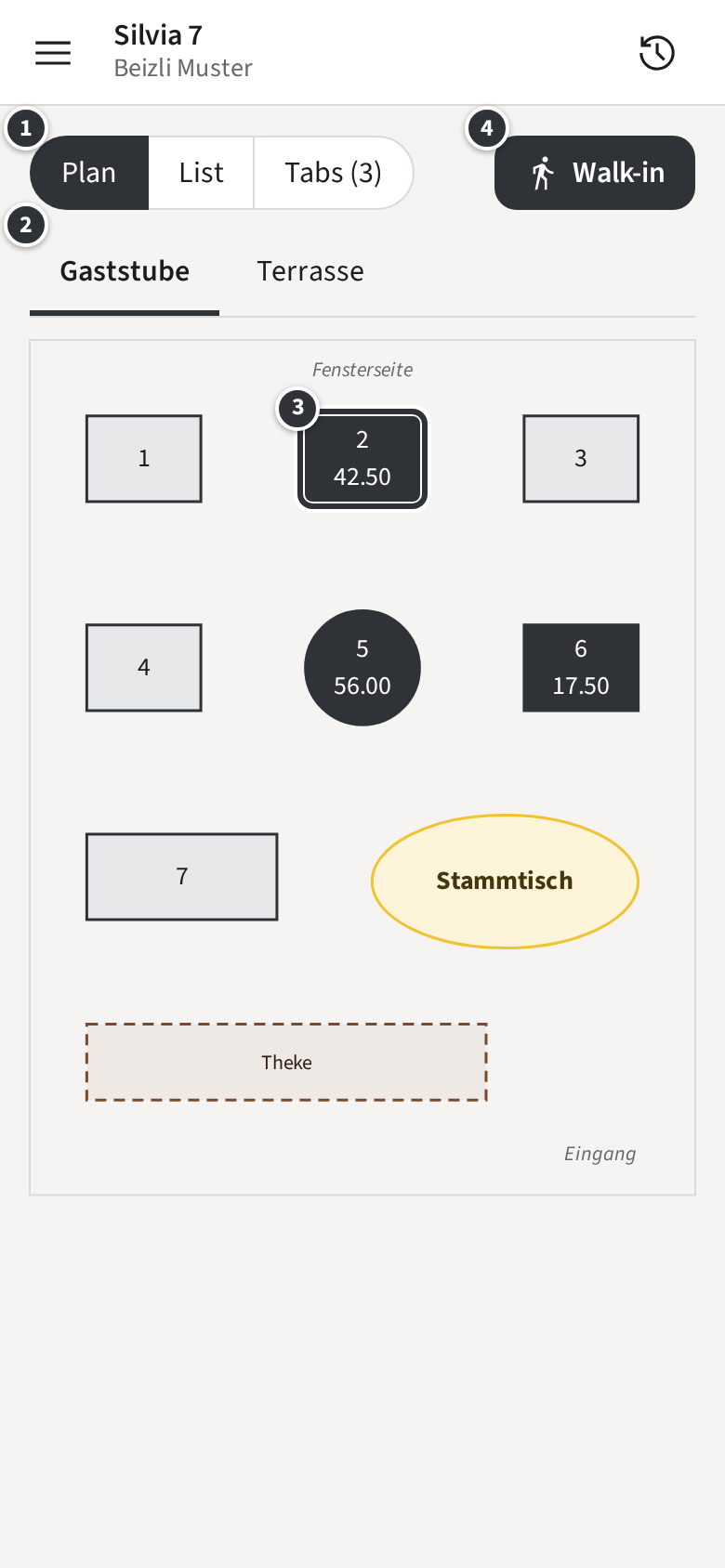
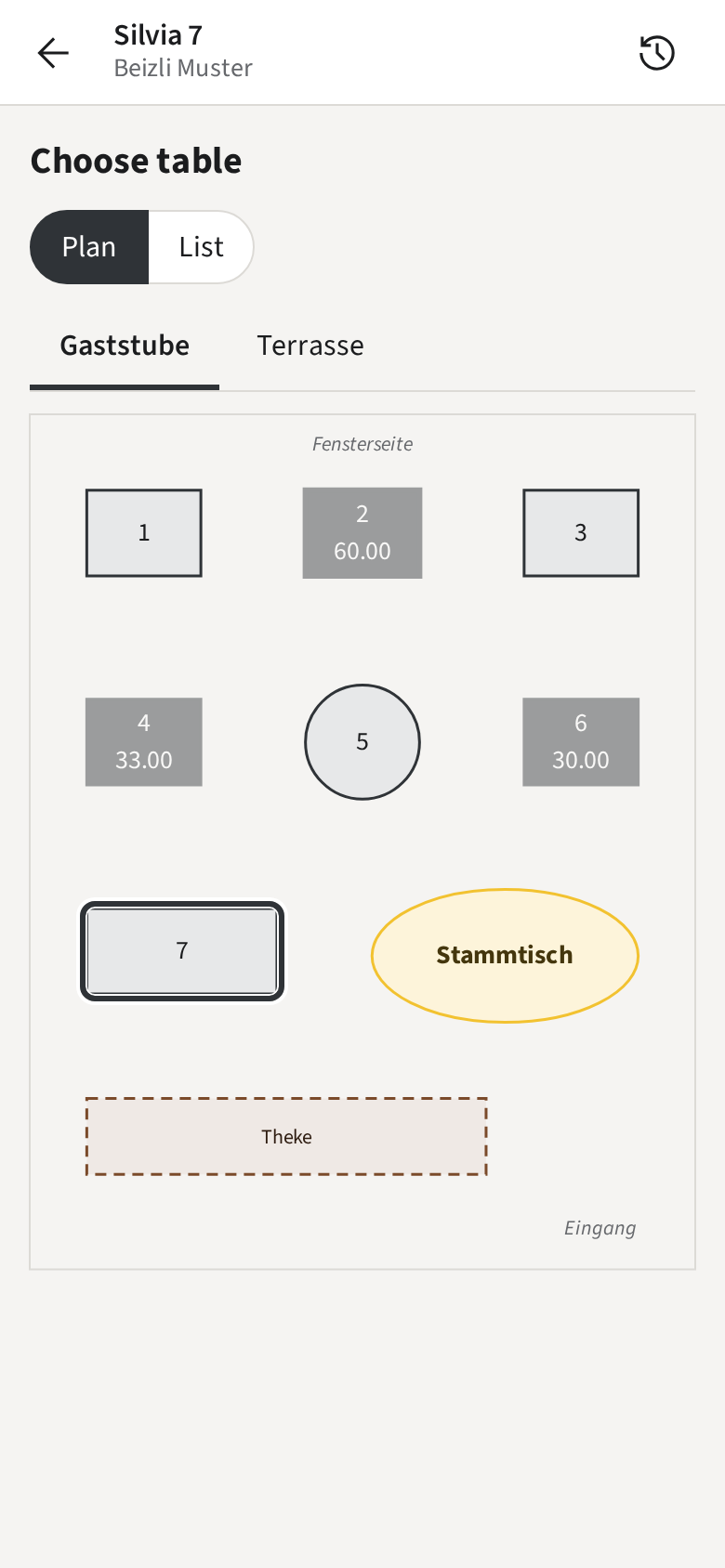
A dark Table ③ has an open Tab and shows what it amounts to; a light one is free. In Beizli
Muster, Table 2 has a Tab of CHF 60.00.
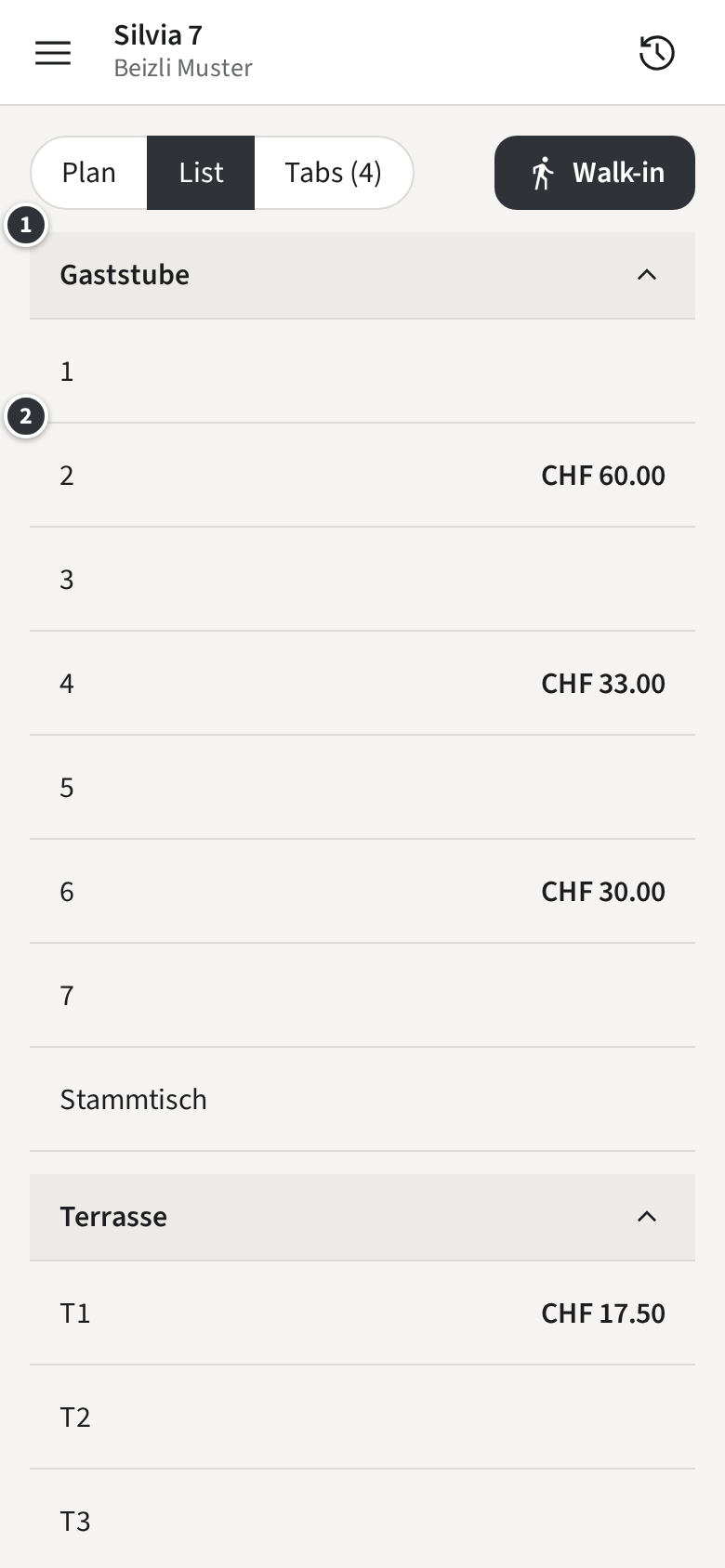
List shows the same Tables sorted by name, under a heading per Room ①;
tap a heading to fold its Tables away. A Table with an open Tab shows its amount ②.
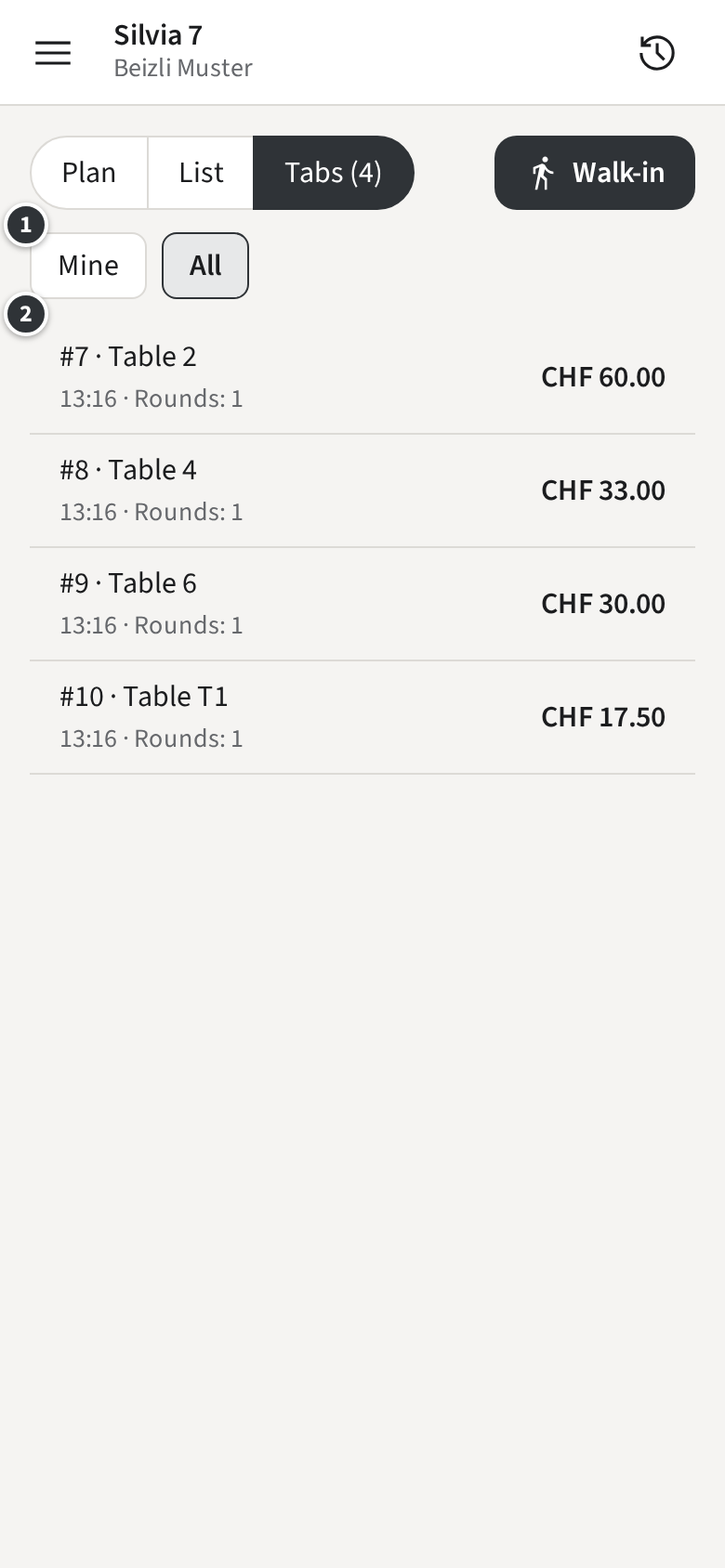
Tabs (4) lists every open Tab with its Tab number, its place, when
it was opened and its amount. ① filters: Mine shows only the Tabs you
opened, All those of the whole team. Tap a row ② to open the Tab.
Only with Pay-first
Under Pay-first without Walk-ins, the open Tabs only show when one is open.
Opening a Tab or a Walk-in
A Tab opens with its first Round: until you send something, nothing is booked and the Table stays
free for your colleagues.
In your venue every Tab needs a place. If you send without one, the staff app says
Choose a Table first. and opens the Table picker; choose the Table
Only with Walk-ins or Walk-in and send again.
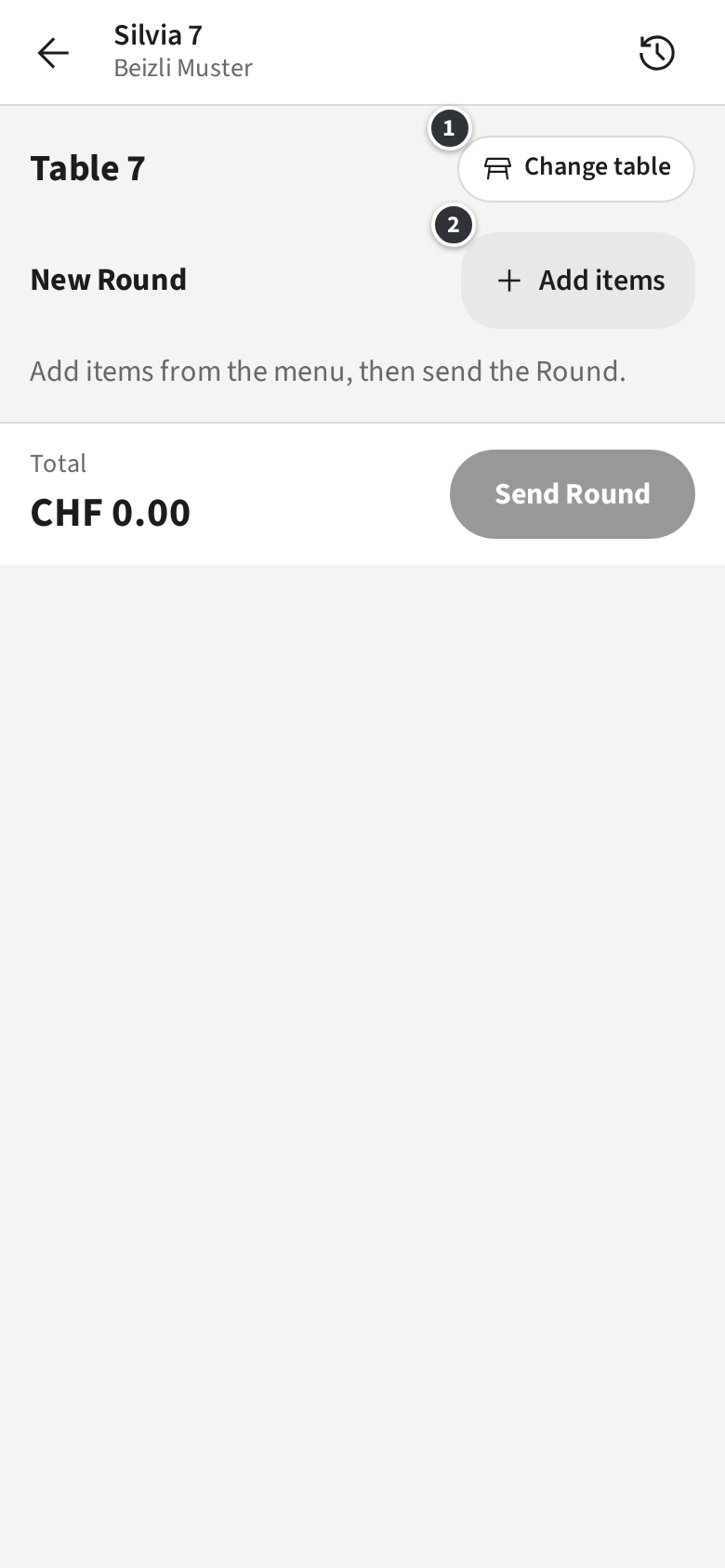
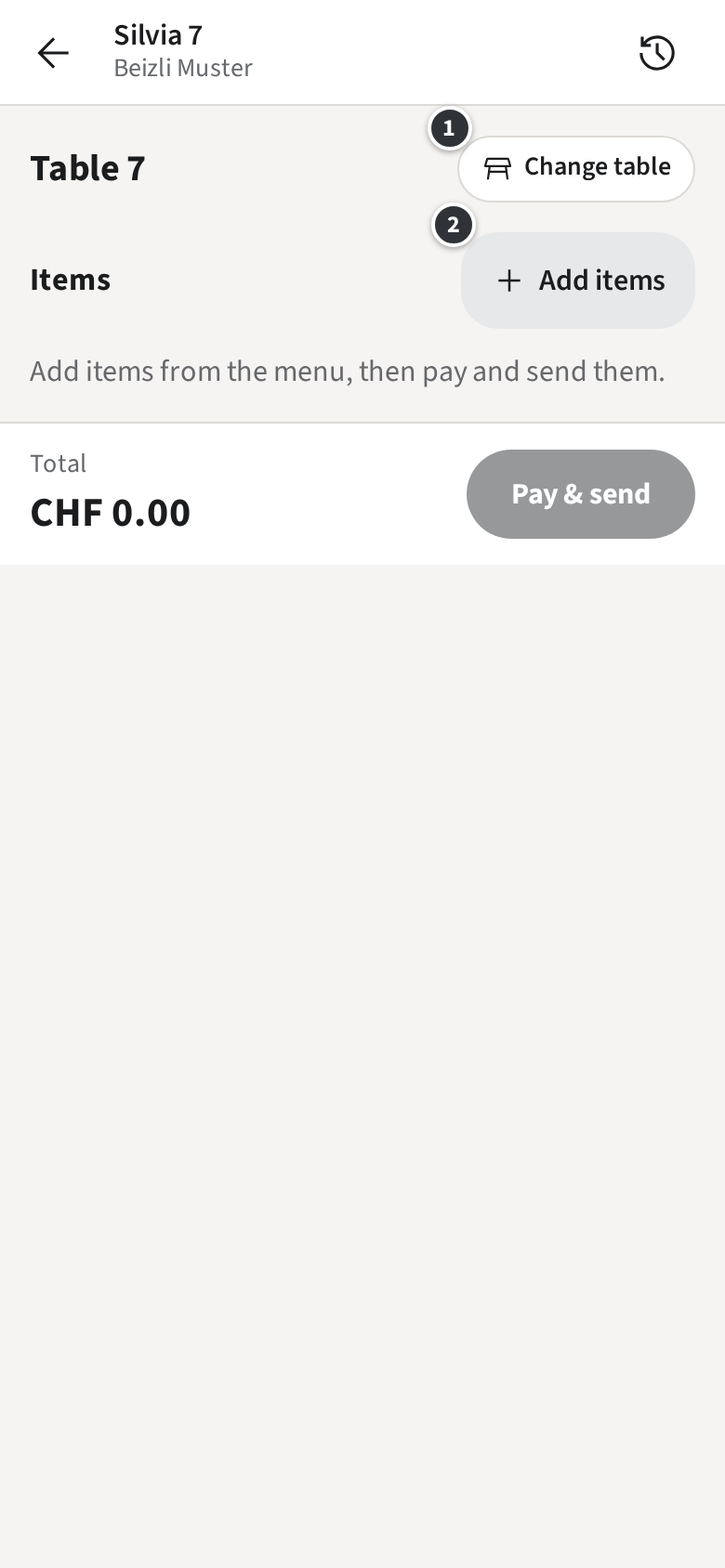
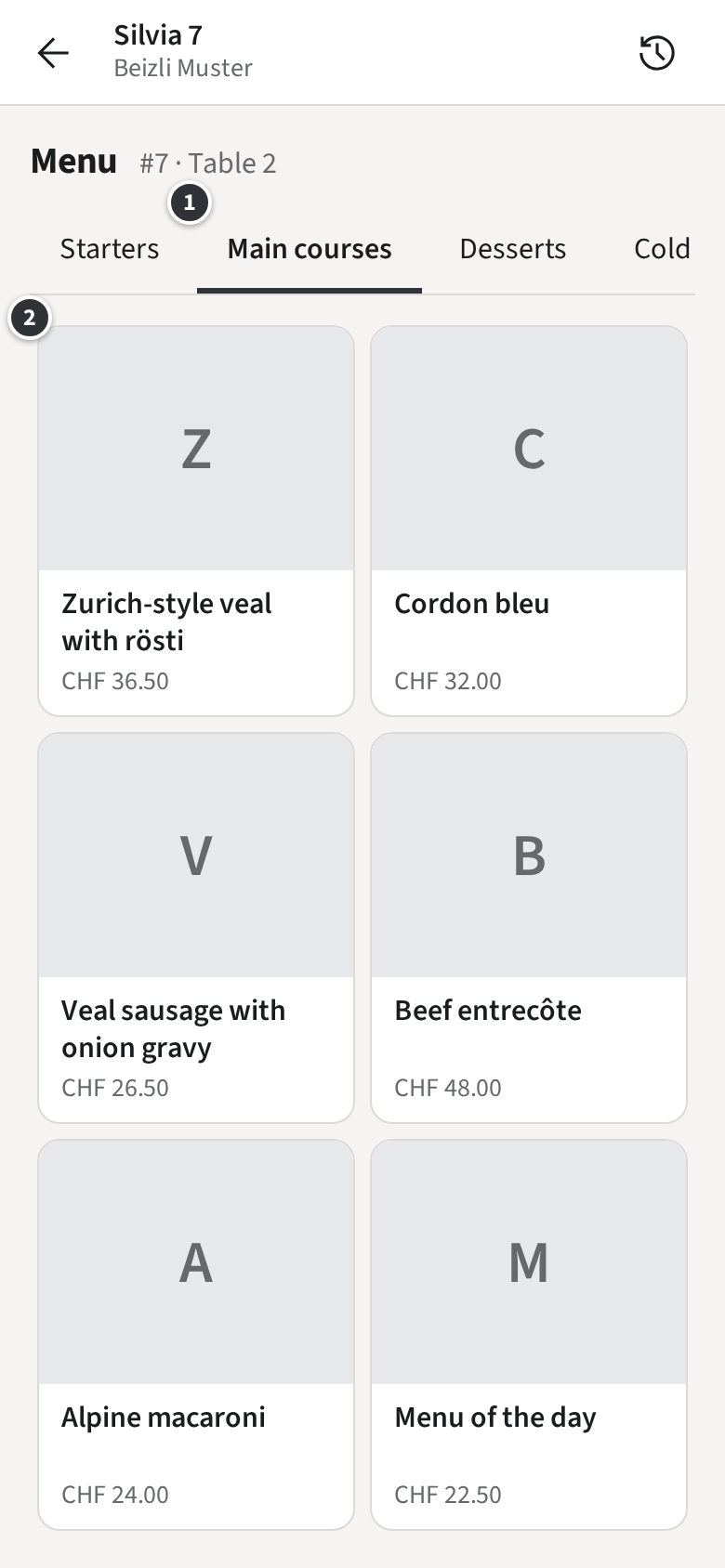
If your venue starts on the menu rather than on the Rooms, you pick the items first; the Tab is
titled No table yet until you choose its place with
Change table.
Taking a Round
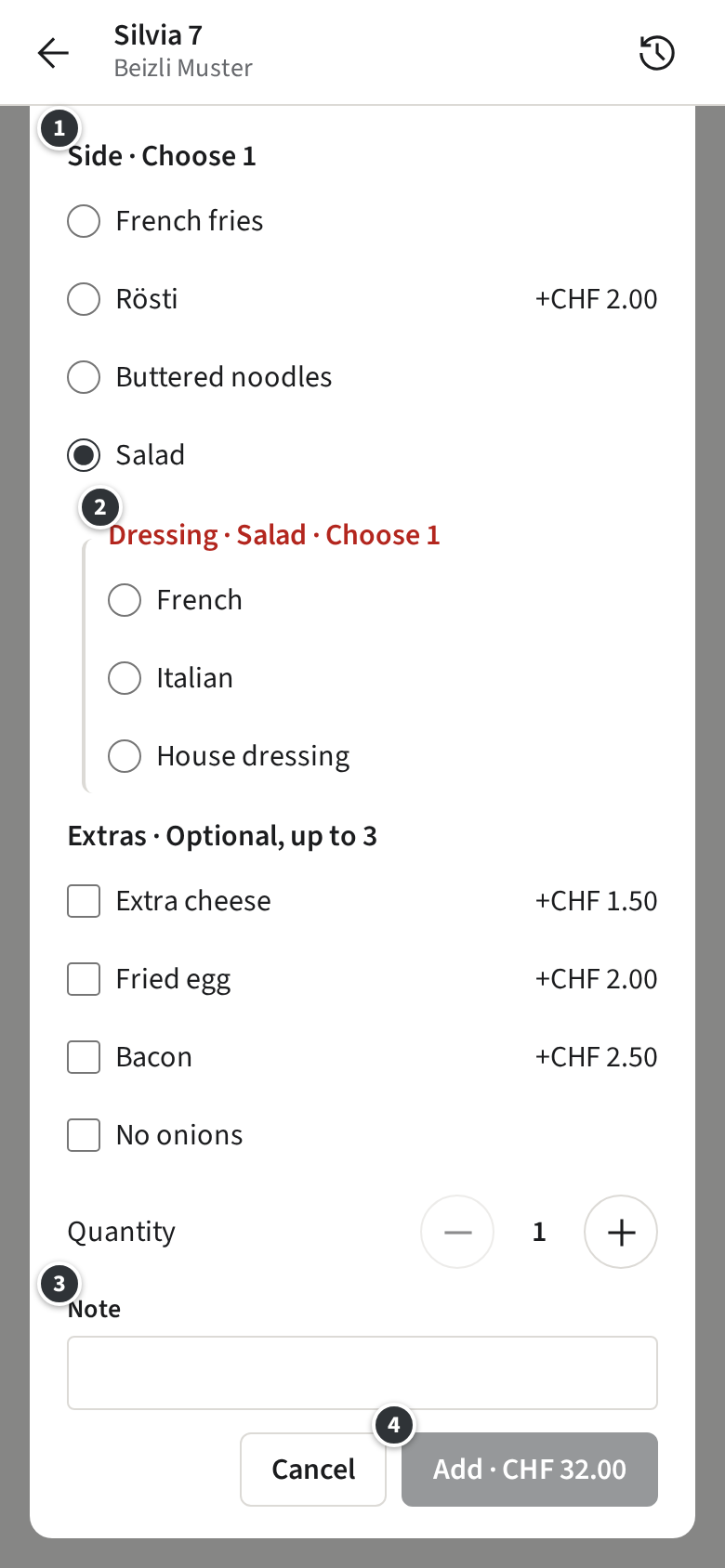
Example: at Table 2 the guests order two beers, a peppermint tea with honey and a cordon bleu
with salad.
Each group ① says how many to pick: Choose 1 must be picked, Optional, up to 3 may be. A
group in red still needs a pick. A price change, such as +CHF 2.00 for Rösti, is added to the
item.
Some picks open a Follow-up group right below them ②: picking Salad as the side of the
cordon bleu asks for Dressing · Salad. Unpick the salad and the dressing goes with it.
Under ③ Note, write what the kitchen should know about this item,
such as “no sauce”. Set the quantity and tap ④
Add · CHF 32.00; it is enabled once every group is complete.
Some items need a Note, because one menu entry stands for several things: Beizli Muster’s
Homemade cake asks which cake. Its dialog says Note (required) and adds
nothing without one.
What you picked is your Draft: it waits on the Tab until you send it.
Only with Open tabs
Only with Pay-first
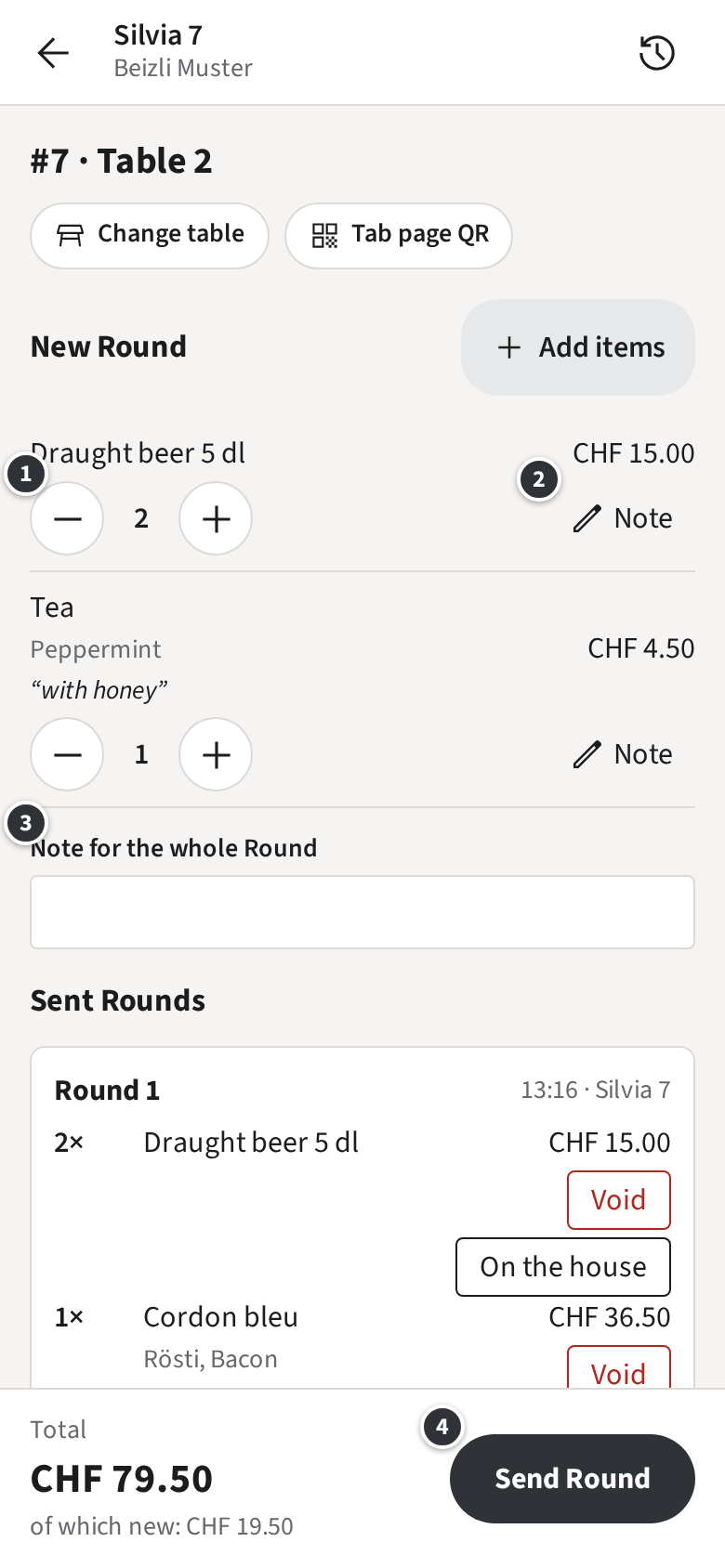
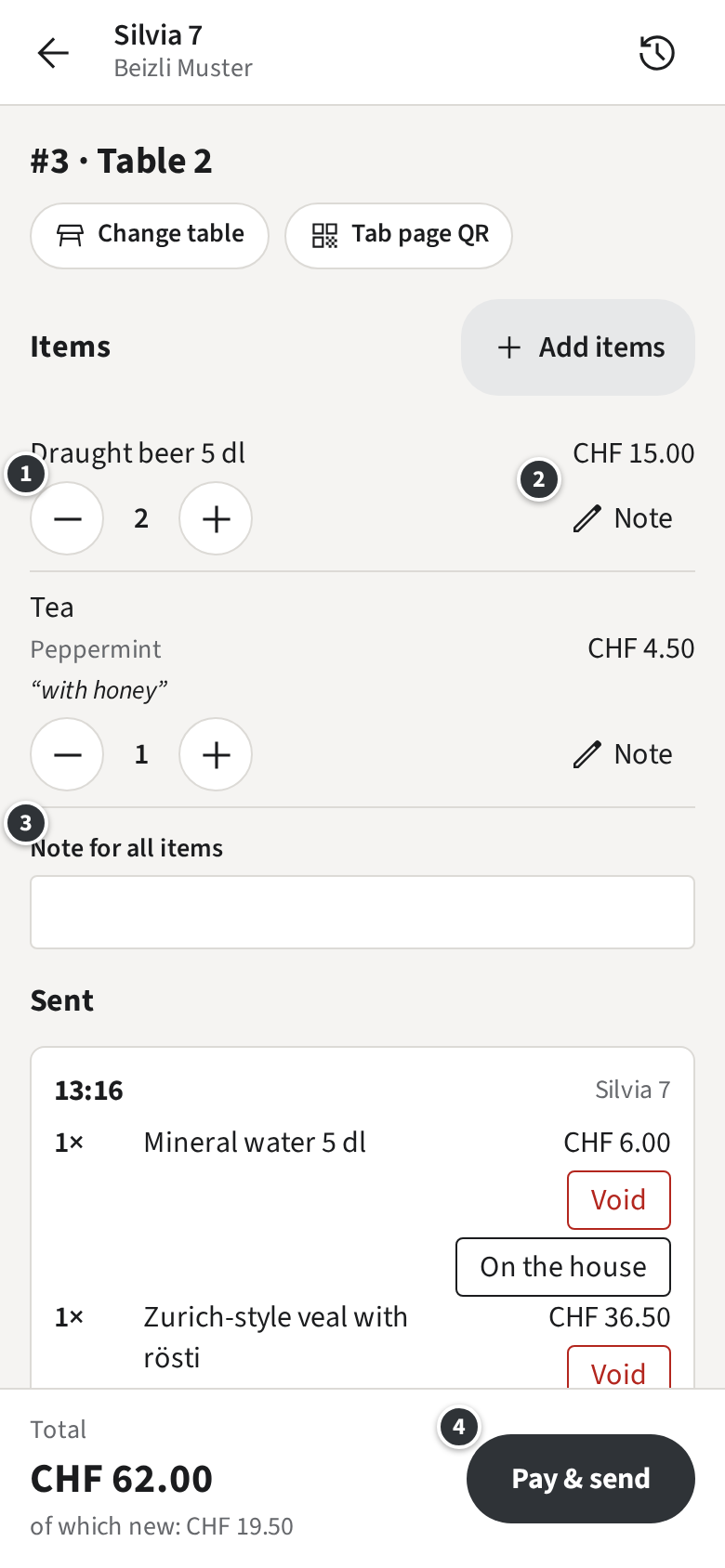
① changes the quantity; one fewer at 1 removes the line.
② Note adds or changes the item’s Note.
③ is a Note for everything you send now, such as “starters together”.
④ sends: Only with Open tabsSend Round. The Tickets print
at the Küche and the Bar at once.Only with Pay-firstPay & send
takes you to the Pay sheet; see Pay-first.
The Draft stays on this phone or browser, for you only, even if you close the app or it updates.
Your colleagues do not see it; in the Rooms, the Table shows a pencil badge with the number of
items so you find it again.
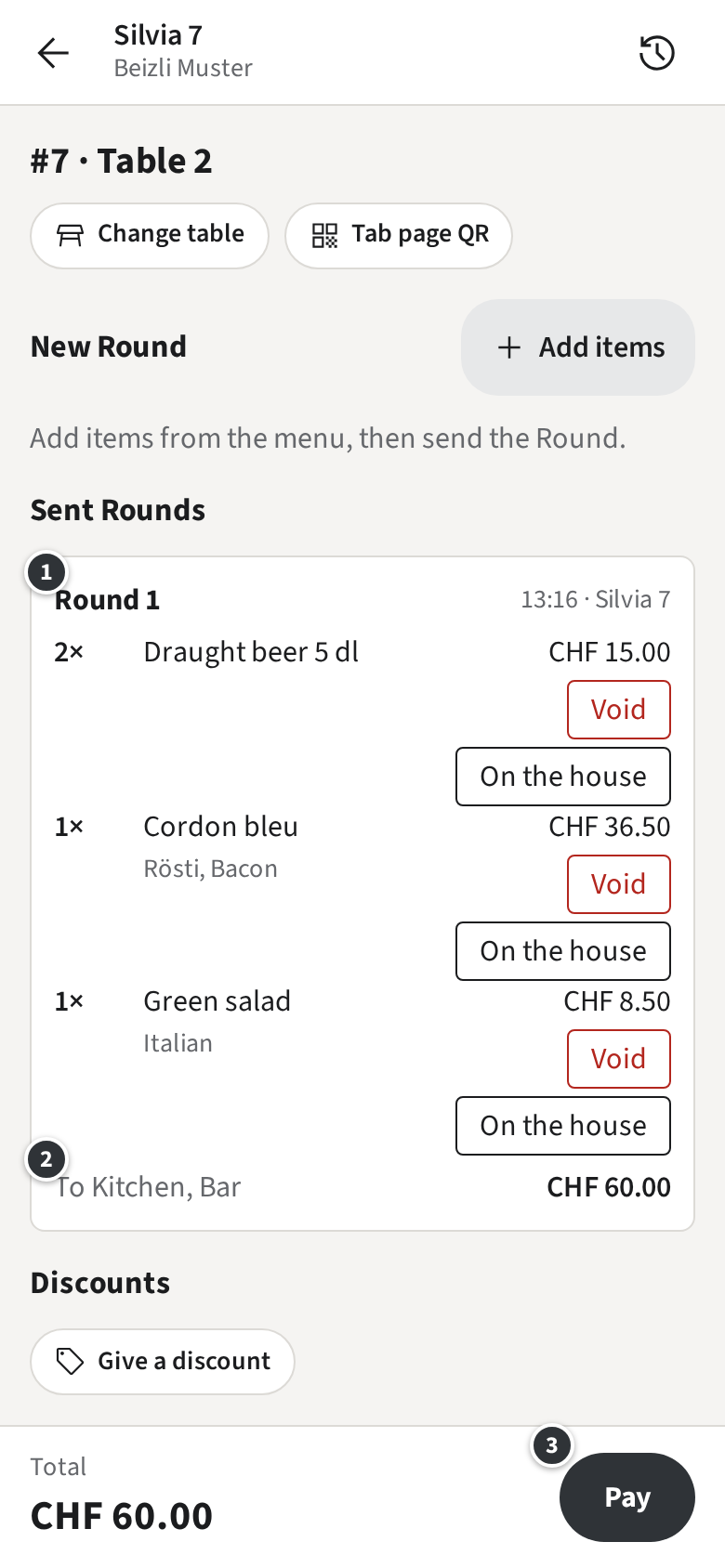
The Round appears on the Tab ①, with who sent it and when. ② says which Stations got it. The total
grows; ③ takes the guest to paying when they leave.
Only with Open tabs
Only with Pay-first
If an item ran out while you were picking, the Draft marks it
Sold out: remove it to send.; remove it and send the rest
(Sold out).
Sold out
When the kitchen runs out of something, a Manager marks it Sold out. The
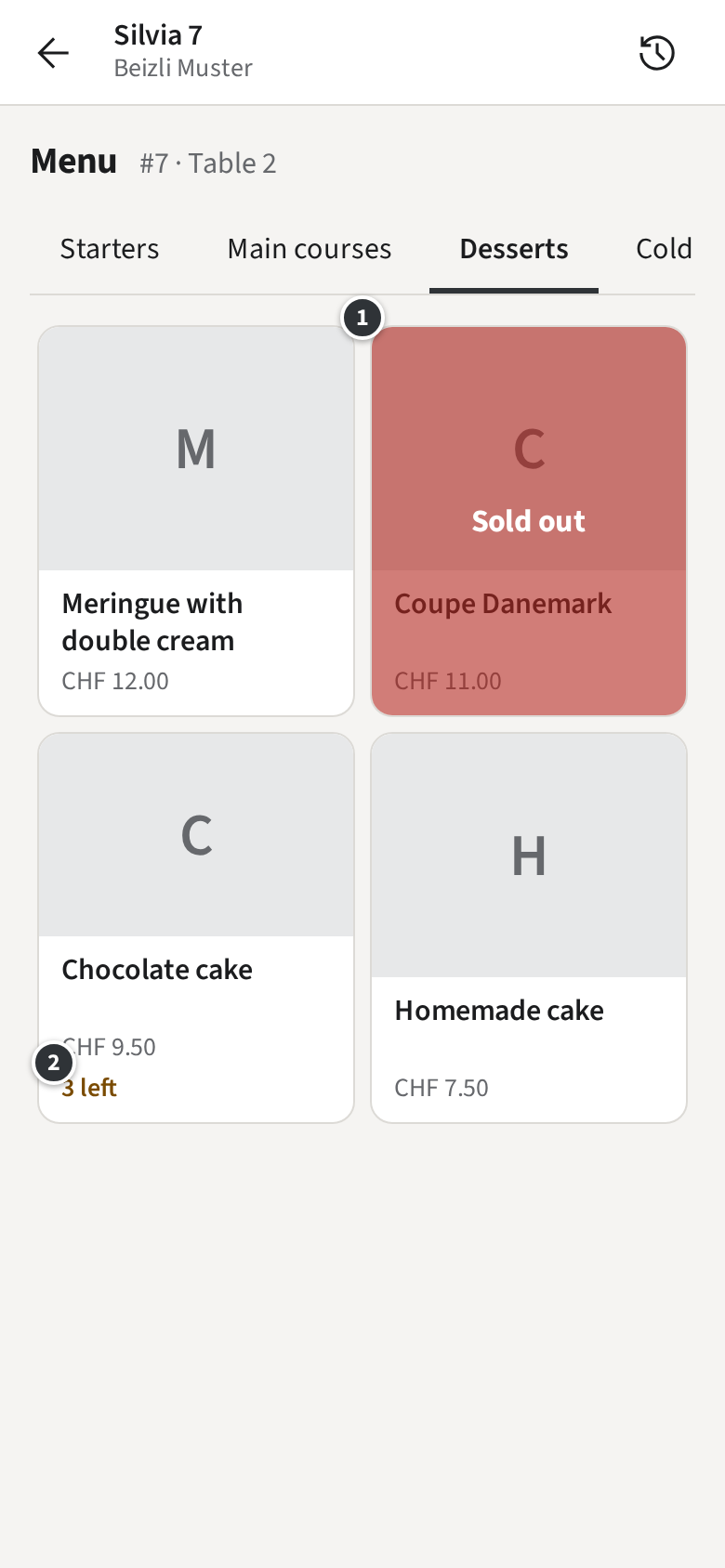
item keeps its place on the menu ①, in red, and cannot be tapped. In Beizli Muster the Coupe
Dänemark is gone for today.
Only with Stock counters
Some items are counted. When few are left, the tile shows how many ②: the chocolate cake says
3 left. When the count reaches zero, the item is sold out by
itself. A Void or a correction puts the units back.
A choice in a dialog that has run out is not shown at all.
Tell a Manager when something runs out that the menu still offers; they mark it sold out for
everyone at once.
Pay-first
Only with Open tabs
Your venue works with Open tabs: what you send goes to the Stations at once and the guest pays
later. This topic is for venues where the guest pays first.
Only with Pay-first
Your venue works Pay-first: what you pick goes to the Stations only once the Tab is paid in
full. The staff app speaks of items rather than Rounds.
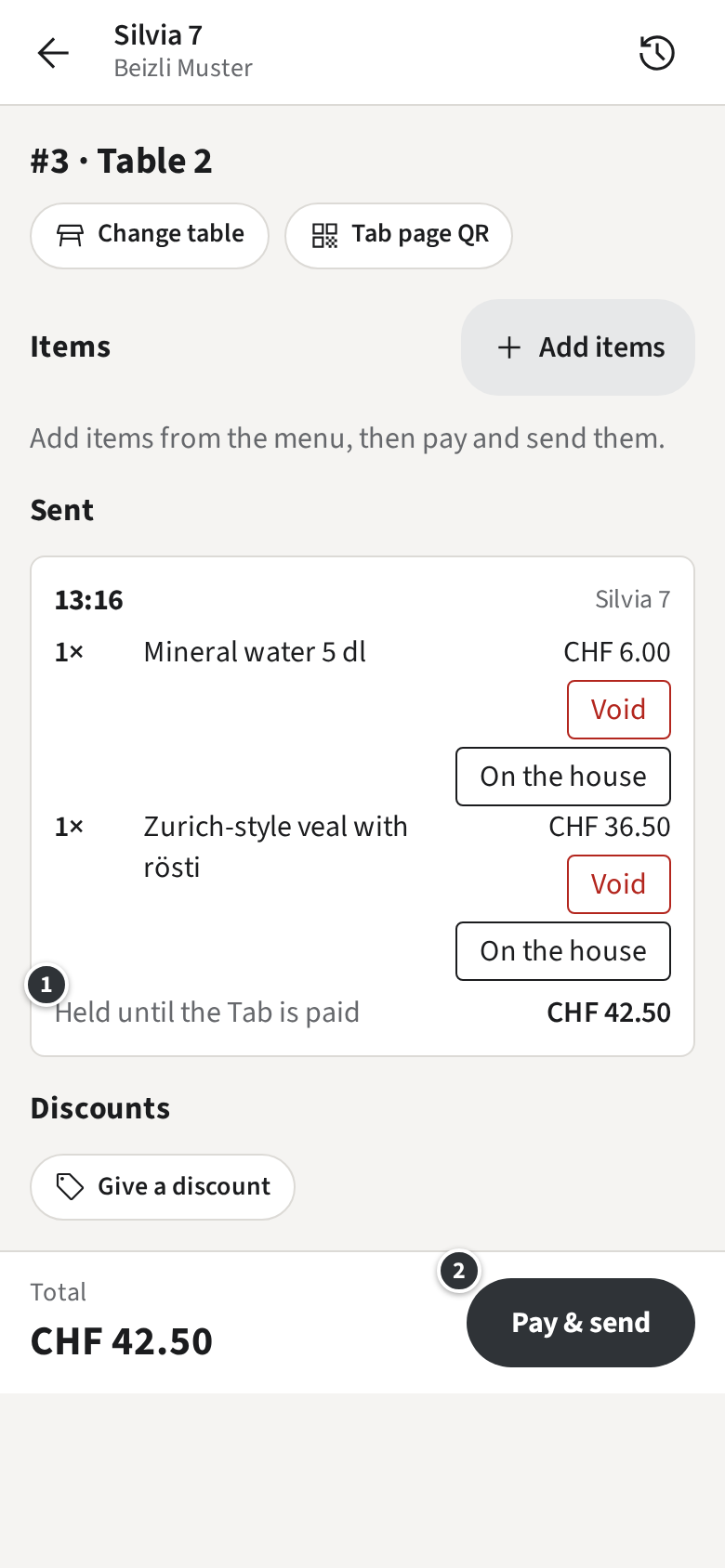
Example: at Table 2 the guests want a mineral water and the Zurich-style veal.
Open Table 2 and pick the items as in Taking a Round. The Draft
is titled Items.
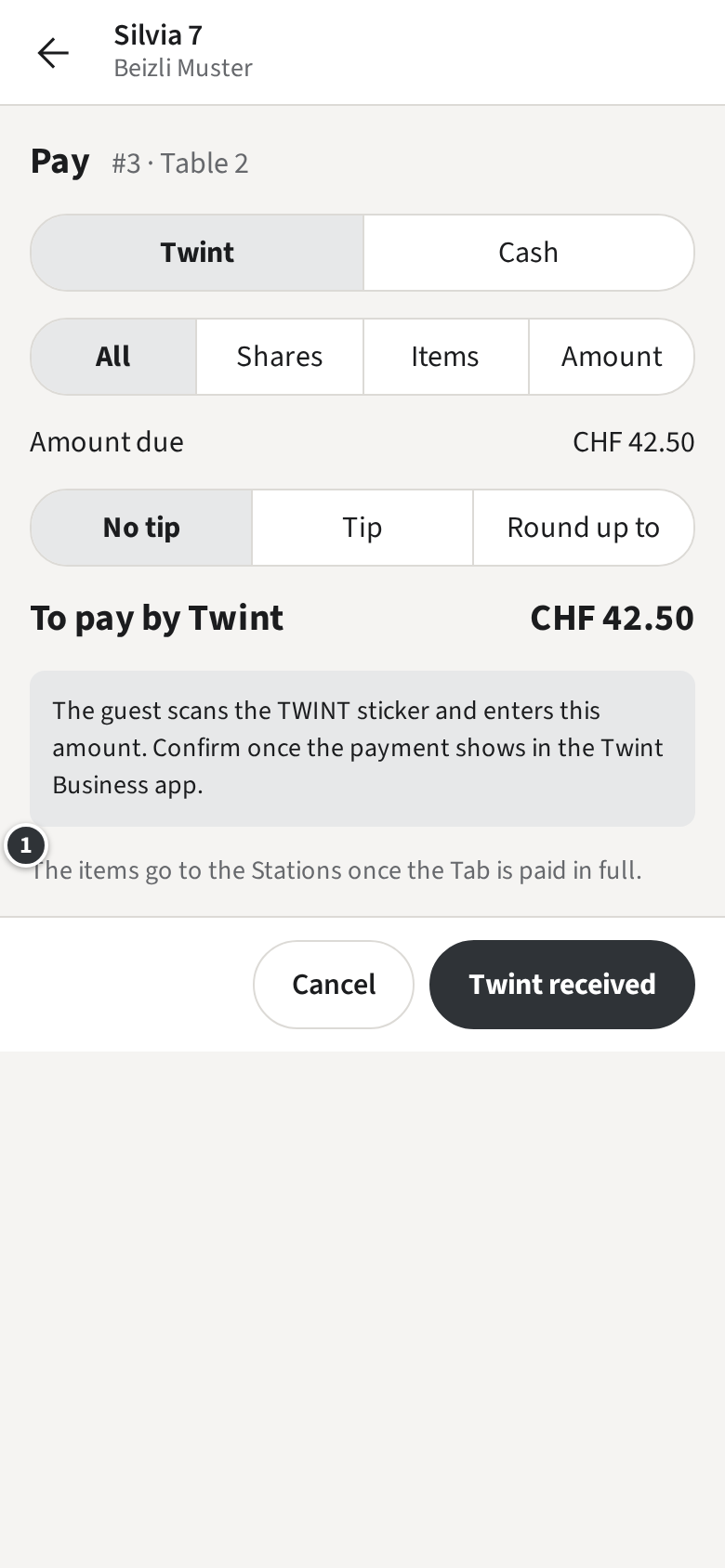
Tap Pay & send. The items are saved on the Tab and the Pay sheet
opens.
Take the Payment (Paying). Once the Tab is paid in full, the Tickets
print at the Stations.
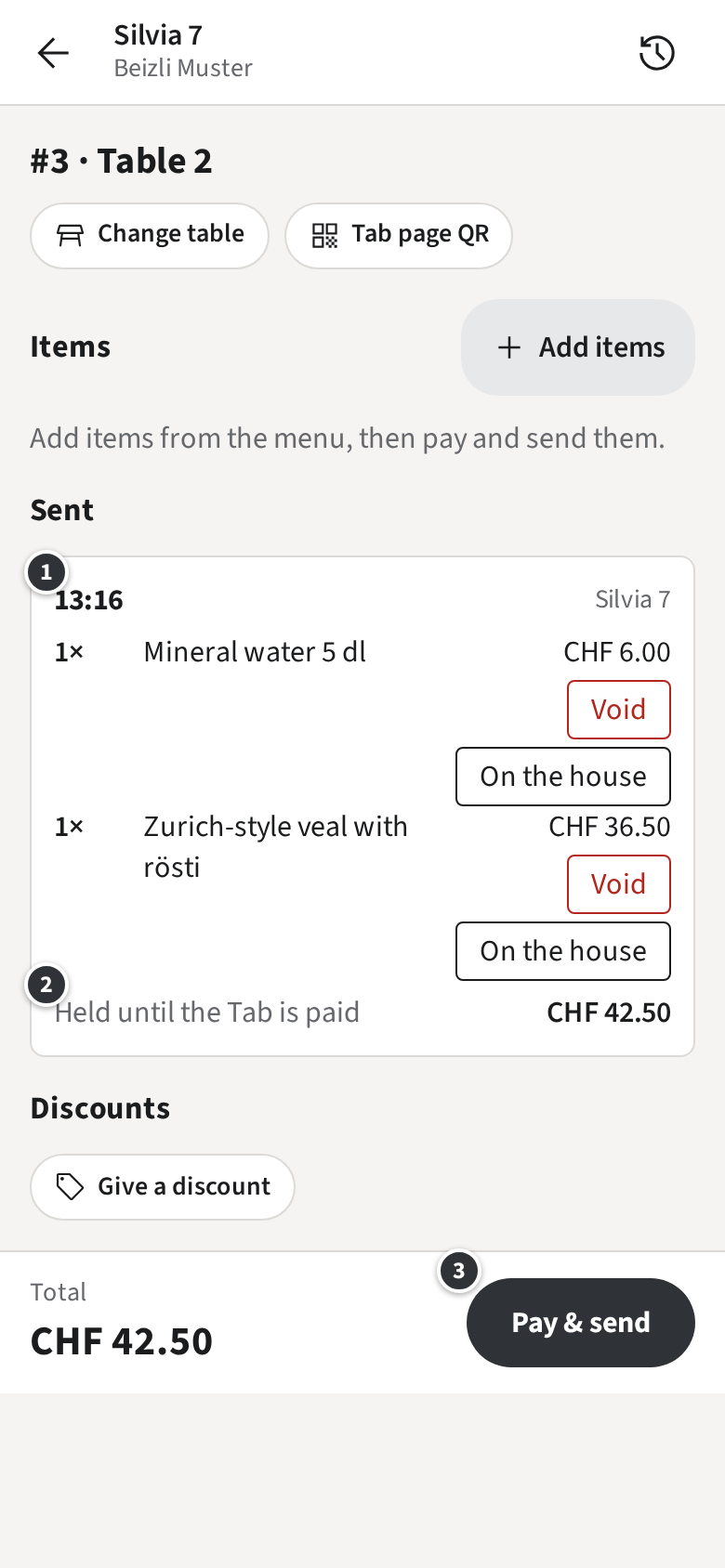
If the guest does not pay right away, the items wait on the Tab ①:
Held until the Tab is paid. ② Pay & send takes you back to
paying.
The Pay sheet reminds you ①: The items go to the Stations once the Tab is paid in full.
Sent items are titled by their time and Receipt number rather than “Round 1”, and Tickets show
the Tab number. A guest who orders more later gets a new set of items, paid the same way.
Voids
A Void takes an item off the Tab before it is paid: the guest changed their mind, or you typed
the wrong thing.
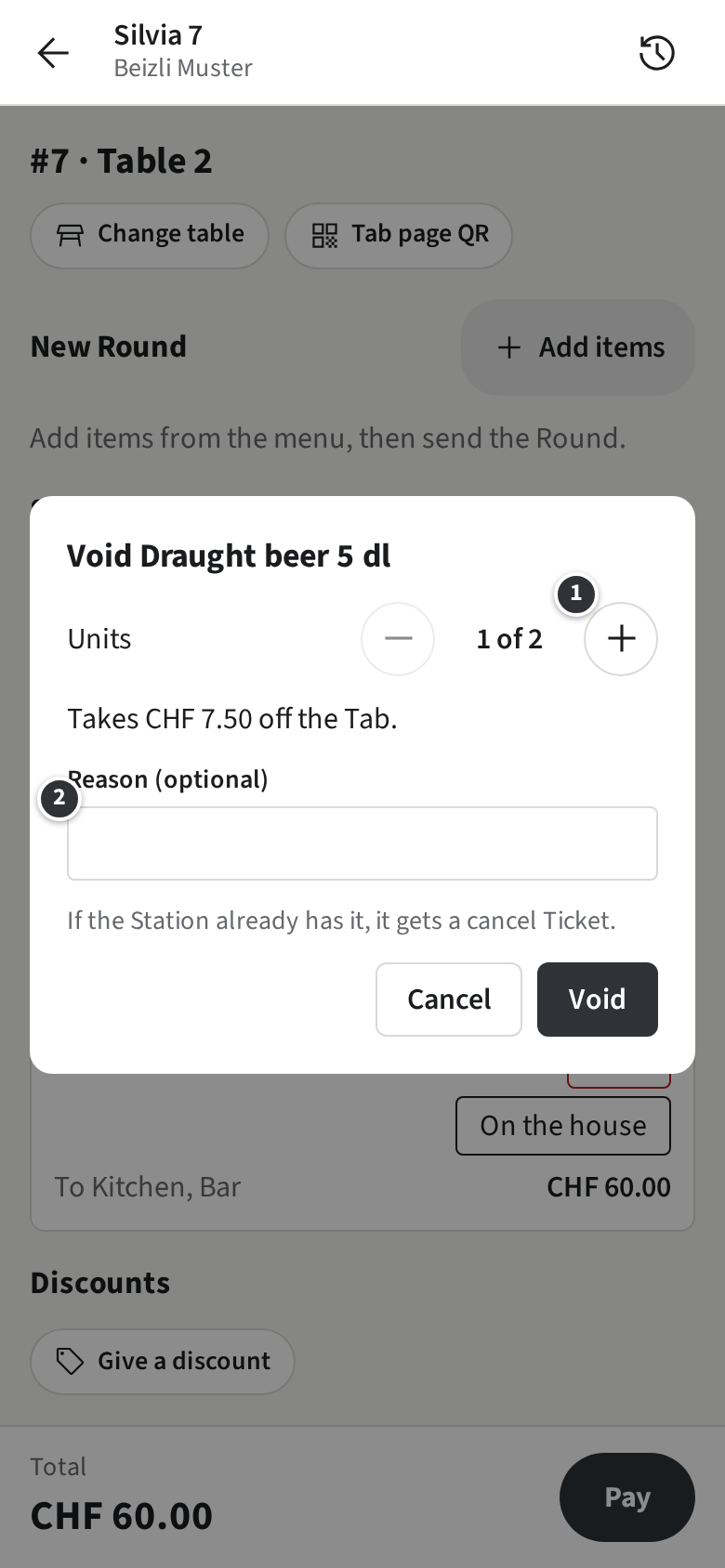
Example: Table 2 got two beers, but only one was wanted.
On the Tab, tap Void next to the beers.
Set how many ①: 1 of 2. The dialog shows what it takes off the Tab.
Give a reason if it helps ②, such as “ordered twice”, and tap
Void.
If the Station already has the item, it gets a cancel Ticket, so the bar does not pour it. The
Tab shows the Void under Voided.
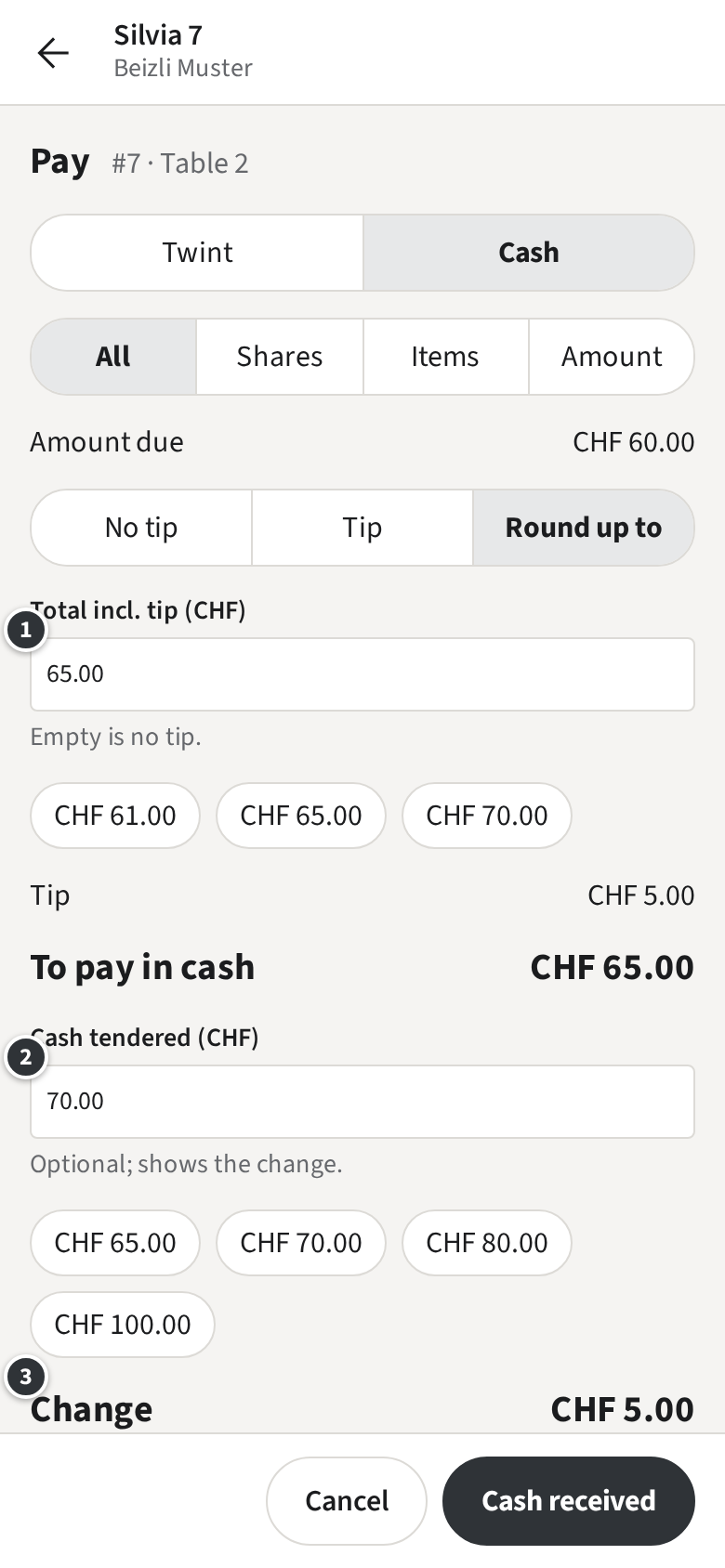
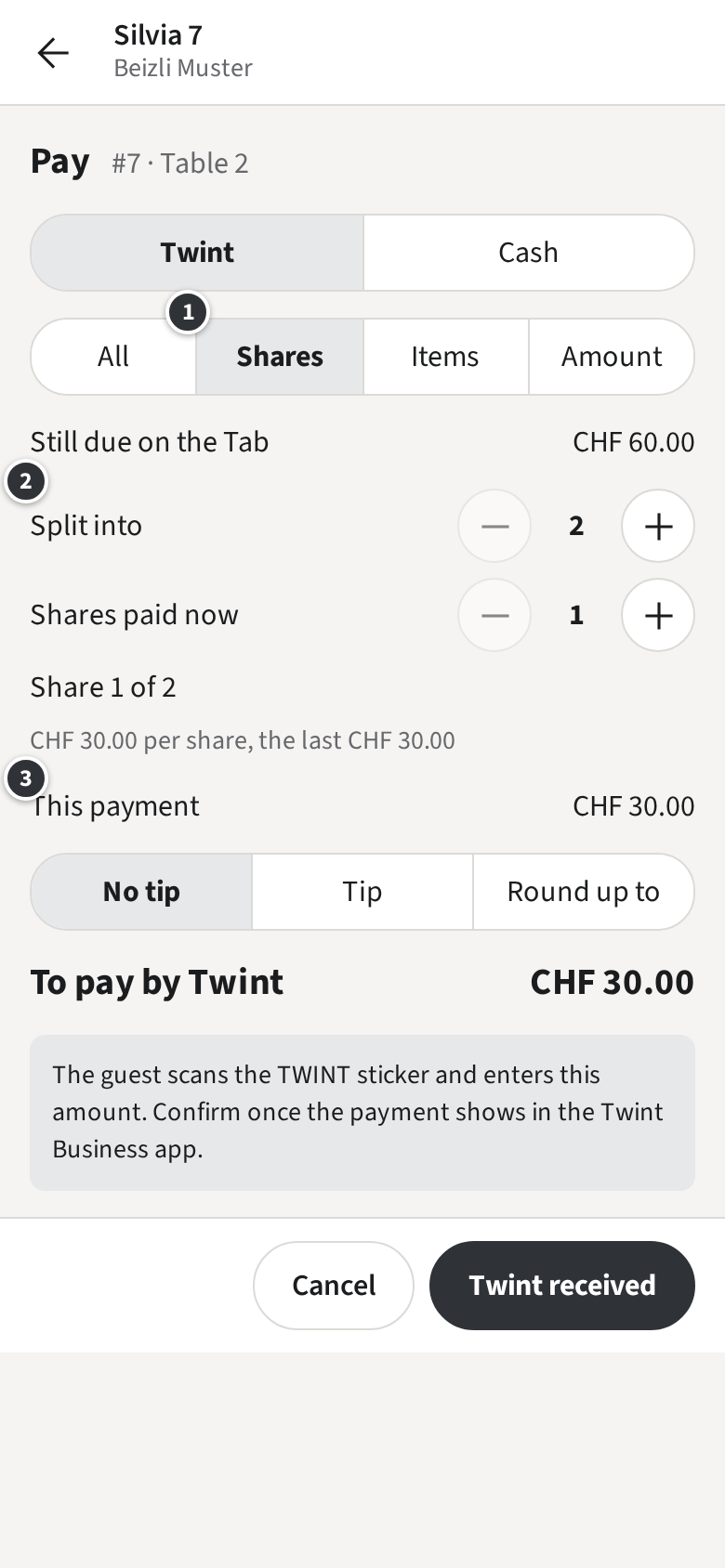
Tap Cash. The guest rounds up to 65 ①, so the Tip is CHF 5.00.
Under ② enter what the guest hands you, here 70, and the change ③ shows: CHF 5.00. Tap
Cash received.
Cash is rounded to 5 Rappen; the staff app does it for you and shows the rounding.
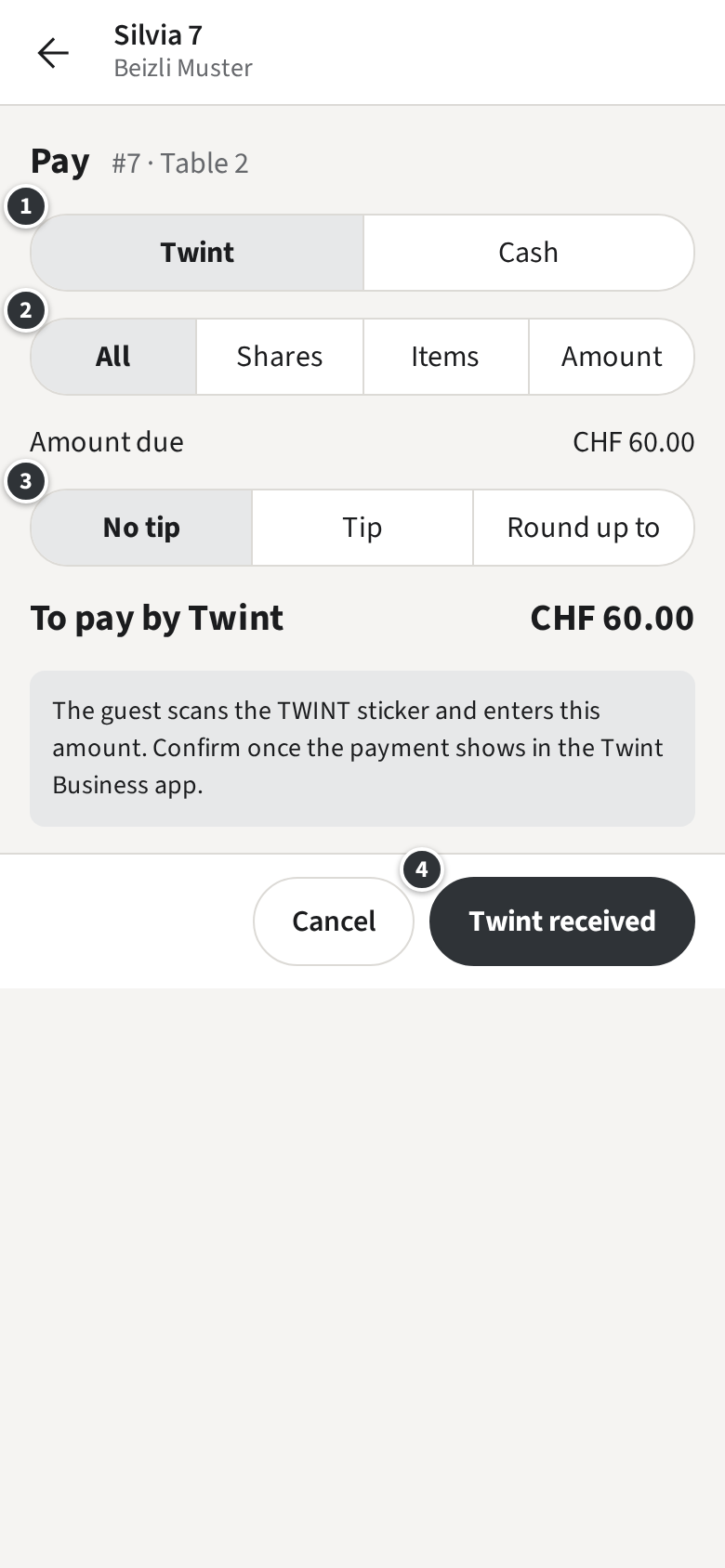
With the venue’s TWINT sticker: the guest scans the sticker and types the amount shown. Once
the payment appears in the Twint Business app, tap Twint received.
If your venue has its Twint code in Zahli, tap Show Twint code: the code
fills the screen with the amount above it, brightly lit. Hold the phone out to the guest; once
the payment shows in the Twint Business app, tap Twint received, or
Cancel to go back.
Only confirm what you saw arrive: Zahli cannot check a Twint payment by itself.
Card works on the venue’s phones, while they are online; a browser never offers it.
Tap Card, then Charge card.
When the phone says Hold the card or phone to the back of this phone., hand it to the guest. They
hold their card or phone against the back of yours.
The staff app checks with the payment provider and shows the Payment as paid.
If the card is declined, the staff app says so and nothing was charged: try again, or another
method. Cancel payment stops a payment nobody tapped.
If a phone cannot take cards, it says No card payments on this phone once after you
sign in, and Card is not offered on it: take Twint or Cash, or use another phone.
The Pay sheet shows the Payment with its Receipt number.
Only with a receipt PrinterPrint receipt prints the Receipt for the
guest. When the Tab is paid in full it closes by itself;
Done takes you back. If part is still due,
Next payment takes the next Payment.
Splits
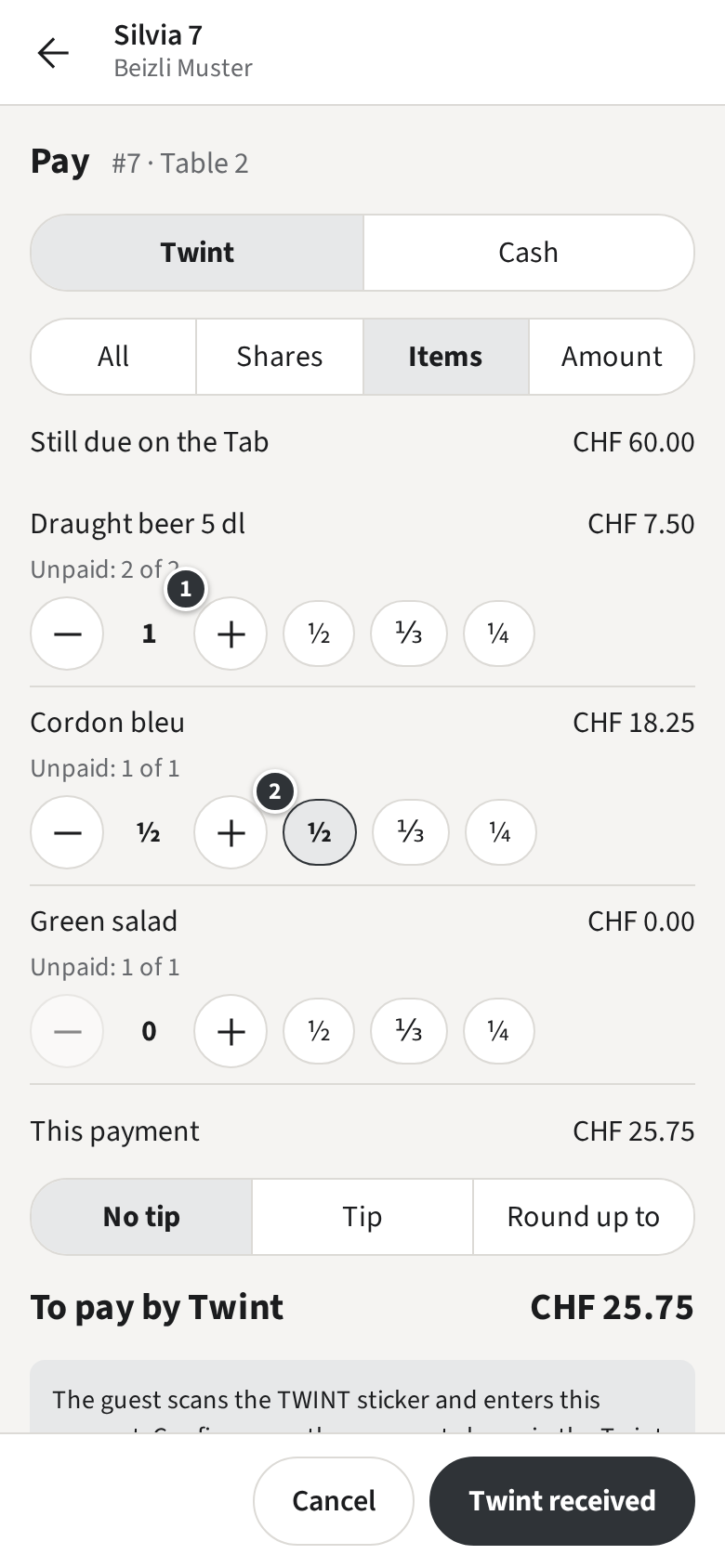
When the guests pay separately, take one Payment after another on the same Tab. On the Pay sheet,
choose how much this Payment covers: Shares,
Items or Amount. You can mix them on
one Tab.
Tap Items and pick the items of this guest with ①. To share an item,
such as a bottle of wine, tap ½, ⅓ or ¼ ② next to it. Lines already paid show what is left.
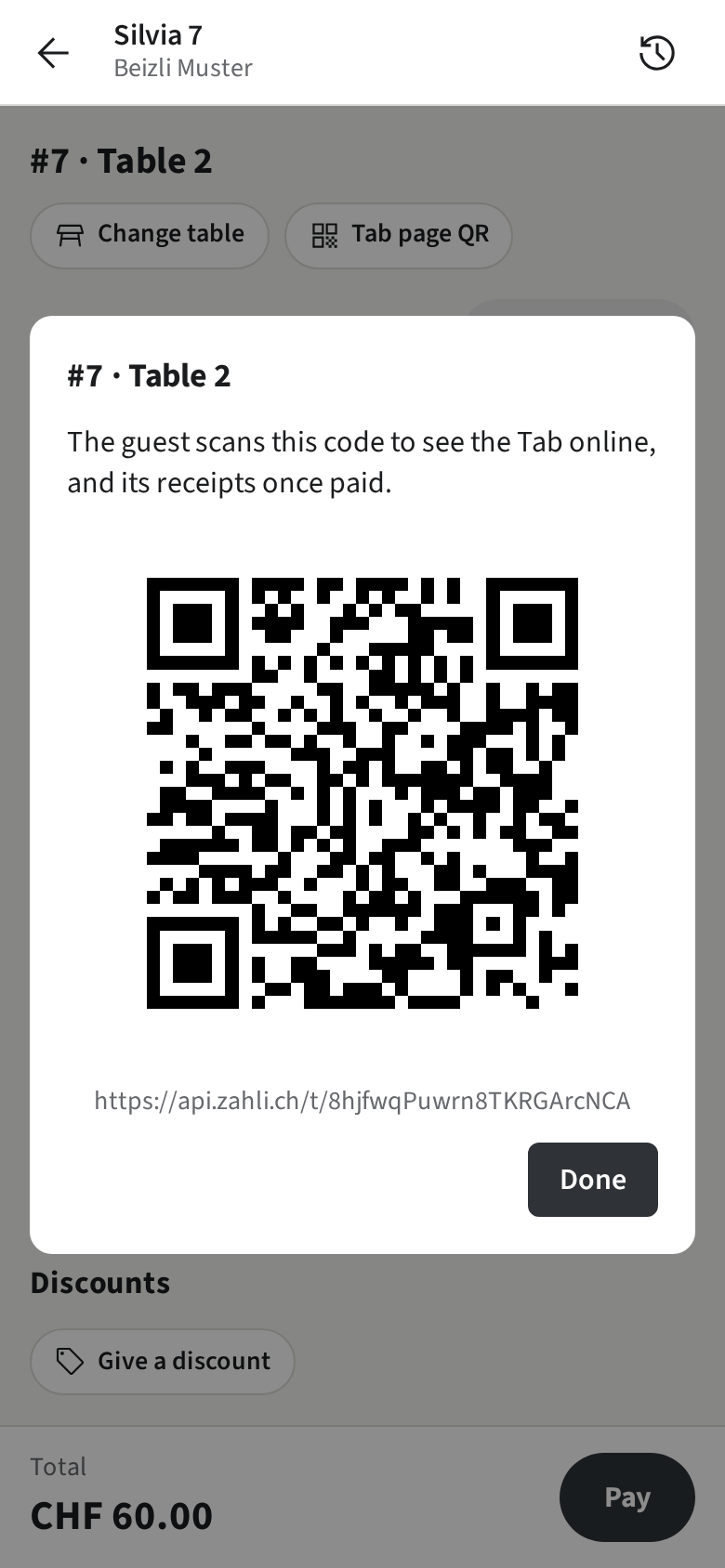
Every Tab has its own web page, the Tab page: what was ordered, and once paid, the Receipts.
The guest opens it with a QR code; nothing about them is asked or kept.
On the Tab, tap Tab page QR.
Let the guest scan the code with their phone’s camera.
Only with Guest slips
Some guests get the code on paper: the Guest slip printed with their Round carries it, with the
Pickup number for a Walk-in.
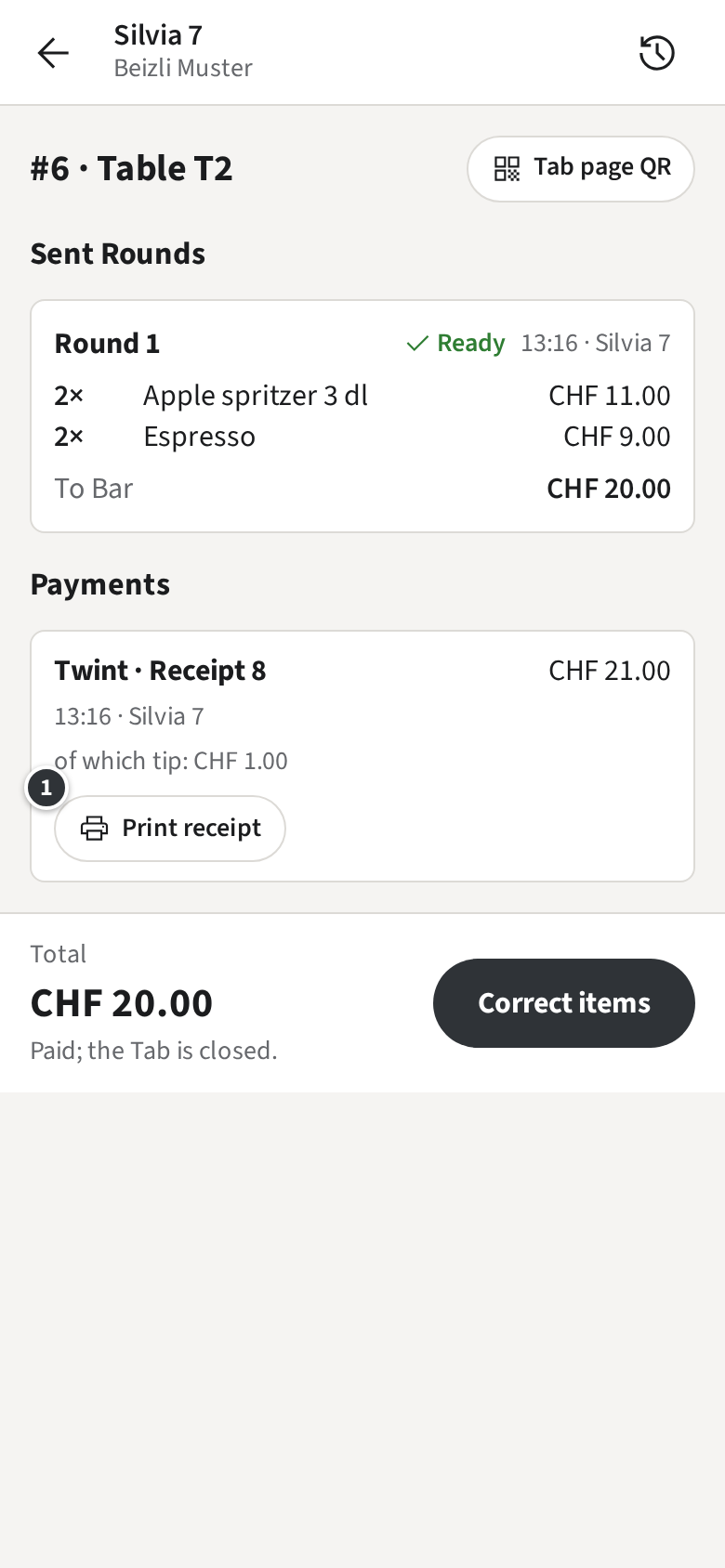
Right after paying, tap Print receipt on the Pay sheet.
Later, open the Tab, for example from the History, and tap
① Print receipt on the Payment.
The Receipt prints at the venue’s receipt printer. A Tab paid with several Payments has a
Receipt for each.
Only without a receipt Printer
Your venue prints no Receipts; the guest finds them on the Tab page.
Correcting your own Payment
Once a Tab is paid, its items can no longer be voided. If something was wrong, you correct the
items and give the money back. You can do this for Payments you took yourself, on the same
business day; anything else a Manager does.
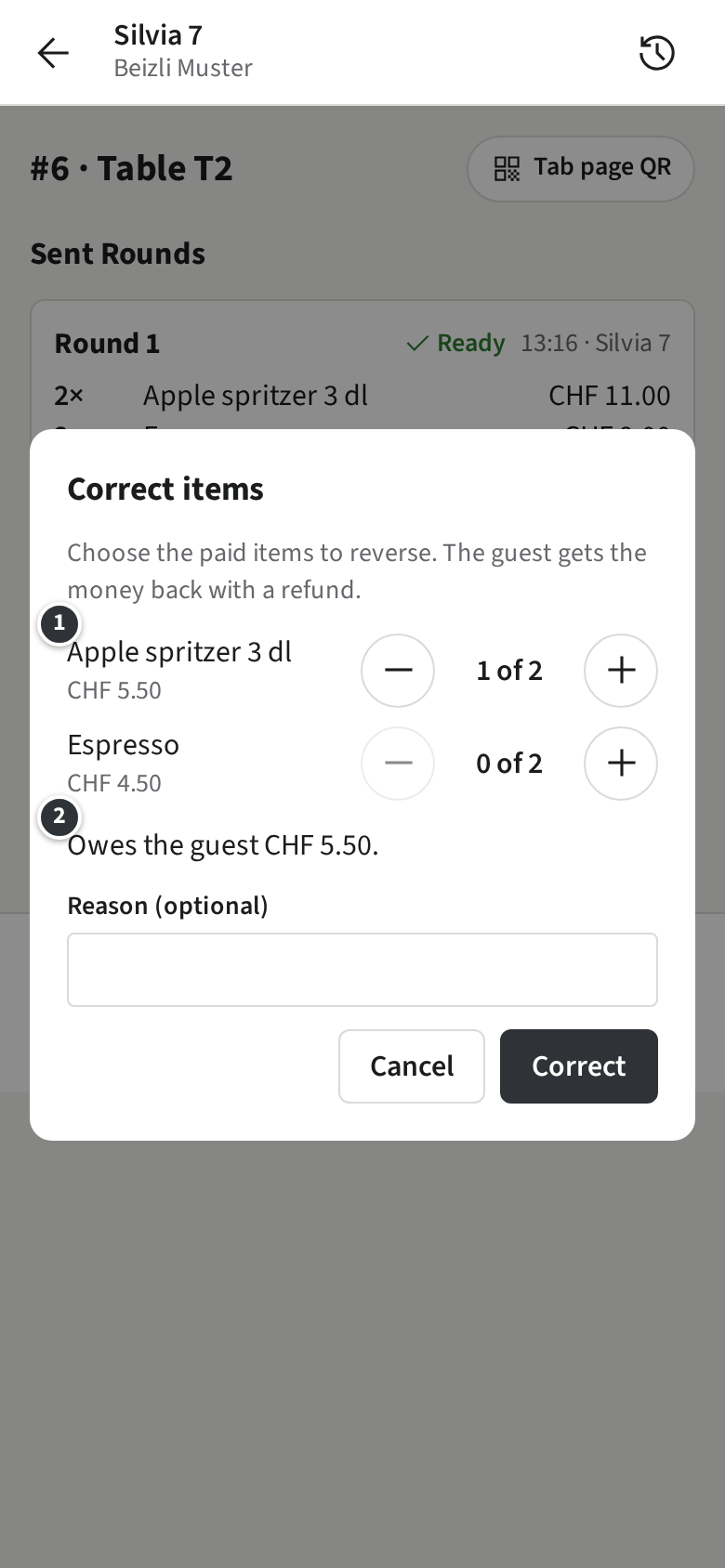
Example: Table T2 on the Terrasse paid CHF 21.00 by Twint, but one apple spritzer never came.
Open the Tab, for example from the History, and tap
Correct items.
Pick the items to take back ①: one apple spritzer. ② shows what the guest gets back: CHF 5.50.
Add a reason if it helps and tap Correct.
The refund opens by itself on your Payment, with the amount filled in. Then:
For Cash, hand the money back and tap Refund.
For Twint, send the refund in the Twint Business app first, then tap
Refund.
For Card, tap Refund: the money goes back to the card.
The Tab shows the correction and the refund, each with its own Receipt number. If your Payment
cannot cover it, the staff app tells you to ask a Manager.
History
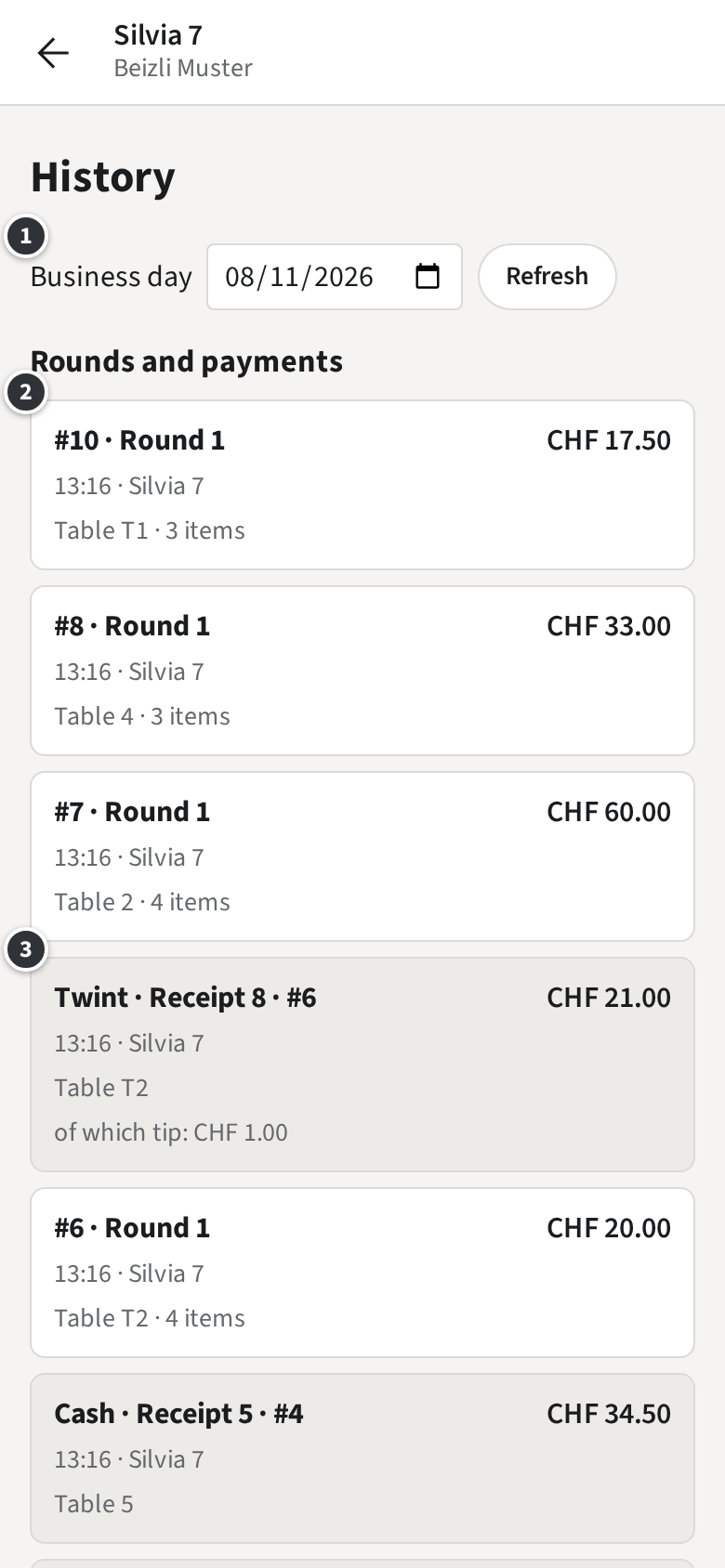
The History lists your Rounds and Payments of a business day, the latest first, and every Tab
closed that day. Open it with the clock icon at the top right of the staff app.
① picks another day; Back to today comes back.
A Round ② reads #7 · Round 1: the Tab number, then the Round, with its place and number of
items.
A Payment ③ reads Twint · Receipt 8 · #6, with the Tip and any refund.
Below, Closed Tabs lists the day’s closed Tabs by Table, the Walk-ins last.
Tap an entry to open its Tab. A Payment opens with that Payment highlighted, where you
print its Receipt or correct it.
Example: a guest of Table T2 comes back for a Receipt. Silvia opens the History, taps
Twint · Receipt 8 · #6 and prints the Receipt from the Tab.
Working offline
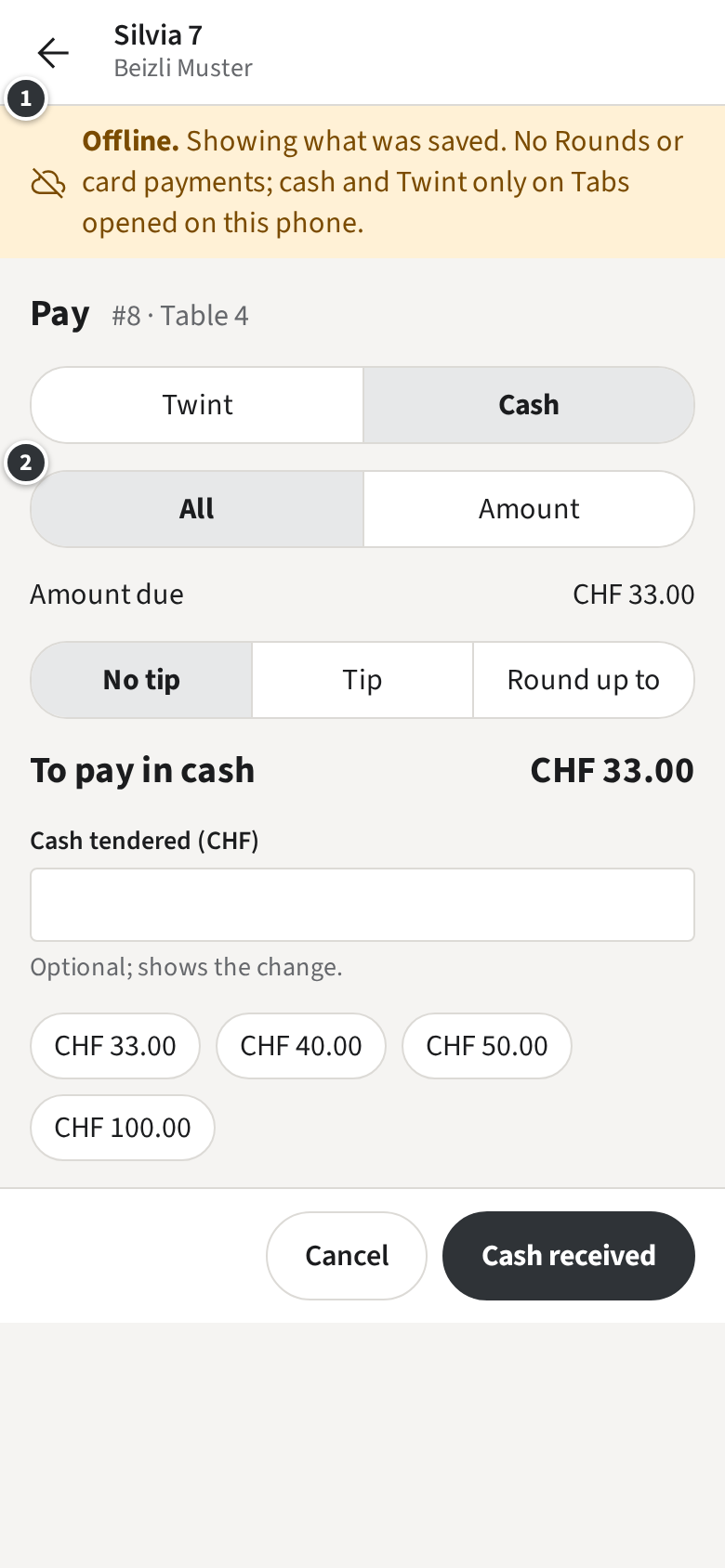
When the phone loses its connection, the staff app shows Offline. at the
top ① and keeps showing the Rooms, the menu and the open Tabs as they were last loaded.
While offline:
No Rounds: nothing can be sent to the Stations. Keep the items in the Draft and send them
when the connection is back.
No Card, no printing, no Voids or Discounts.
Cash and Twint still work, for the whole amount or an amount ②, on Tabs opened on this
phone that no other phone changed. Silvia opened Table 4 on her phone, so she can take its
cash.
A Payment taken offline shows as Pending sync. Once the phone is online
again and you are signed in, it is booked by itself. Until then it cannot be refunded or printed.
Stay signed in until it is synced.
If the Tab changed elsewhere in the meantime, the Payment is not booked and the Tab shows
Needs attention: a Manager sorts it out.
In a browser there is no working offline: the banner says nothing can be saved until the
connection is back.
Round done
Only with a kitchen terminal
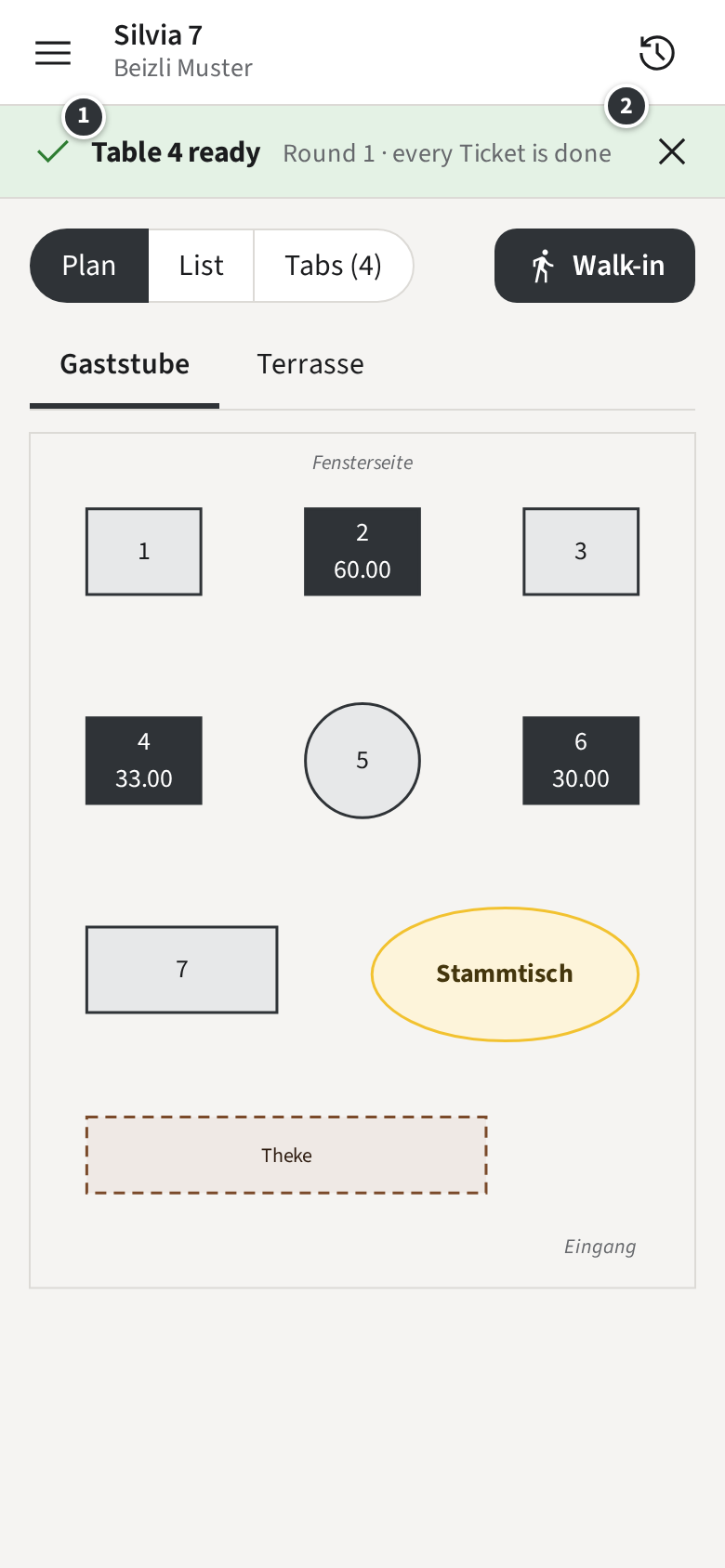
Your kitchen marks each Ticket done on its kitchen screen. Once every Ticket of a Round you sent
is done, a banner tells you, on whatever screen you are.
① names the place, such as Table 4 ready, or the Pickup number of a Walk-in. Tap it to open
the Tab and serve.
② dismisses the banner.
Only the Staff member who sent the Round gets the banner. On the Tab, the Round shows
Ready.
Only without a kitchen terminal
Your kitchen works from printed Tickets, so the staff app does not know when a Round is done;
the kitchen tells you as usual.