This Guide is for the kitchen and the bar, working at the kitchen terminal: a tablet that shows
what the service sends you. Nobody signs in there; once a Manager has set the tablet up, it shows
its Tickets until it is switched off. Each topic is one task, with an example from Beizli
Muster, a small restaurant whose tablet K-001 hangs in the kitchen and shows the Tickets of the
Kitchen and of the Bar.
Tab: everything one party has, at a Table or as a Walk-in. Each has a Tab number, such
as #7.
Round: what a Waiter sends at one moment for one Tab, such as the main courses and the
drinks of Table 2. The Rounds of a Tab are counted Round 1, Round 2 …
Station: where things are made, such as the Kitchen or the Bar. Every menu Category goes to
one Station.
Ticket: the part of one Round for one Station. A Round of a cordon bleu and two beers makes
one Ticket for the Kitchen and one for the Bar. A Ticket is what you see, print again and mark
done.
Pickup number: the number of a guest who ordered at the counter (a Walk-in) instead of at a
Table. Call it out when everything is ready.
TEST: a Ticket from training. Its Tab is a test Tab, which moves no real money; the Ticket
prints with TEST too.
On each Ticket:
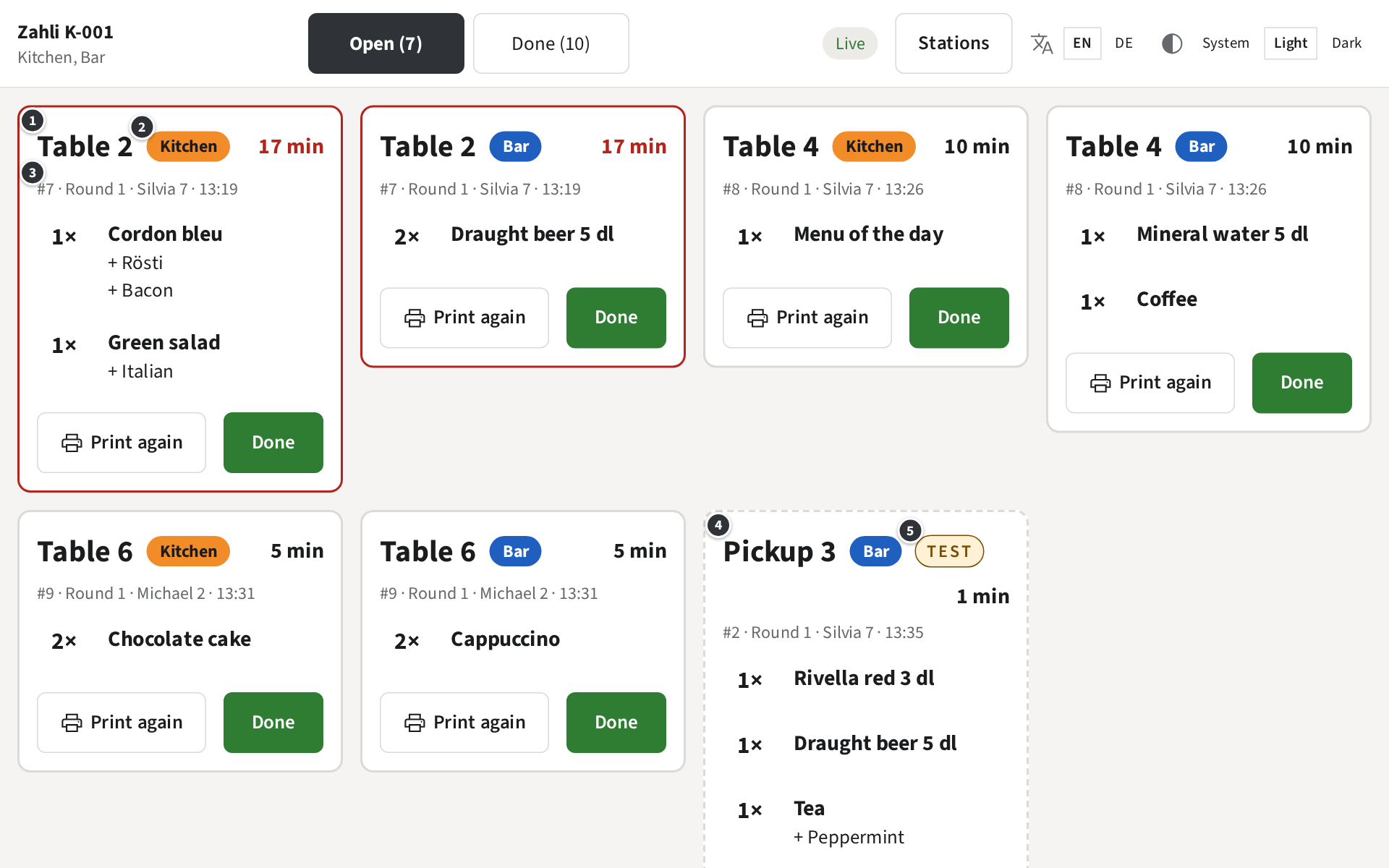
① where it goes: Table 2, or ④ Pickup 3 for a Walk-in.
② its Station, when the tablet shows more than one.
③ the Tab number, the Round, who sent it and when: #7 · Round 1 · Silvia 7 · 13:19.
⑤ TEST and a dashed border on a test Ticket. Nobody is waiting for it: make it only if
whoever trains says so, and mark it done like any other.
Where the venue lets guests pay first, a Round reaches you only once its Tab is paid.
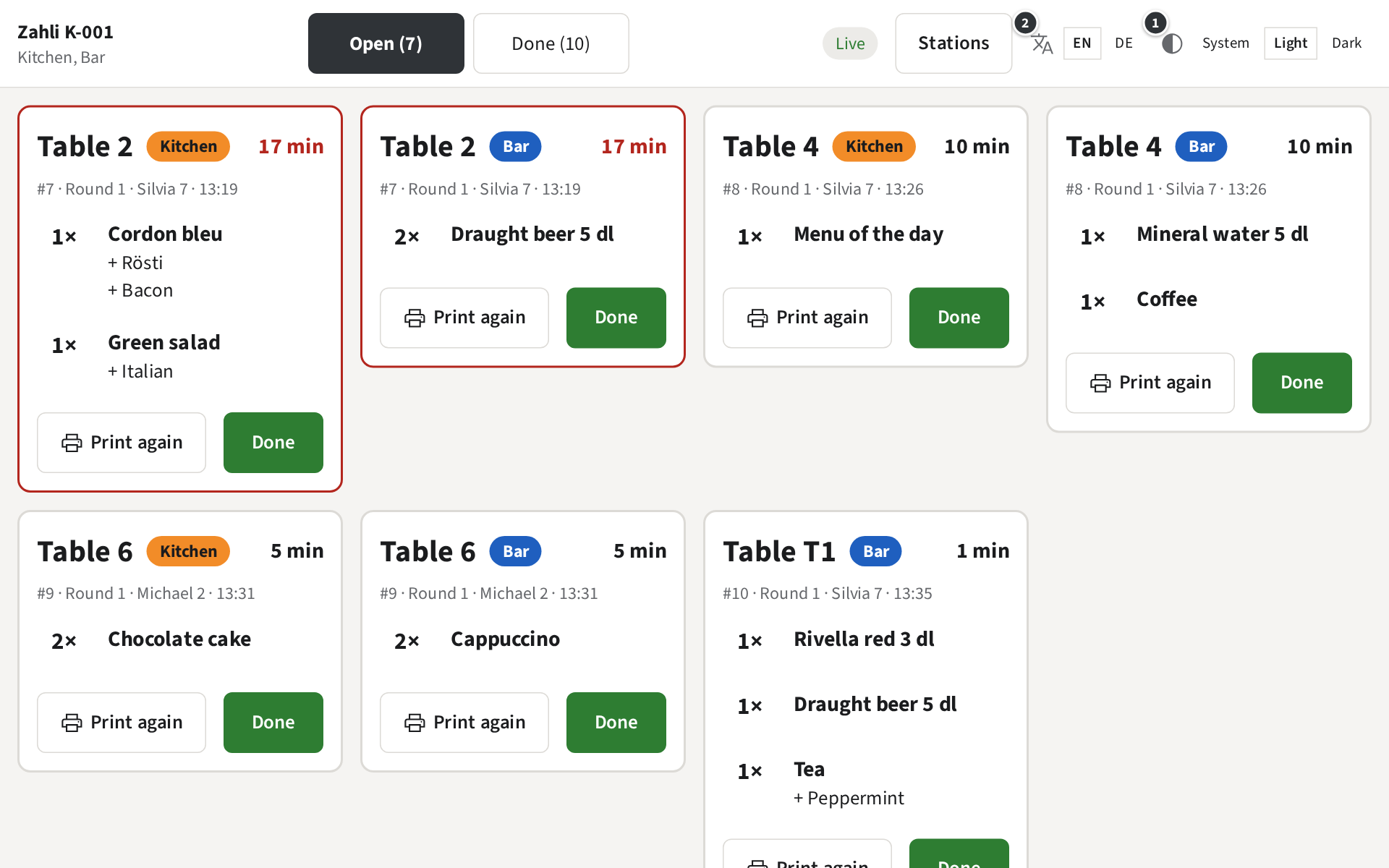
The kitchen terminal shows the Tickets of its Stations as cards, open ones first.
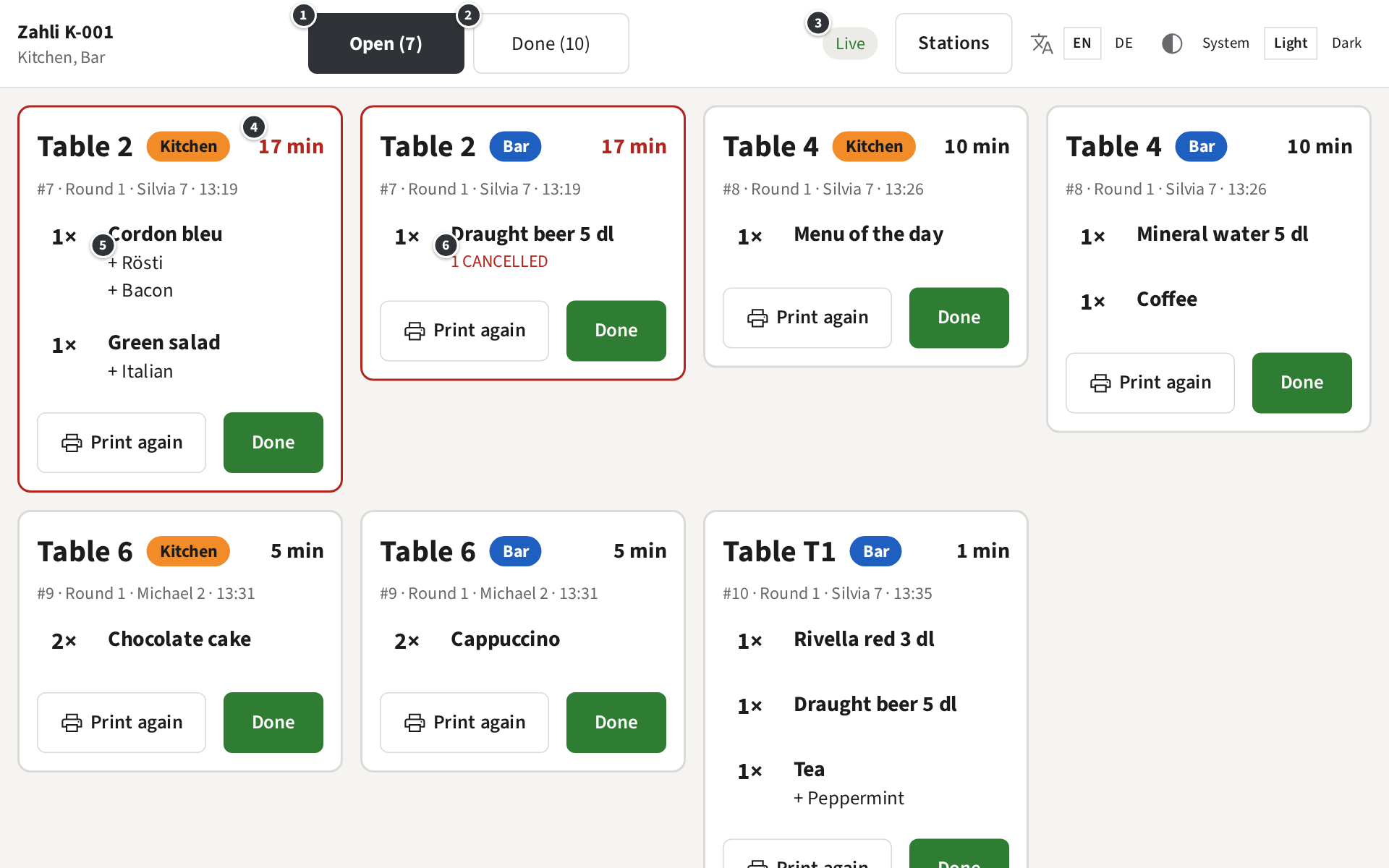
① Open (7) lists the Tickets still to make, the oldest first, at
the top left. New ones join at the end.
② Done (10) lists the Tickets done today
(Done Tickets).
③ Live means the screen gets new Tickets as they are sent.
④ how long ago the Round was sent. From 15 minutes on, the time and the card’s border turn red.
⑤ the Modifiers of an item, below it with a +: Cordon bleu + Rösti + Bacon. A Note from the
Waiter follows with », a Note on the whole Round below the items.
⑥ 1 cancelled: the Waiter took one of the two beers off the Tab. Make only what is left; the
printer usually prints a cancellation for it too. An item cancelled in full is crossed out.
When the tablet shows more than one Station, each Ticket carries a badge with its Station’s name
in its colour, here the orange Kitchen and the blue Bar. A tablet for one Station shows no badge.
Top left, the screen names the tablet and its Stations: Zahli K-001 · Kitchen, Bar.
Example: at 13:37 at Beizli Muster, Table 2 has waited 17 minutes for its cordon bleu and its
beer, both red; the cook starts with them, the bar pours one beer, not two.
When the tablet loses the internet, the screen says Offline and
No connection to the server. Showing the last known Tickets; new Tickets appear once the connection is back. Keep working from the screen and the printed Tickets; it connects
again by itself.
New Tickets and sound
When a Waiter sends a Round, its Ticket appears on the kitchen terminal within a moment, as the
last of the open Tickets, and the tablet chimes: two short tones. The
Ticket also prints, if a printer prints the Station’s Tickets.
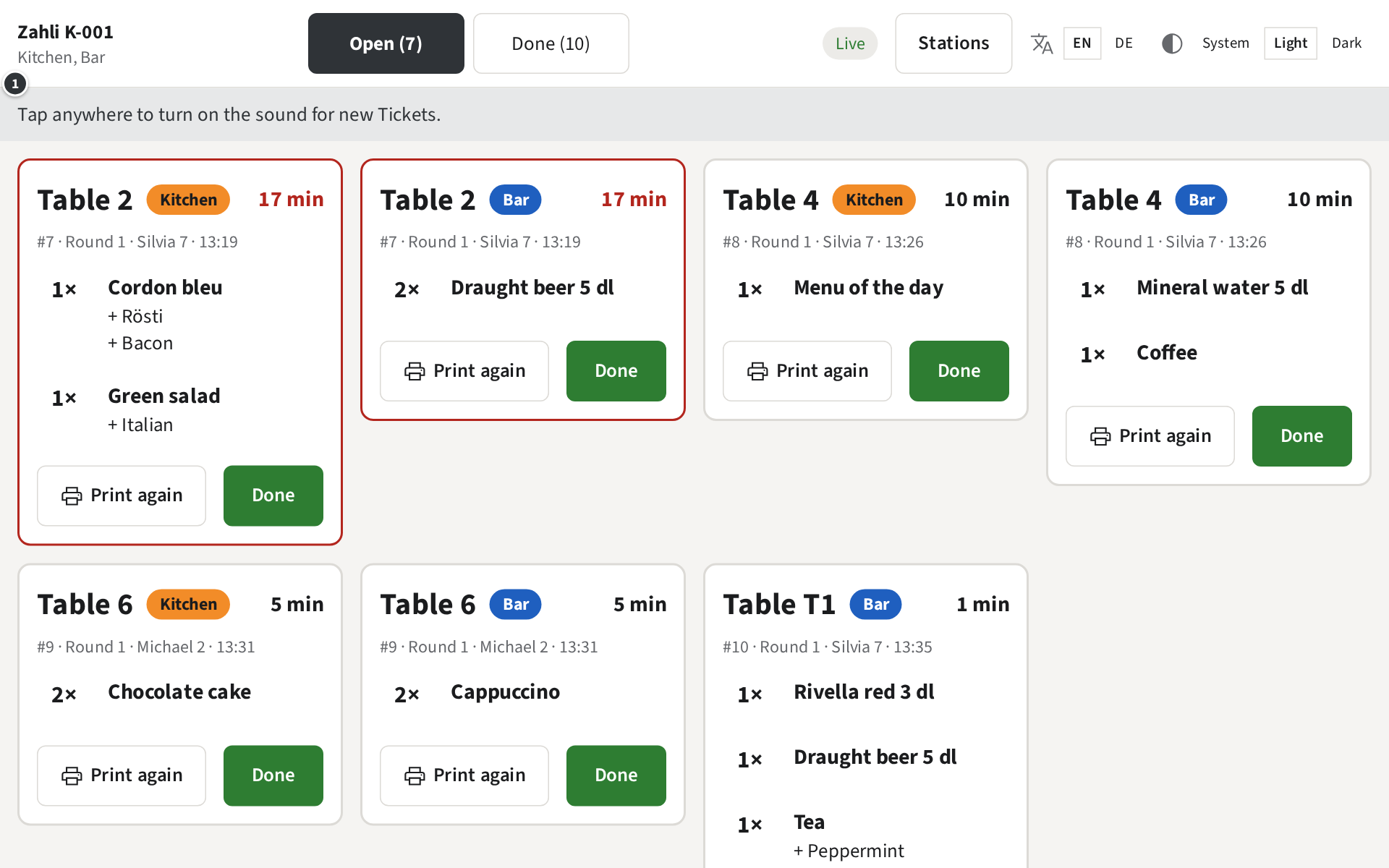
The browser lets the tablet make a sound only after someone touched the screen. Until then it
says so at the top:
① Tap anywhere to turn on the sound for new Tickets. Tap anywhere on the screen once; the banner goes, and
from then on every new Ticket chimes. After the tablet or its browser restarts, tap once again.
The chime is as loud as the tablet: turn its volume up with the buttons on its side. Marking a
Ticket done or printing it again makes no sound.
Example: in the morning, the cook switches on K-001 and taps the screen once. At 11:42 Silvia
sends Table 4’s Menu of the day; the tablet chimes, and the Ticket is the last card on the
screen.
Marking done and undoing
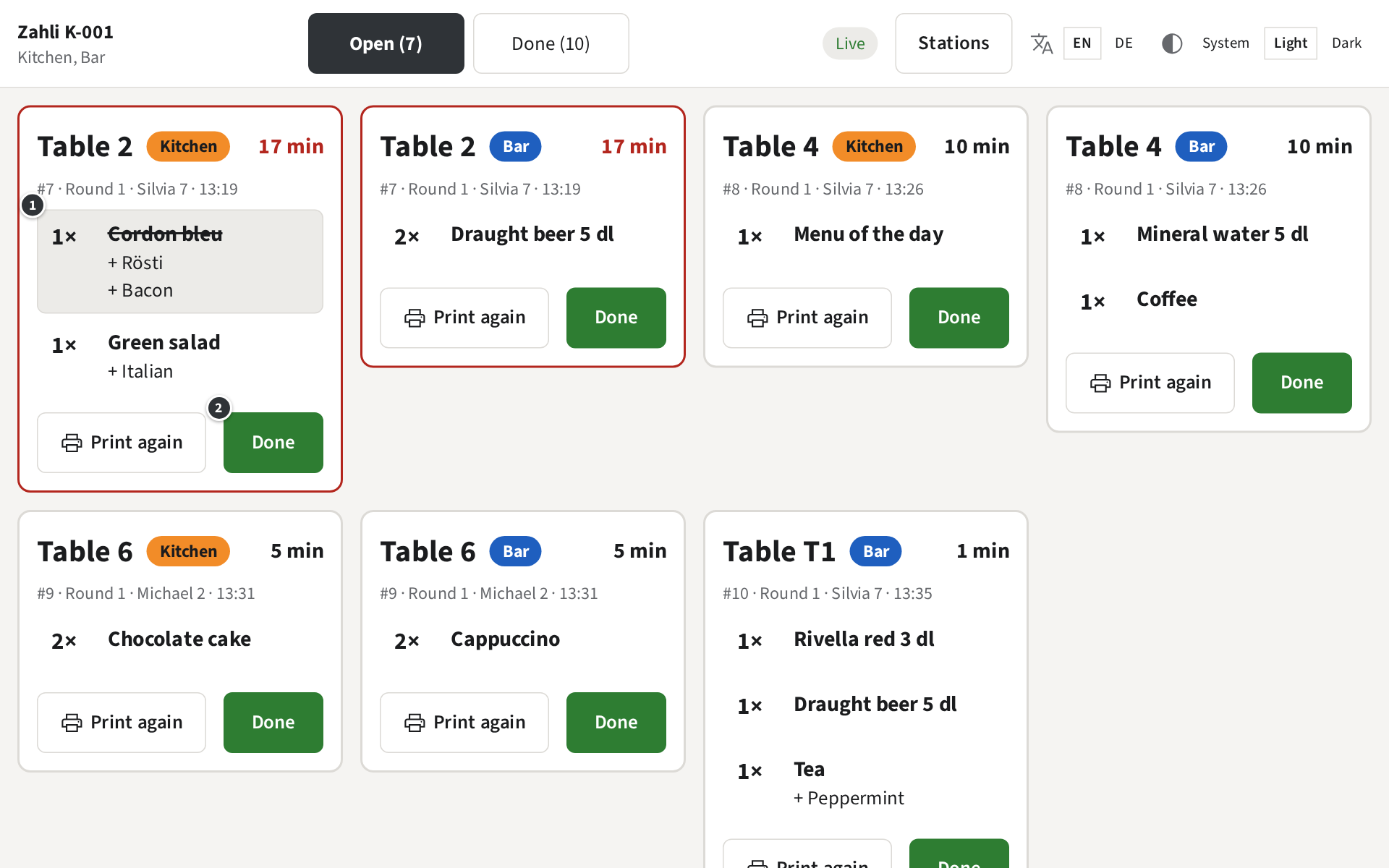
While you work through a Ticket, tap an item to tick it off: it is crossed out on a grey band. Tap
it again to undo the tick. Ticks only help you keep track; they stay on this tablet, and nobody
else sees them.
When the whole Ticket is ready, tap Done.
① the cordon bleu, ticked off.
② Done: the Ticket moves to the done Tickets, with the time it was
done.
Once every Ticket of a Round is done, the Kitchen’s and the Bar’s, the Waiter who sent it gets a
message in the staff app that the Round is ready. So tap Done when the
plates go out, not before.
Example: Table 2 has a cordon bleu and a green salad. The cook ticks off the cordon bleu once it
is in the pan, the salad once it is dressed, and taps Done when both
are on the pass. The bar has already marked its beer done, so Silvia’s phone says that Table 2 is
ready.
A done Ticket cannot be made open again. It stays with the done Tickets for the day: tap
Print again there to have it on paper again
(Done Tickets), and tell the Waiter, who may have been told the Round
is ready.
Done works without the internet too: the Ticket moves to the done ones
at once and says Waiting for the connection… until the tablet is connected again and sends
it.
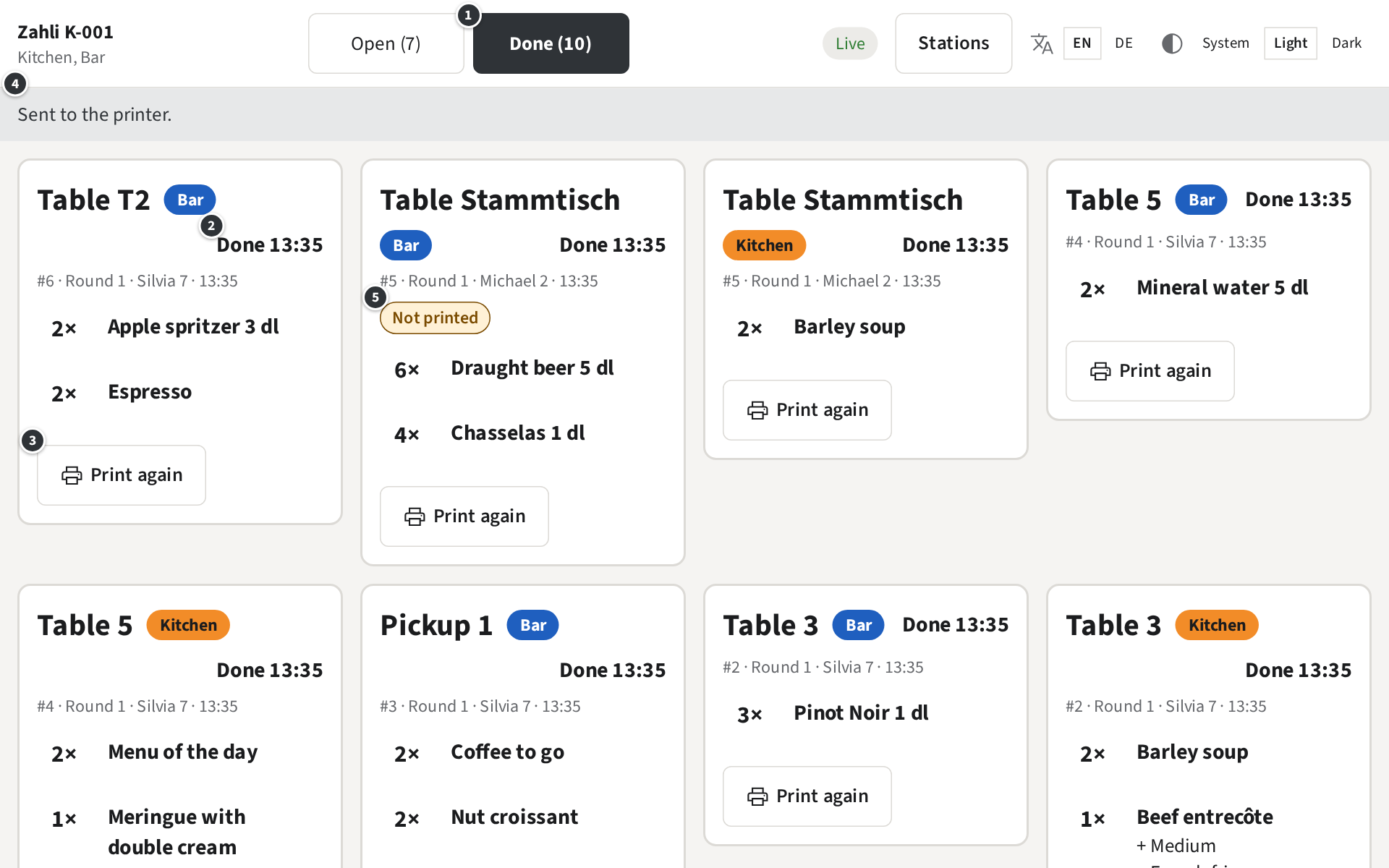
Done Tickets and reprint
The done Tickets are those of today, the latest first, up to the last 30. A Ticket can be printed
again from there, or from the open ones.
① Done (10) switches to the done Tickets;
Open (7) back to the open ones.
② when it was done: Done 13:35.
③ Print again prints the Ticket again on the Station’s printer, as it is
now: an item cancelled since is left off.
④ confirms it: Sent to the printer.
⑤ Not printed: the printer could not print this Ticket, perhaps it was
out of paper or switched off. Fix the printer, then tap Print again.
Example: the Ticket for Table T2’s apple spritzers fell behind the coffee machine. The bar switches to
the done Tickets, finds Table T2 and taps
Print again.
When printing again does not work, the screen says why:
No printer prints Tickets for this Station. A Manager chooses which printer prints the
Station’s Tickets.
Everything on this Ticket was cancelled; there is nothing to print.
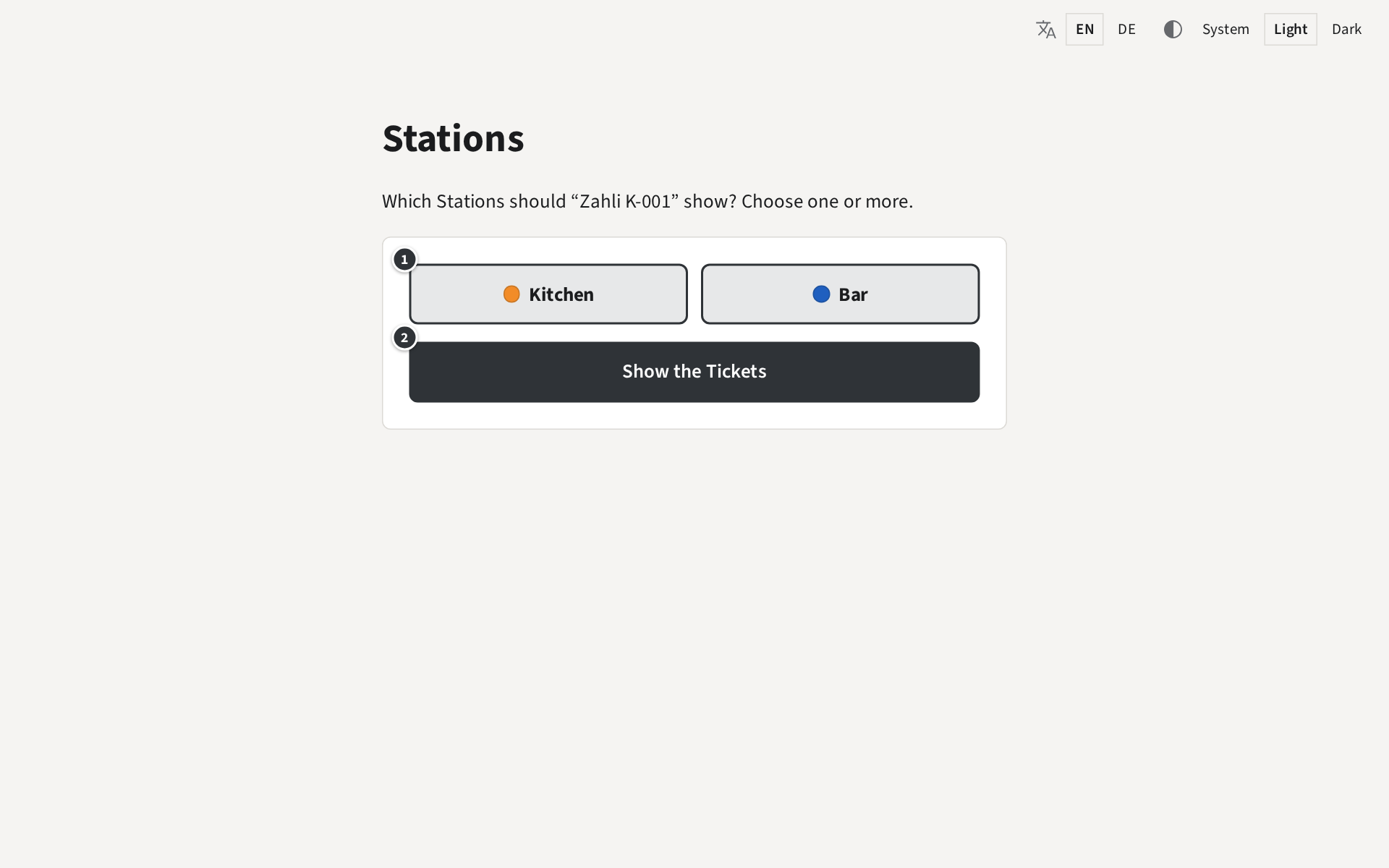
Choosing Stations
A kitchen terminal shows the Tickets of the Stations chosen on it: one, such as only the Bar, or
several. A Manager makes the Stations and their colours; which of them a tablet shows is chosen on
the tablet itself, and it keeps that choice.
Tap Stations at the top of the screen:
① tap a Station to choose it, tap it again to leave it out. A chosen Station is framed and bold.
② Show the Tickets goes back to the Tickets, now of the chosen Stations.
With more than one Station, each Ticket shows its Station’s badge
(Your screen).
Example: for a busy Saturday, Beizli Muster puts a second tablet at the bar. There, the bar taps
Stations, chooses only Bar and taps Show the Tickets. In
the kitchen, the cook does the same on K-001 with only Kitchen, so neither sees the other’s
Tickets.
Any kitchen terminal may mark done or print again any Ticket it shows; when two tablets show the
same Station, a Ticket marked done on one is done on both.
Light and dark
At the top right of the screen are two switches, kept by this tablet.
① Light and Dark set the colours; System
follows the tablet’s own setting, which may change with the time of day. Dark is easier on the
eyes in a dim bar, light reads better in a bright kitchen.
② EN and DE set the language of the screen. The items keep the names the menu has in that
language; the times follow the venue’s settings.
Example: the bar of Beizli Muster is dim in the evening. On its tablet, the bar taps
Dark; the kitchen’s tablet stays Light.
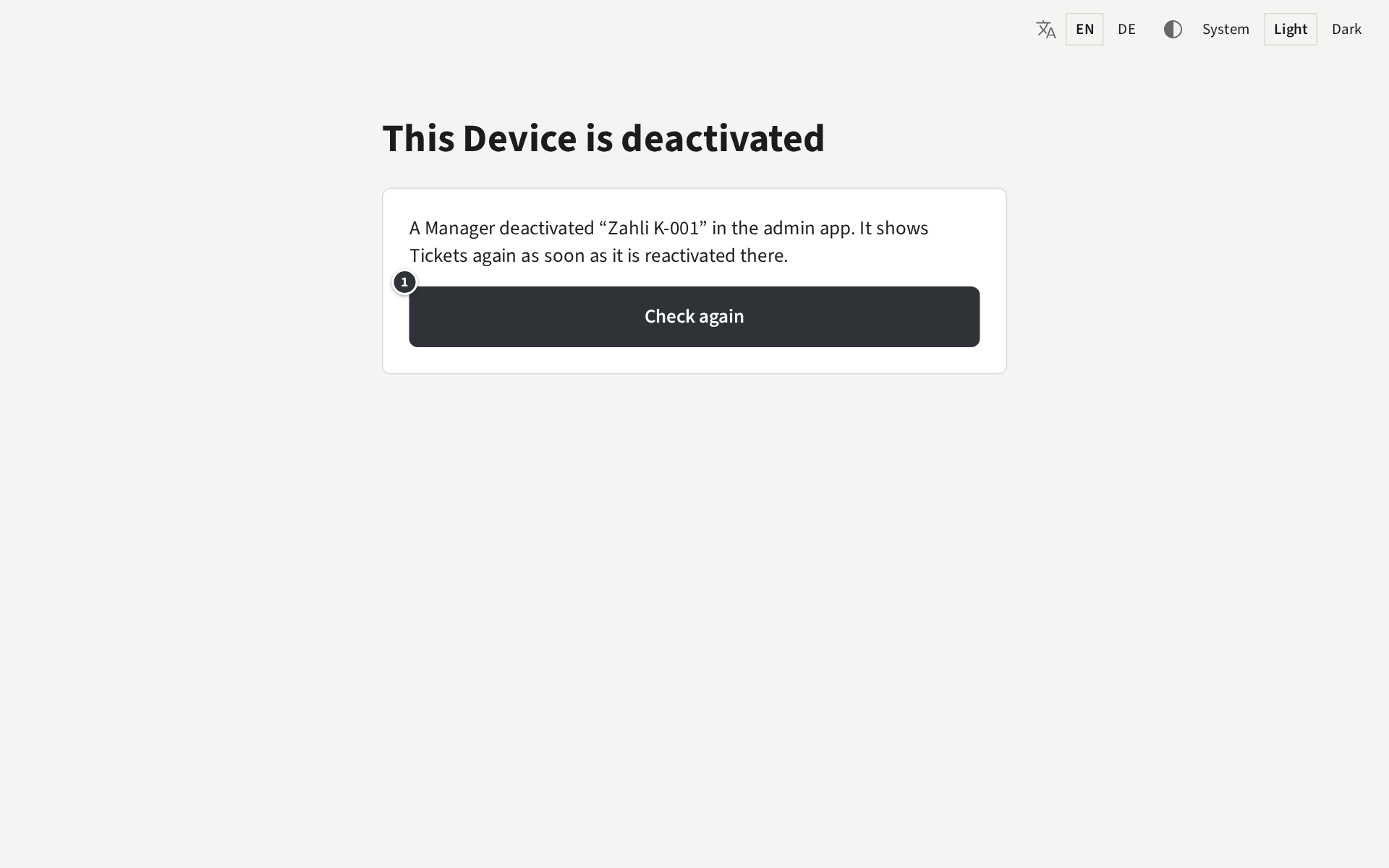
When the screen says deactivated or Not rented
Sometimes the kitchen terminal shows a message instead of the Tickets. You cannot fix these on the
tablet; tell a Manager, and in the meantime work from the printed Tickets.
A Manager has stopped this tablet in the admin app, for example because it was lost for a while.
Once they reactivate it there, the screen goes back to its Tickets by itself, within half a
minute; ① Check again checks at once.
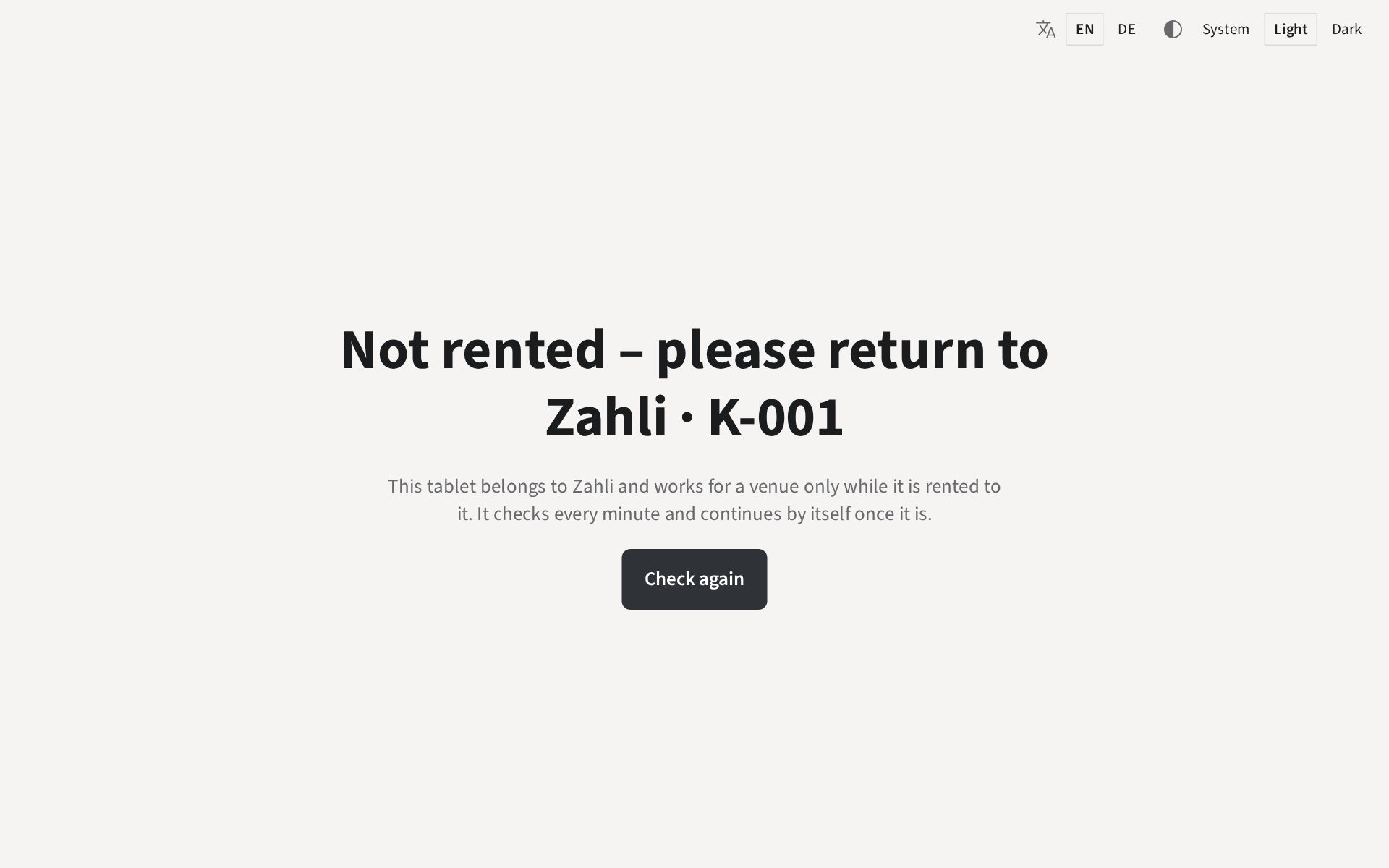
This tablet belongs to Zahli, and the venue’s rental of it has ended. It shows the number on its
sticker, here K-001. Give it back to Zahli as agreed. If the venue rents it again, it goes on by
itself; it checks every minute, and Check again checks at once.
When the screen shows Kitchen terminal and asks for a code, the tablet is no
longer set up for the venue: a Manager removed it, or its browser data was deleted. A Manager sets
it up again with a new code from the admin app, as Devices in the Manager
guide explains.
Example: Beizli Muster rented K-001 for the summer. On 1 October the screen says
Not rented – please return to Zahli · K-001, and the kitchen hands the tablet back to Zahli
with its charger.